Bulk Update Custom Fields
Last updated: August 11, 2026
Backfill or update Custom Fields across many shipments and containers at once using the Container Dashboard.
Need to update Custom Fields for existing shipments and containers? Bulk Update lets you upload a spreadsheet and apply changes to many records at once—no manual record-by-record editing required.
This feature supports both shipment-level and container-level Custom Fields in a single upload.
Before You Start
Make sure your Custom Fields are already set up. If you haven't created them yet, see Setting Up Custom Fields.
How Bulk Update Works
Bulk Update matches rows in your spreadsheet to existing shipments and containers in Terminal49 using Shipment Number + Container Number as the matching key.
Important: Both Shipment Number and Container Number are required for matching. Container Number alone cannot be used because container numbers are not unique—they may be reused across shipments, especially for LCL (Less than Container Load) shipments where tracking relies on BOL + Container Number.
Step-by-Step Instructions
1. Prepare Your Spreadsheet
Create a CSV or Excel file with the following columns:
Column | Required? | Description |
Shipment Number | ✓ Yes | The shipment number (BOL/Booking number) |
Container Number | ✓ Yes | The container number |
Your Custom Fields | As needed | One column per Custom Field you want to update |
Example spreadsheet:
Shipment Number | Container Number | Purchase Order | Priority | Container Issues |
MAEU123456789 | MSCU1234567 | PO-2024-001 | High | Hot Parts |
MAEU123456789 | MSCU7654321 | PO-2024-001 | High | |
OOLU987654321 | TCLU9876543 | PO-2024-002 | Medium | Destination Change |
Tips for your spreadsheet:
Use the exact Custom Field names as column headers (matching how they appear in Terminal49). In the upload modal you'll see custom field level as a prefix, e.g. 'shipment-' or 'container-'
Shipment-level fields (like "PO Number" or "Priority" above) will update the shipment and apply to all containers on that shipment.
Container-level fields (like "Container Issues" above) will update only the specific container
Leave cells blank if you don't want to change that field for a particular row
You can mix shipment-level and container-level fields in the same spreadsheet
2. Upload Your Spreadsheet
Go to the Container Dashboard.
Click the Bulk Update button.
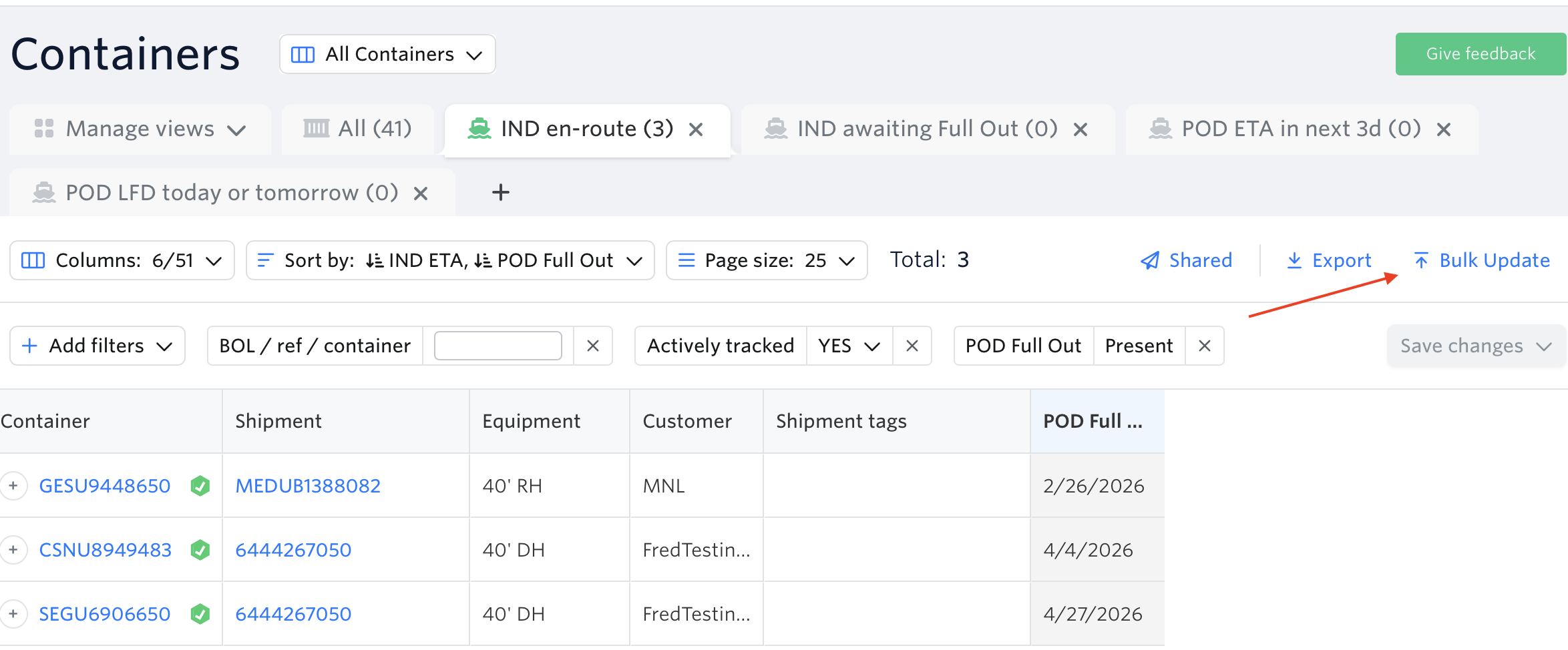
Upload your CSV or Excel file.
3. Map Your Columns
After uploading, you'll see a mapping screen:
Map Shipment Number and Container Number to the correct columns in your file.
Map each Custom Field column to the corresponding field in Terminal49.
The system will show you which fields are shipment-level vs container-level.
4. Preview and Confirm
Before applying changes:
Review the preview to see which records will be updated.
Check for any rows that couldn't be matched (these will be flagged).
Verify the values look correct.
Click Save to apply all changes.
How Updates Are Applied
Field Type | What Gets Updated |
Shipment-level fields | The shipment is updated. All containers on that shipment will reflect the new value. |
Container-level fields | Only the specific container is updated. Other containers on the same shipment are not affected. |
Common Use Cases
Backfilling PO numbers for shipments already in progress
Adding priority flags to highlight urgent containers
Tagging containers with issues (holds, damage, destination changes)
Updating customer references from your TMS or ERP
Bulk-assigning project codes for reporting
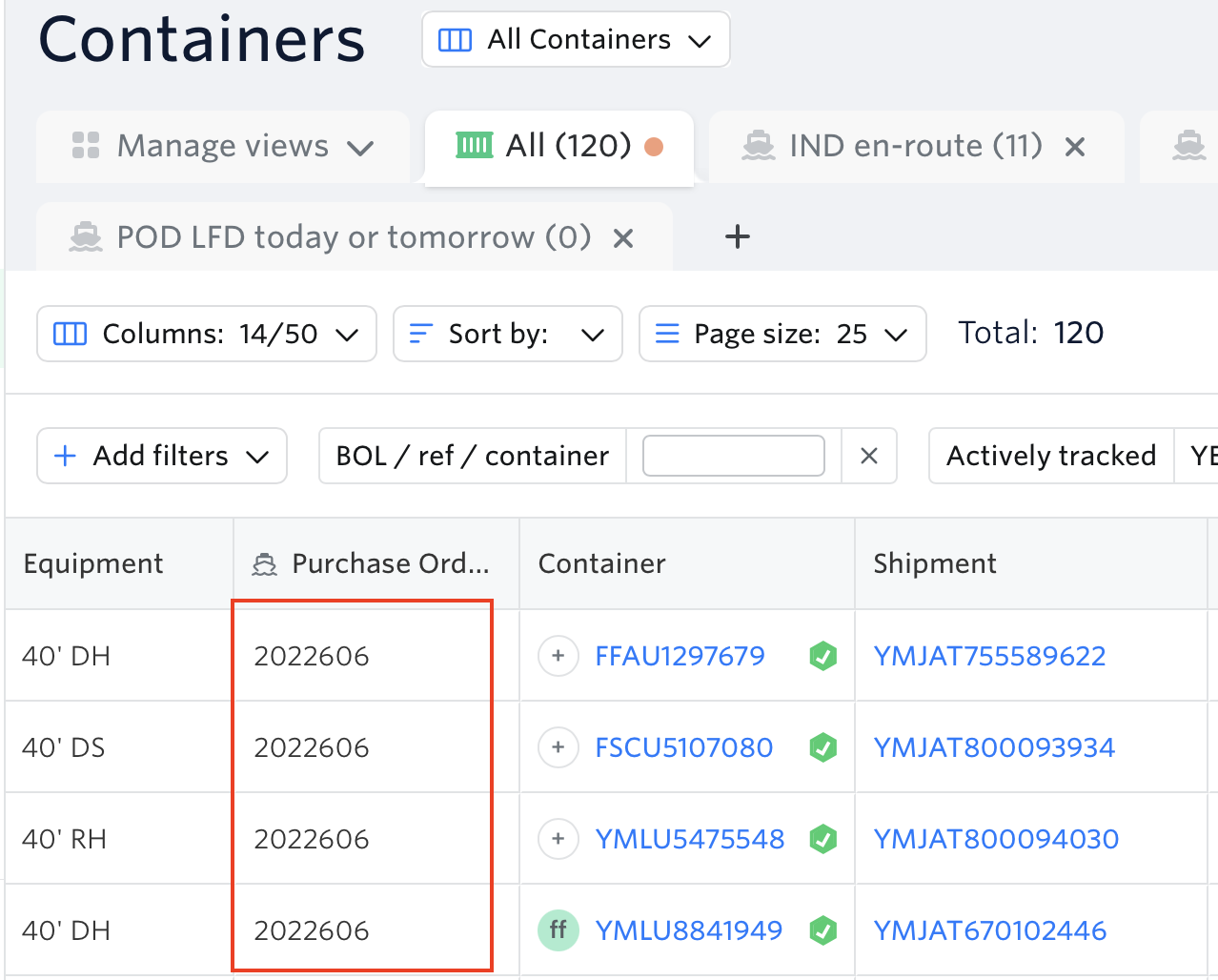
Bulk Updating Custom Fields Using In-App Multi Cell Selection
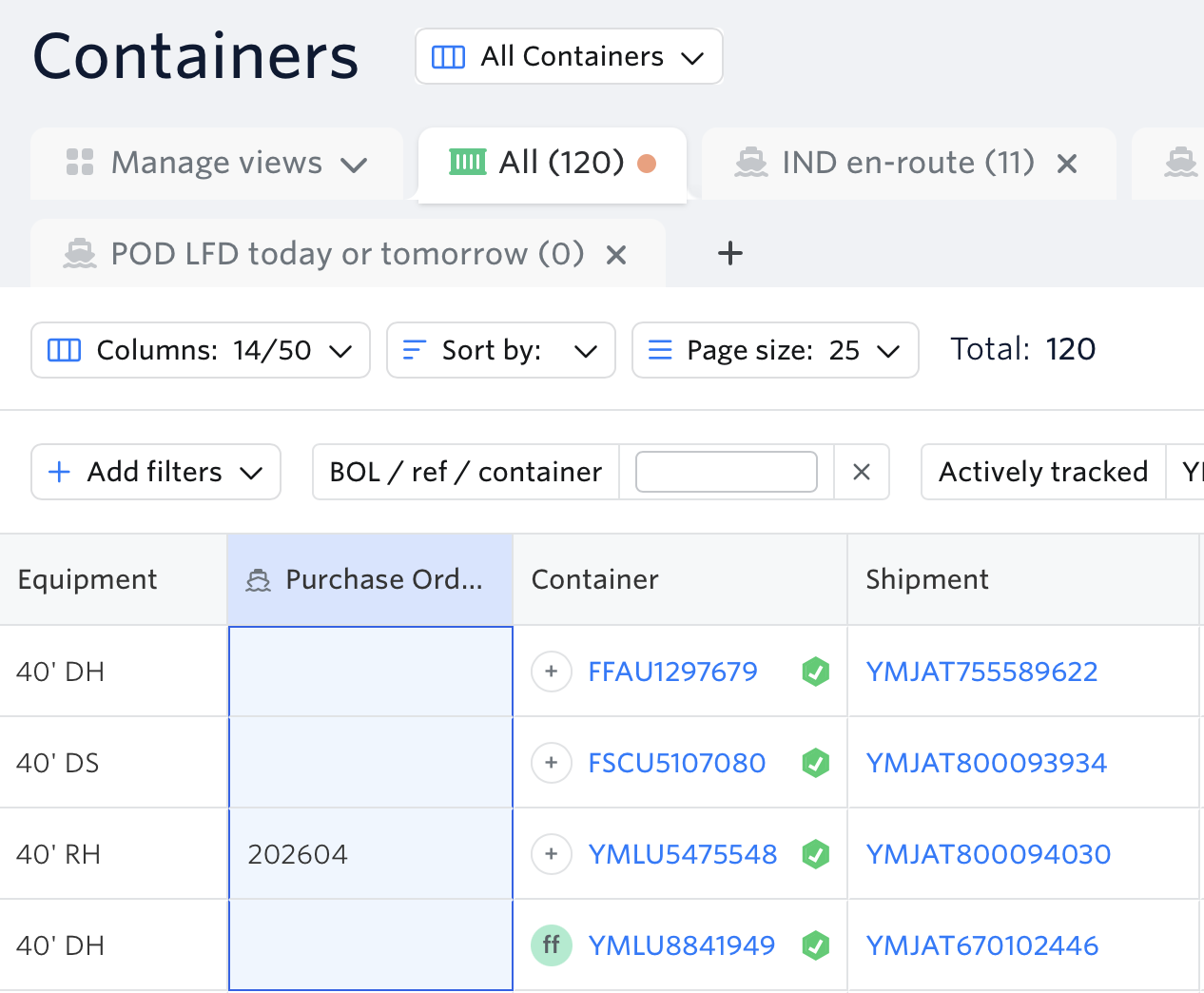
This option allows you to update multiple selected cells and bulk edit them in one go inside the container views.
Highlight the cells you need to edit
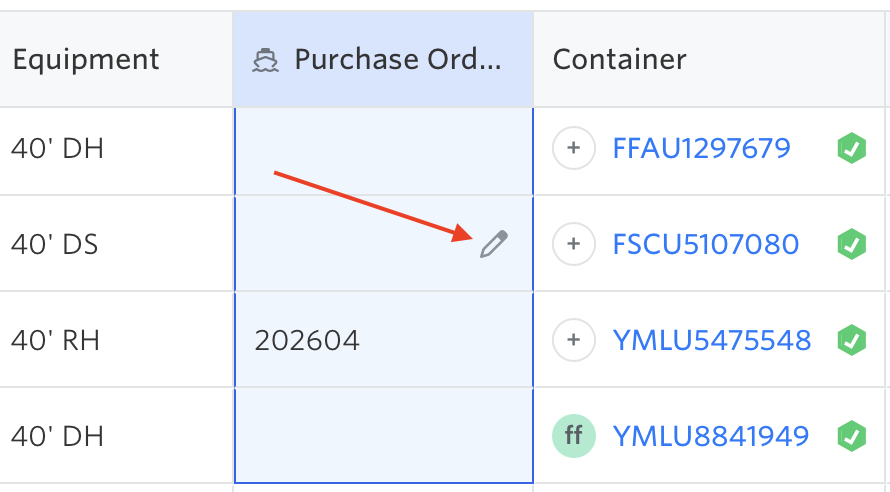
Bulk inline edit — Click the pencil icon and enter or paste the data into one cell to apply to all selected rows.
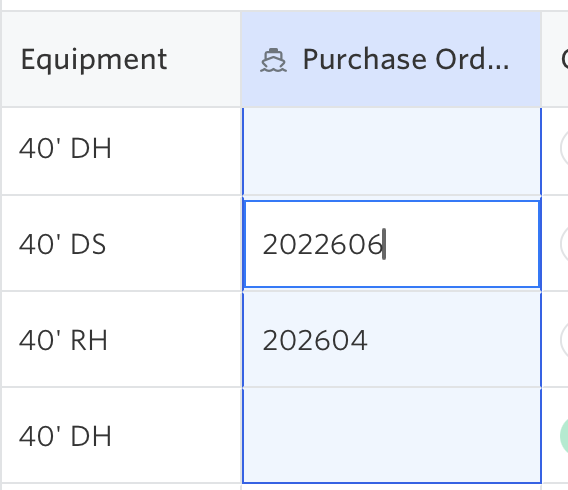
Hit Enter. Once done, all highlighted cells will be updated.
Troubleshooting
Rows not matching?
Verify the Shipment Number and Container Number are correct and match what's in Terminal49
Check for extra spaces or formatting issues in your spreadsheet
Ensure the container is associated with the specified shipment
Custom Field not appearing in mapping?
Make sure the field has been created in Settings → Custom Fields
Check that your column header matches the field name
Need help? Contact us via support@terminal49.com or use our in-app chat.