Adding Documents
Last updated: September 21, 2026
You can add documents to Terminal49 from the Documents page in the app, via email, or from an individual shipment's page.
Upload from the Documents page (in the app)
Go to the Documents page in Terminal49. From here you have two options:
Option A – Use the Upload button
Click Upload in the top-right corner.
Choose:
Upload File – select one or more files from your computer
Upload Folder – select a folder to upload all documents in that folder
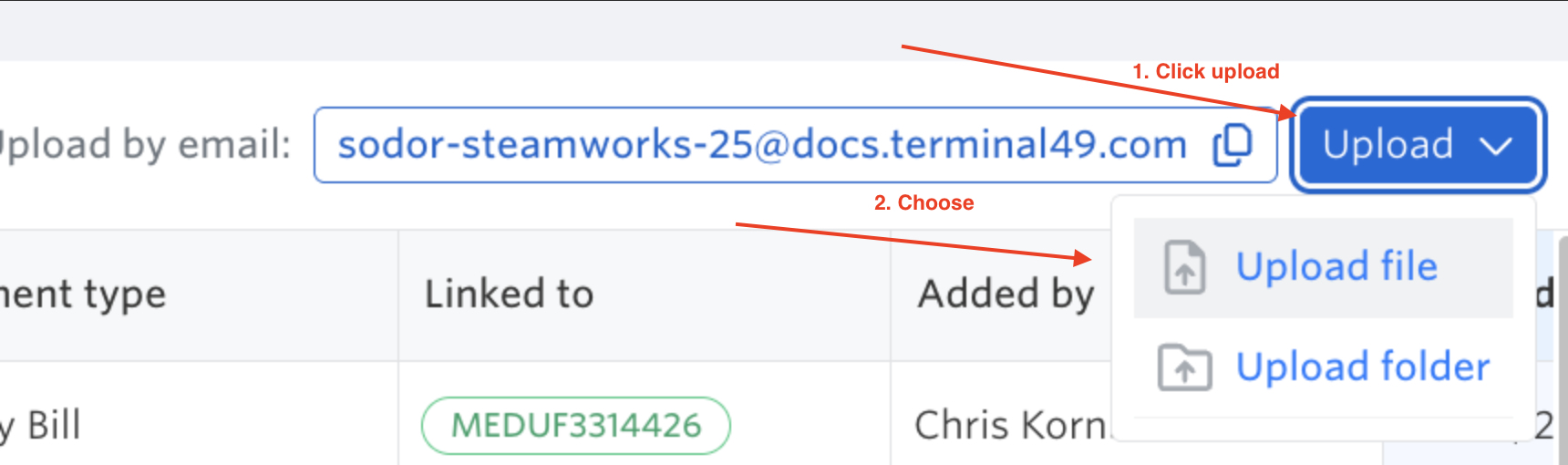
The files will be uploaded and then processed automatically.
Option B – Drag and drop
On the Documents page, drag a file (or multiple files) from your computer over the documents table.
When you see a blue outline around the table, release the mouse.
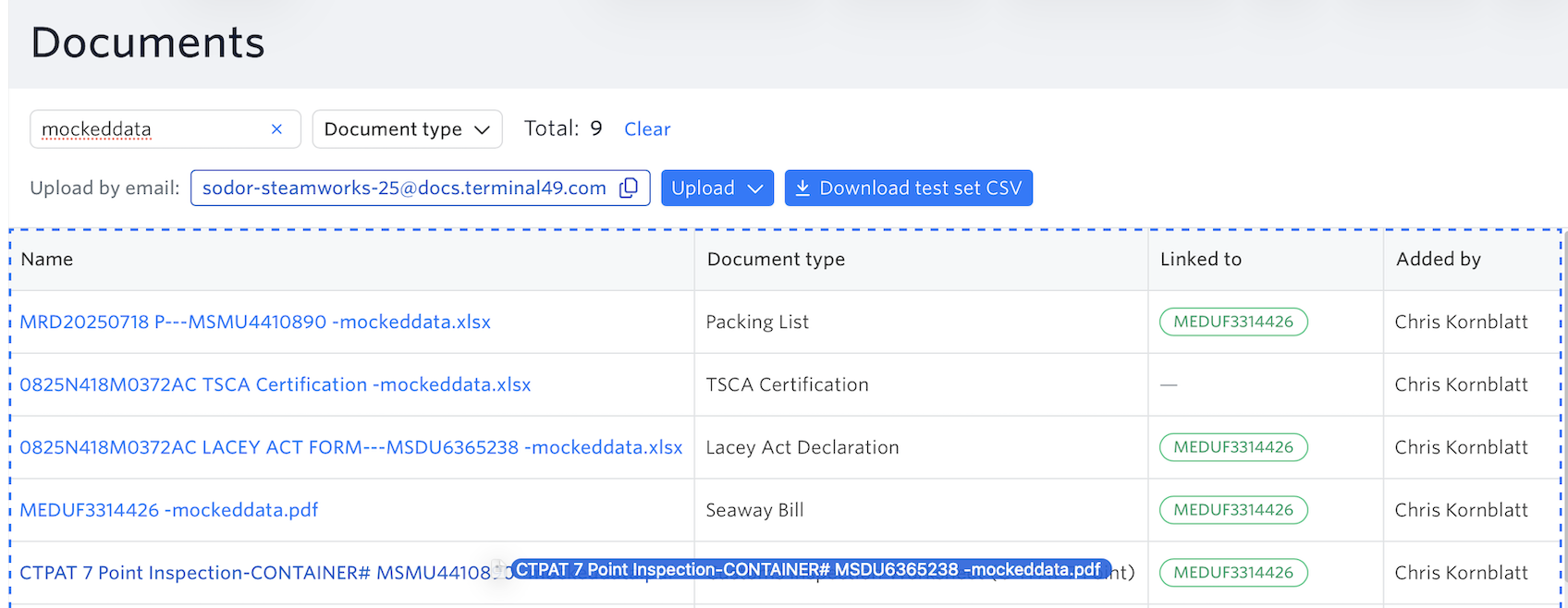
The file will upload and then be processed.
Upload from the Shipment's page
Go to the shipment's page in Terminal49 → Documents tab
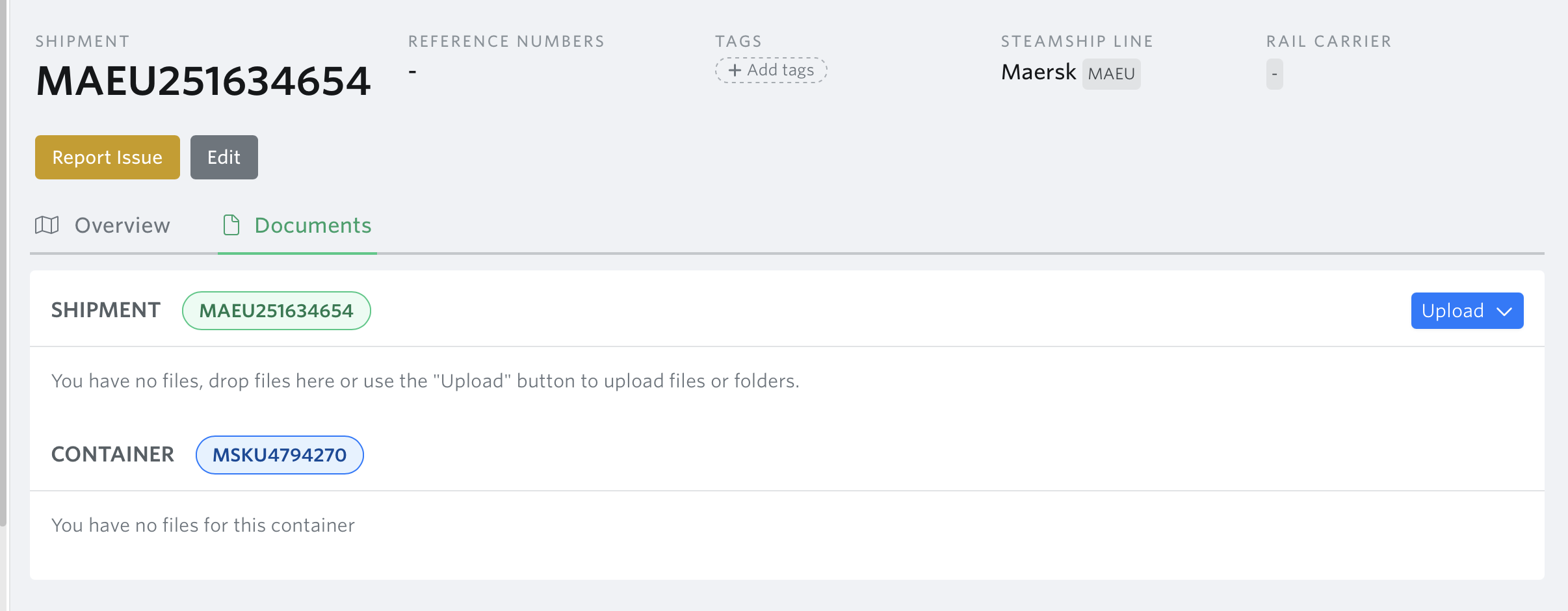
You can upload documents using either of two options: uploading individual files or uploading an entire folder.
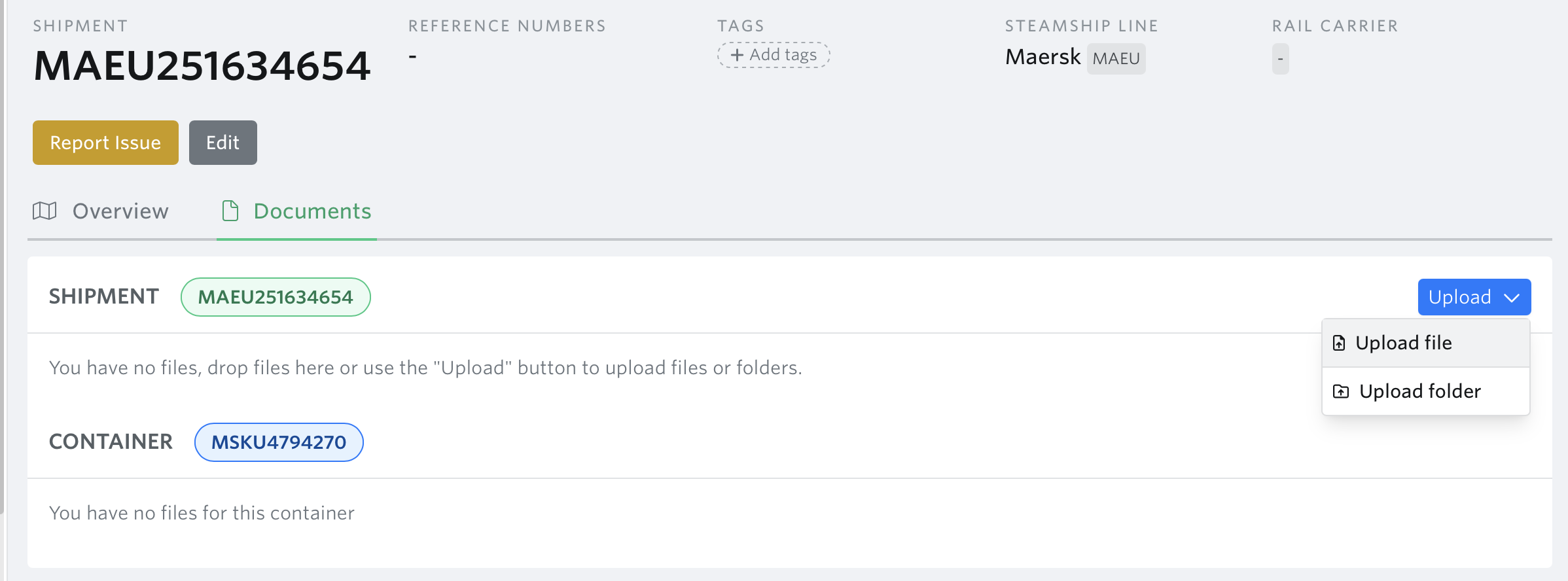
Select the file or folder from your computer → upload the file/folder
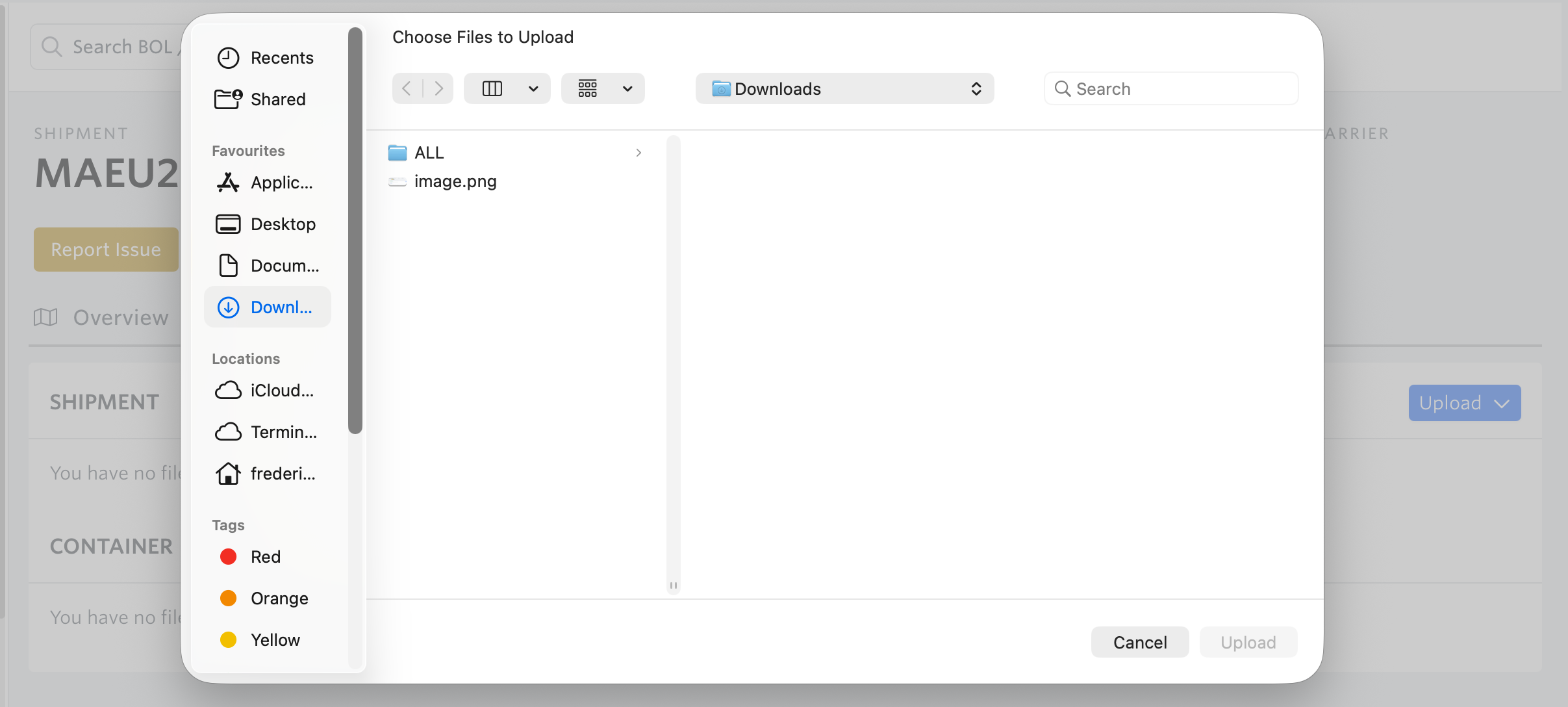
Once a document has been uploaded, it will appear in the Documents section. The uploaded document will be displayed in a table with key details, including the document name, document type, who added it, date added, reference numbers, and extracted data.

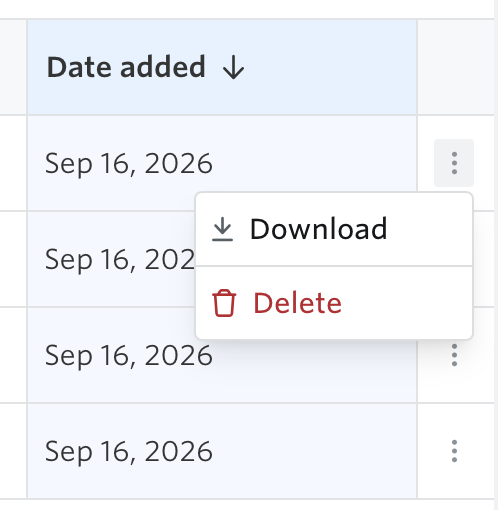
Clicking the three-dot menu next to an uploaded document opens a list of available actions:
Download – Download the document to your device.
Delete – Remove the document from the system.
These options allow you to manage the uploaded document and re-run specific processing steps when needed.
Upload by email
Every Terminal49 account has a unique upload email address shown above the documents table (for example: your-company@docs.terminal49.com).
You can:
Forward emails with attachments to this address, or
CC/BCC this address when you ask your partners to send documents
Any attachments sent to this address will be uploaded to your account and processed automatically.
See next article - Where to Find Your Documents
If you need help with adding documents or have any other questions, the fastest way to get assistance is through our in-app chat. You can also reach us at support@terminal49.com.