How to Invite Team Members to Terminal49
Last updated: July 16, 2026
This video shows you how to invite members to Terminal49:
You must have Account Manager permissions to invite users or update their names or email addresses. If you need to be made an Account Manager, please reach out to our support team via support@terminal49.com or our webchat. Only Terminal49 can grant Account Manager permissions - existing Account Managers cannot grant these permissions to other users.
Click the profile icon located at the lower left corner of the dashboard
Note: If you don't see the "Invite User" option in the menu, you do not have Account Manager permissions. Only users with Account Manager role can invite, manage, or remove team members. To request Account Manager access, contact our support team via support@terminal49.com or our webchat - only Terminal49 can grant these permissions.
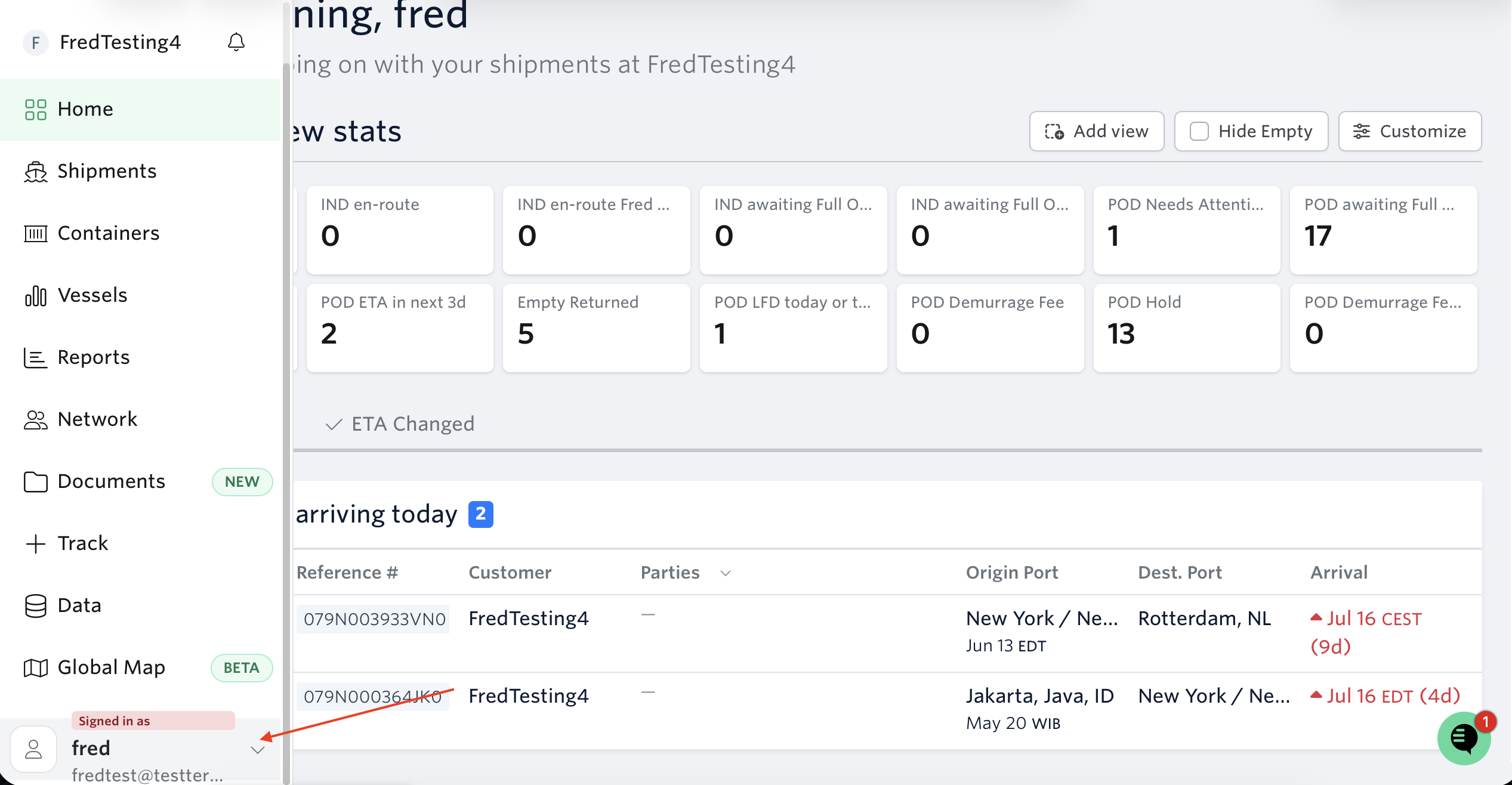
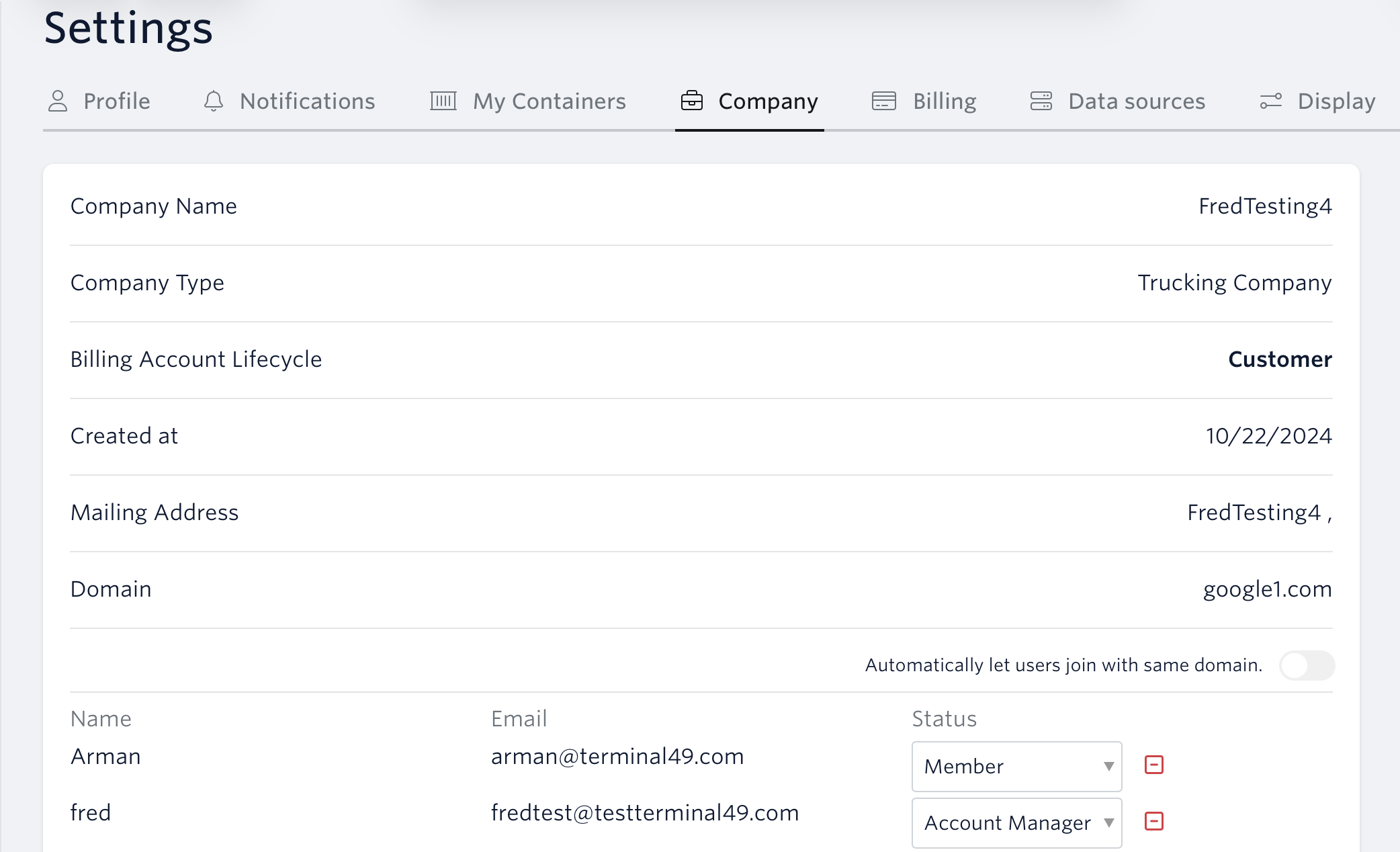
2. Go to Company Tab
3. Enter the full name and email address of the team member you wish to invite, and click on Send Invite:
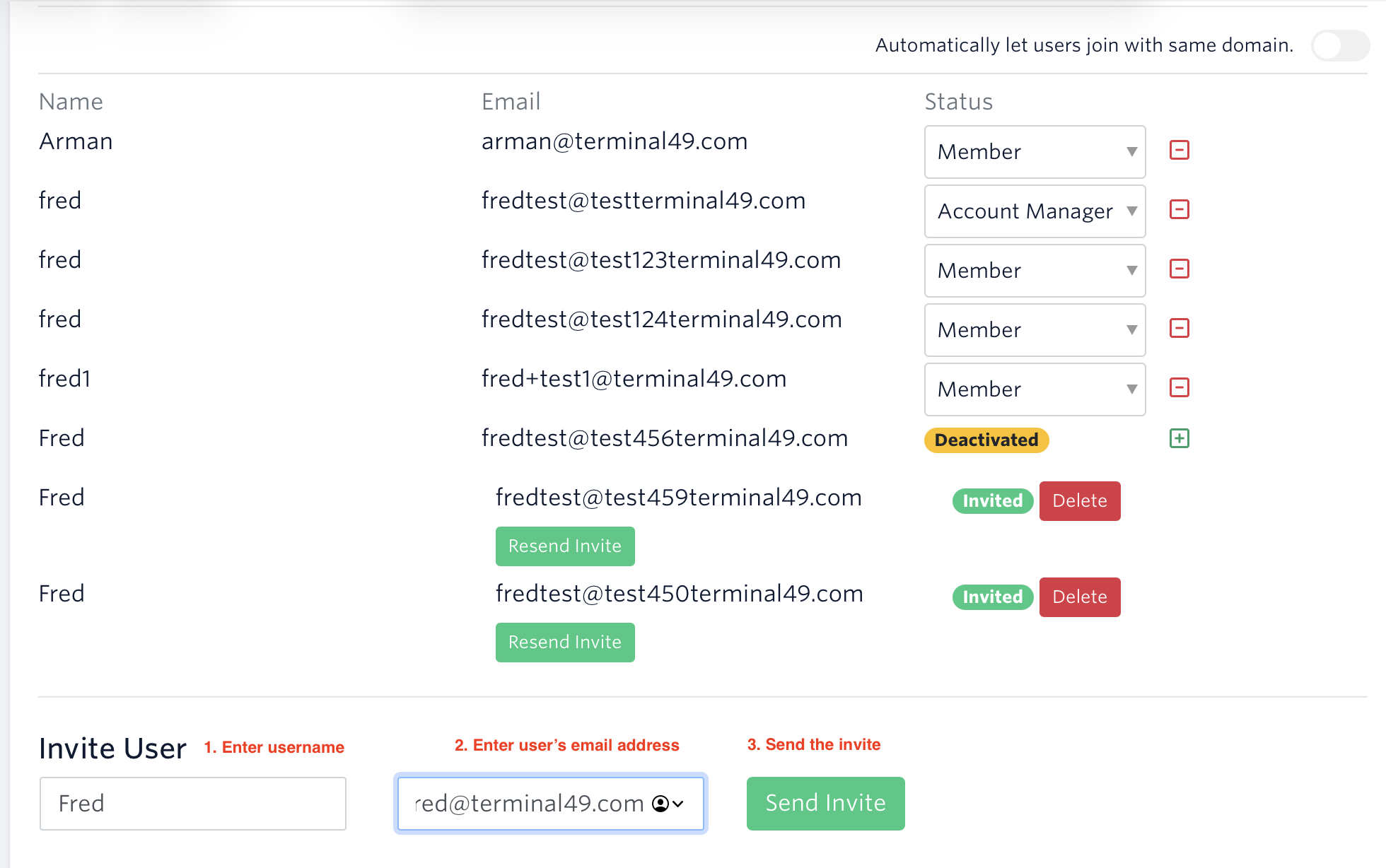
4. The invited user will receive an email from Terminal49 with a link to accept the invitation. Once they accept the link, they will be added as a user and have access to your account. They will also have access to any associated accounts.
Should you need to cancel the invitation, you can click the delete button.
(You must have Account Manager permissions to delete invites. If you need to be made an Account Manager, please reach out to support@terminal49.com - only Terminal49 can grant these permissions.)
See related article: Managing Users in your Terminal49 account (For Account Managers Only)
If you need help with user management or have any other questions, the fastest way to get assistance is through our in-app chat. You can also reach us at support@terminal49.com.