Managing Users In Your Terminal49 account
Last updated: June 25, 2026
Inviting Users in Terminal49
You must have Account Manager permissions to invite or deactivate/reactivate users.
If you need to be made an Account Manager, please have someone with 'account manager' access reach out to our support team via support@terminal49.com or our webchat to authorize updating your role. Only Terminal49 can grant Account Manager permissions.
Inviting Users in Terminal49
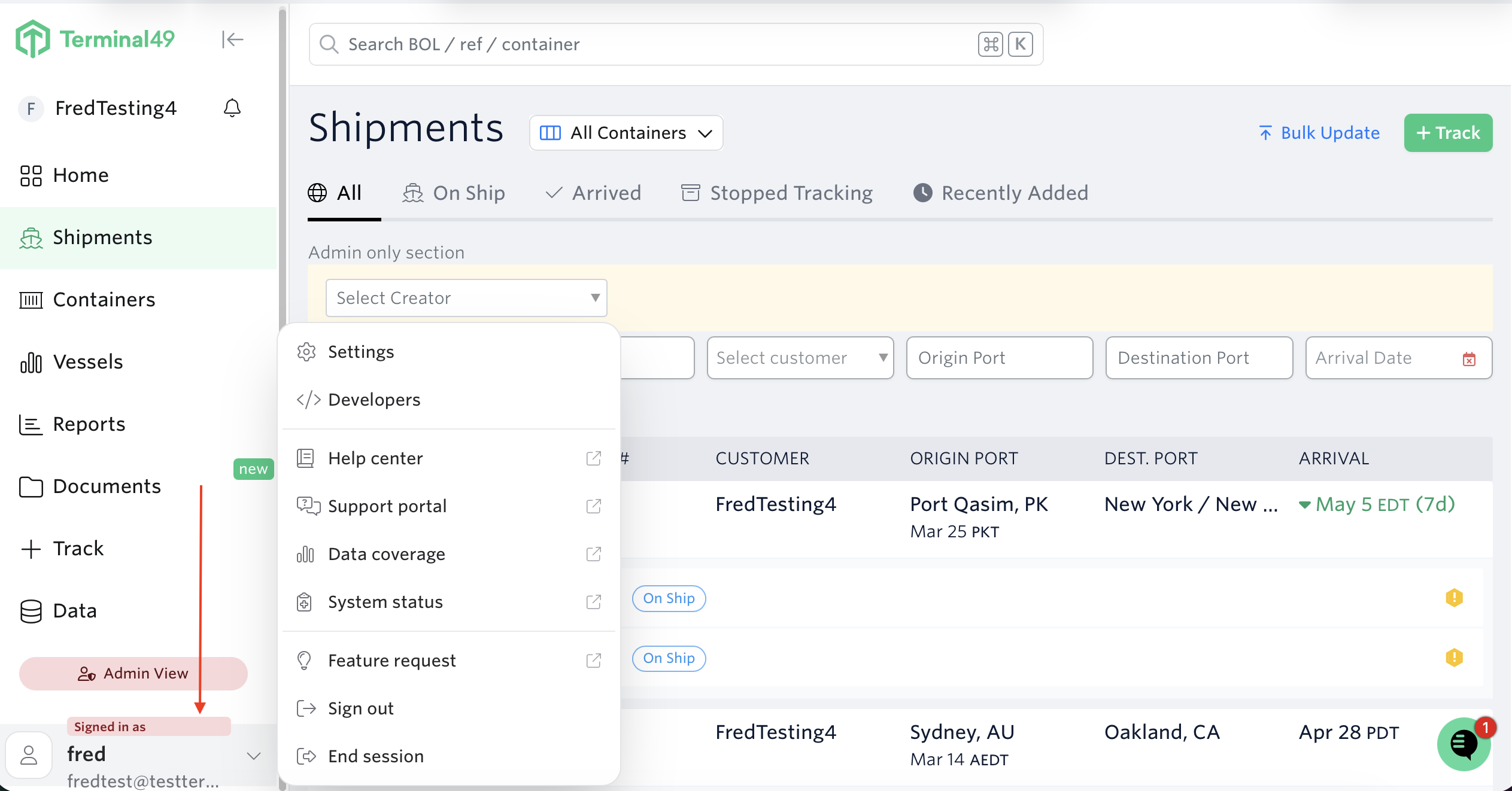
After logging in, click on your name on the bottom left of the screen.
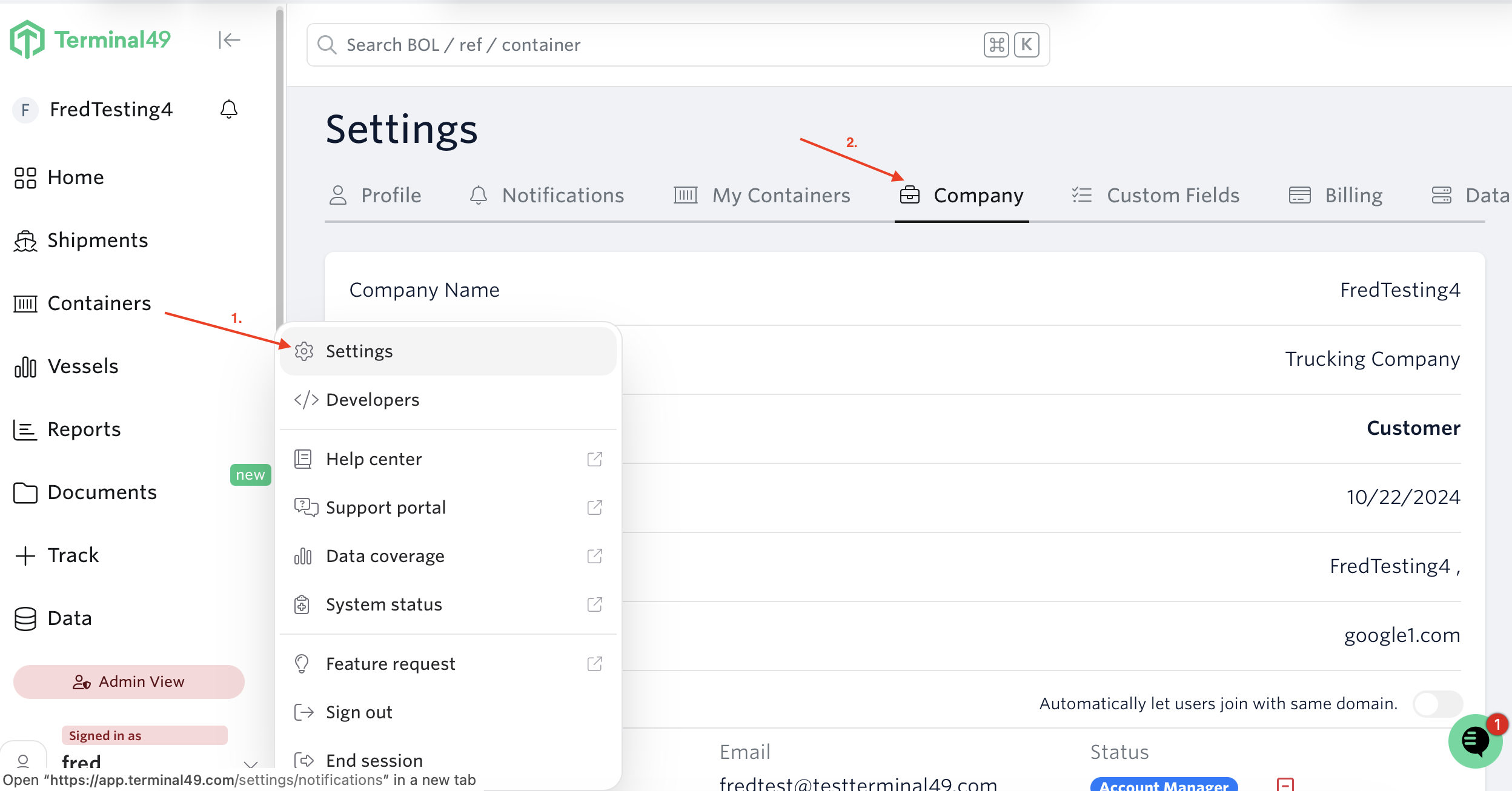
Go to Settings → Company Tab.
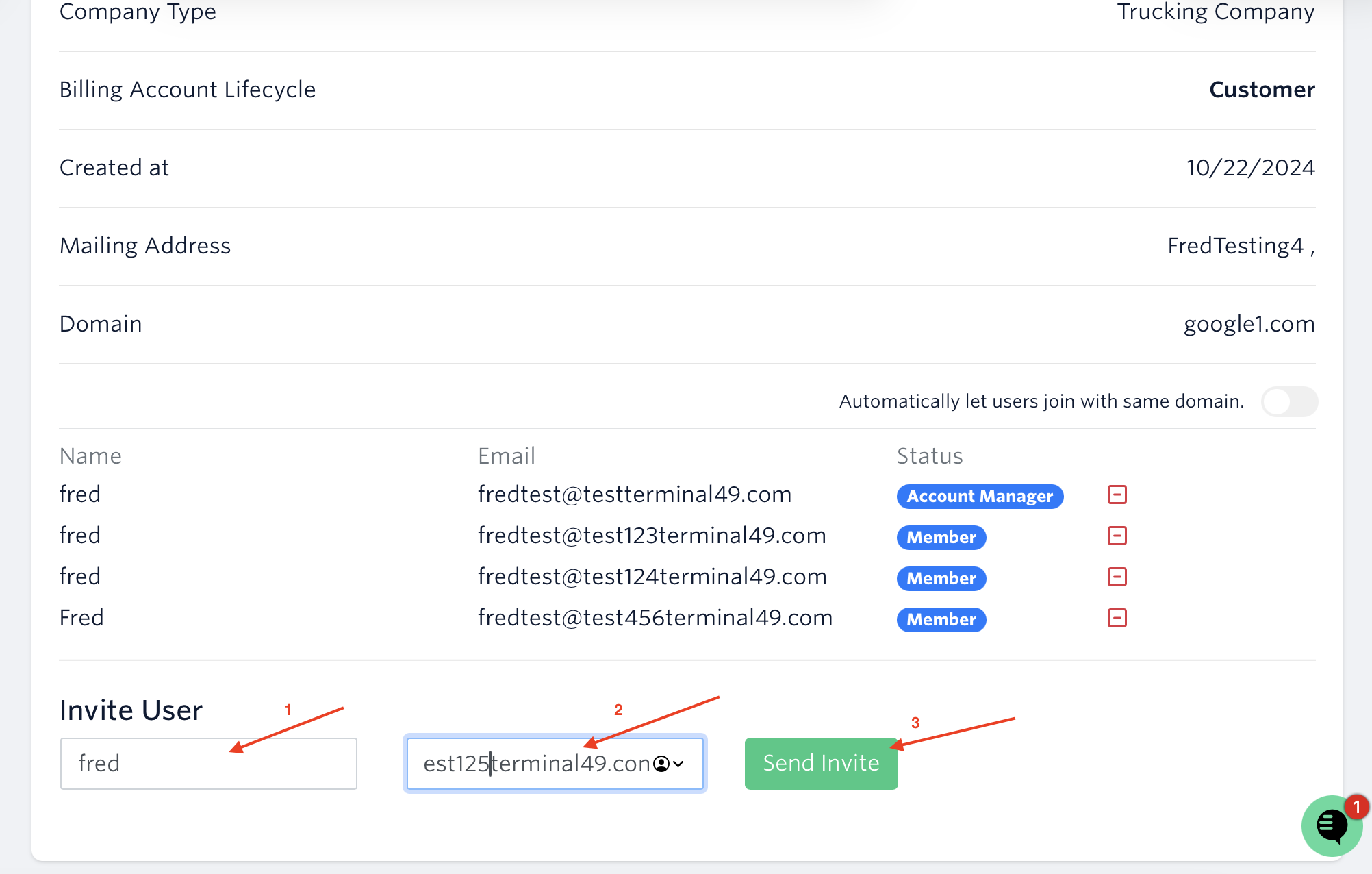
Go to the bottom → Enter the name and email address of the user you want to add → Click 'Send Invite'
The invited user will receive an email from Terminal49 with a link to accept the invitation. Once they accept the link, they will be added as a user and have access to your account. They will also have access to any associated accounts.
If your user did not receive the invite, you can resend it with the Resend Invite Button.
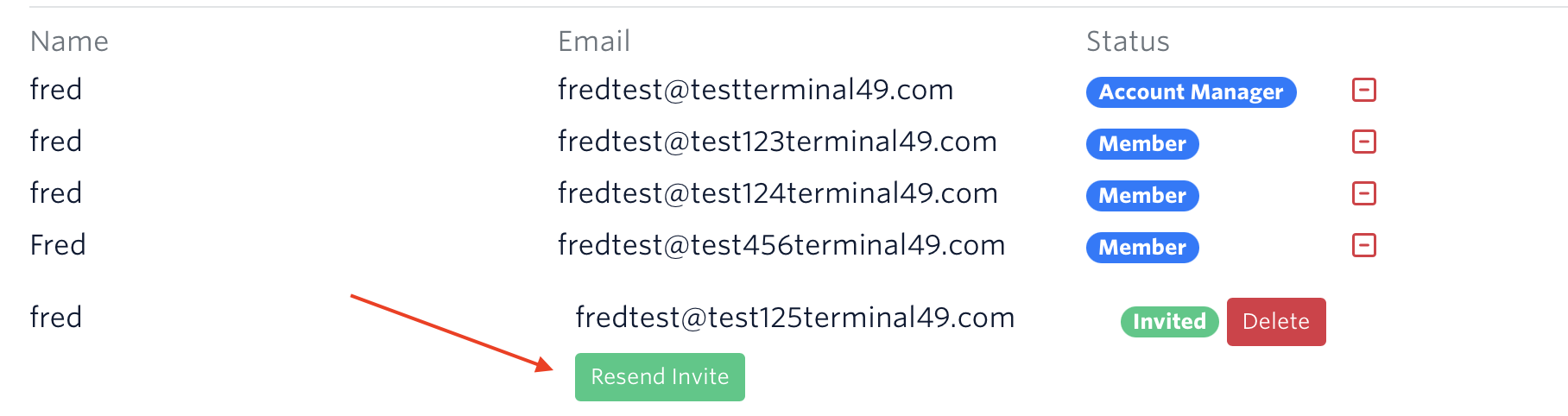
Should you need to cancel the invitation, you can click the delete button.
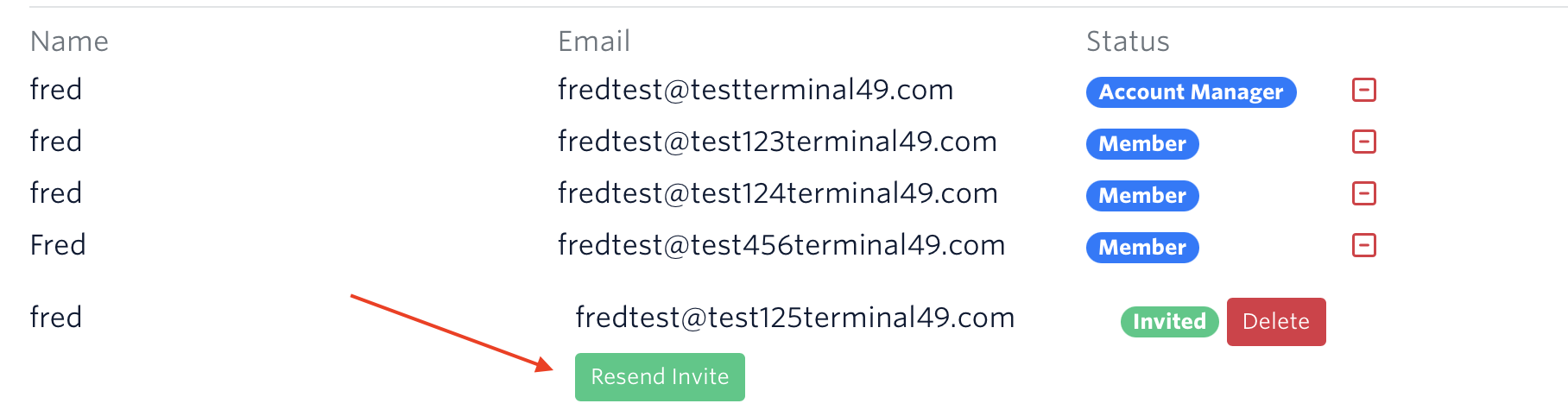
(You must have Account Manager permissions to delete invites. If you need to be made an Account Manager, please reach out to support@terminal49.com. Only Terminal49 can grant Account Manager permissions.)
Note: Account Managers have additional capabilities beyond user management, including the ability to add login credentials for data sources (such as Maersk credentials to retrieve Last Free Day (LFD) information) and rail
How to Deactivate/Reactivate Users
You must have Account Manager permissions to deactivate users. If you need to be made an Account Manager, please have someone with 'account manager' access reach out to our support team via support@terminal49.com or our webchat to authorize updating your role.
On the Company tab, scroll to the bottom to view the list of users in your Terminal49 account. Click the red (-) button to deactivate a user
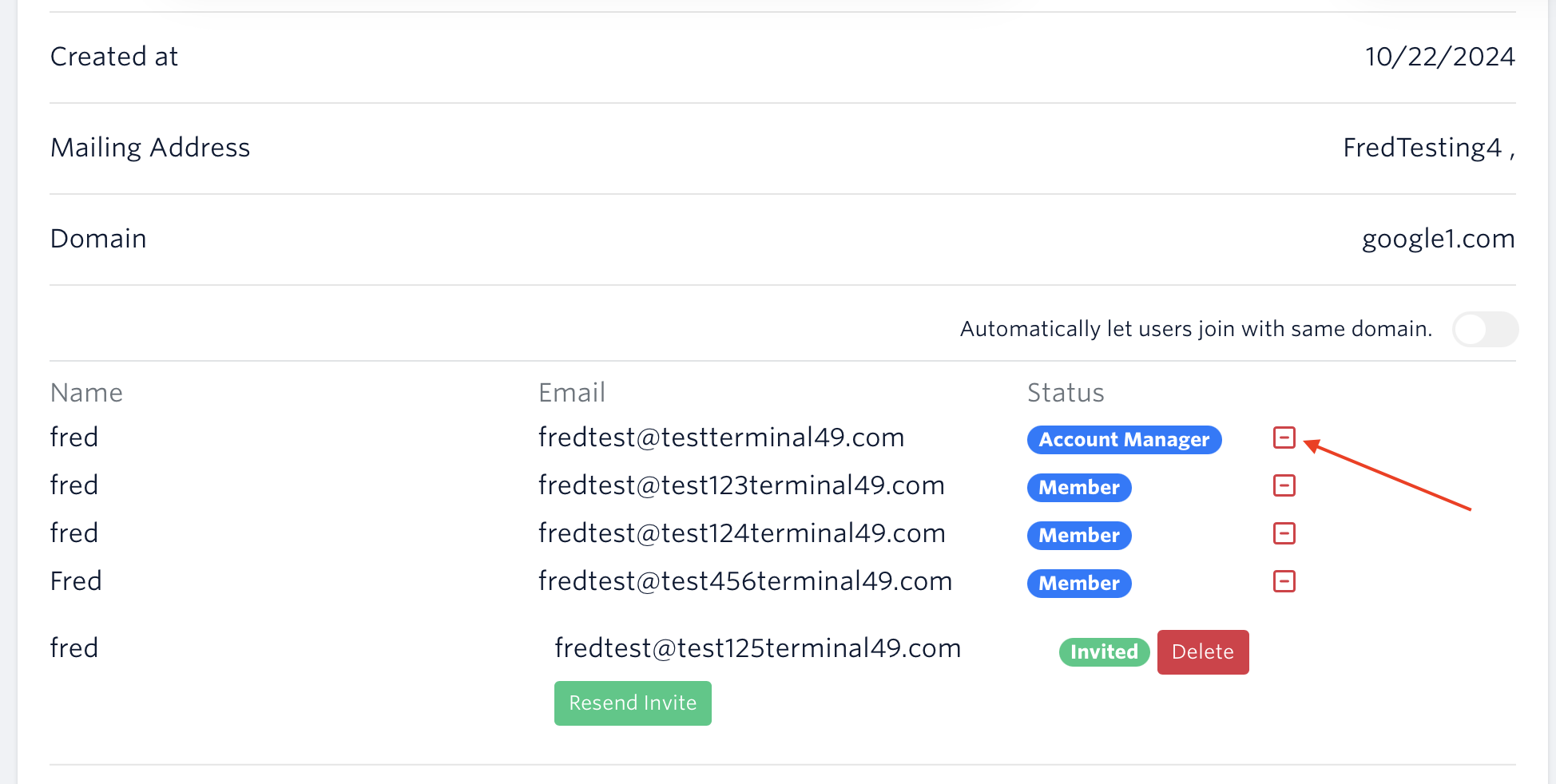
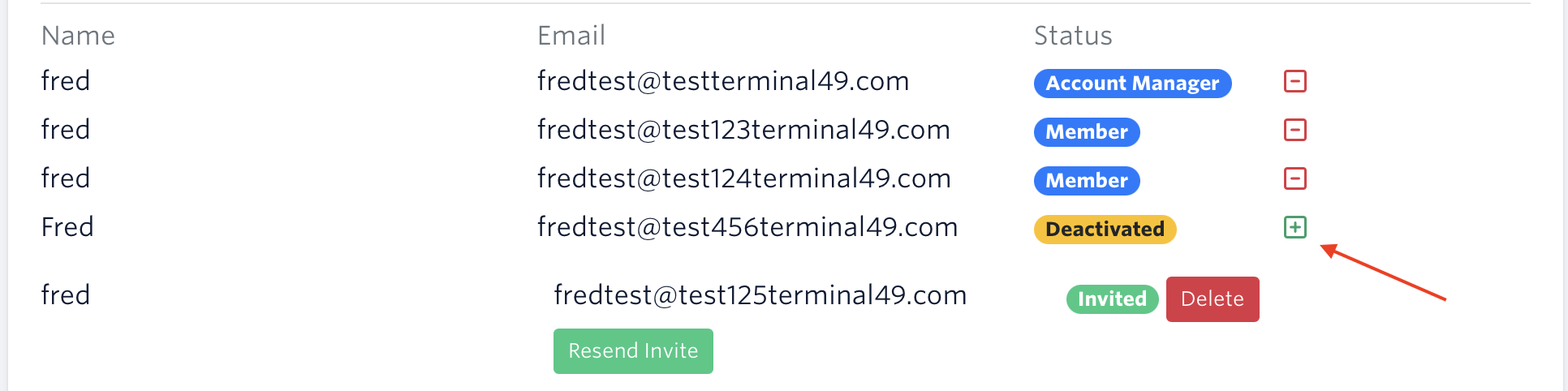
Once deactivated, the user cannot access their Terminal49 account until it is reactivated
Click the green (+) button to reactivate a user
See next article: Switch Between Multiple Terminal49 Accounts
If you need help with user management or have any other questions, the fastest way to get assistance is through our in-app chat. You can also reach us at support@terminal49.com.