Tracking Shipments Via Quick Entry Tab
Last updated: April 16, 2026
See the video below about Dashboard Tracking by Bulk Entry and CSV Upload!
Creating Tracking Request Via Quick Entry Tab
Step by step process of uploading shipments via quick entry tab
Click the 'track' button on the left navigation bar
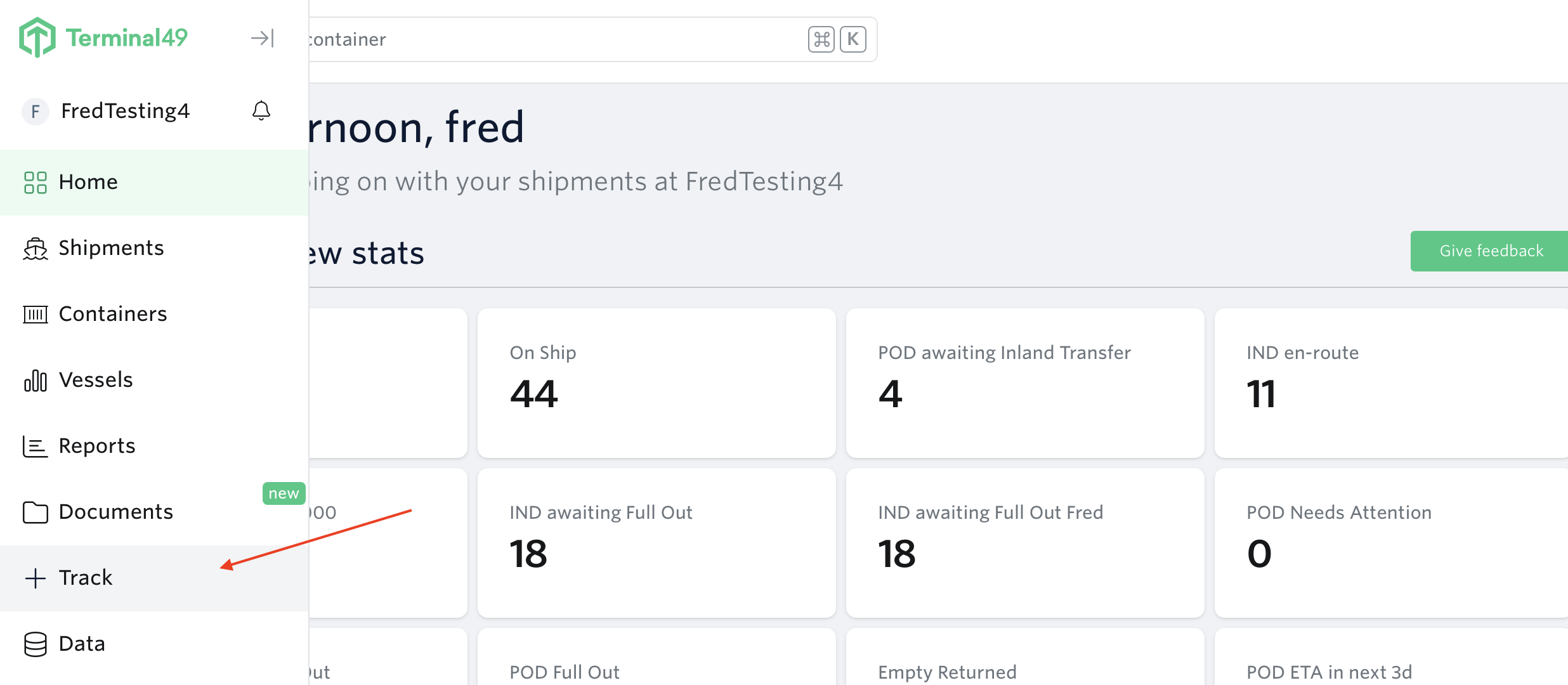
Go to Quick Entry Tab
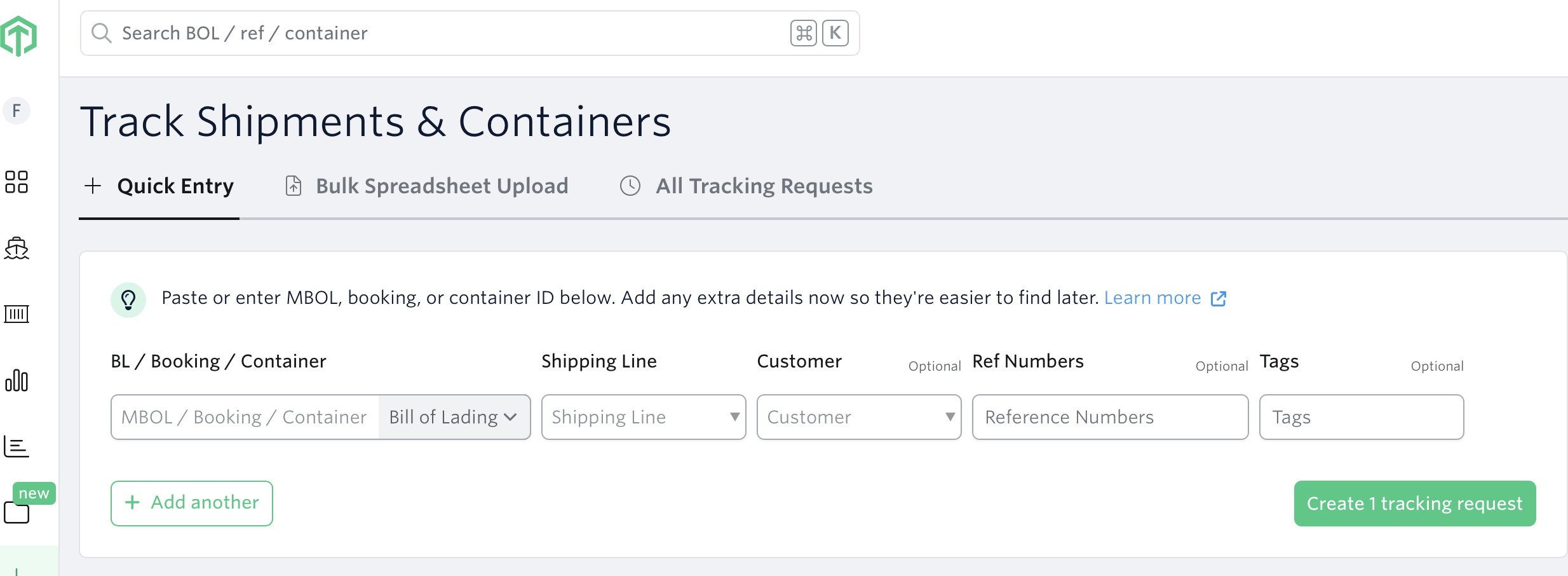
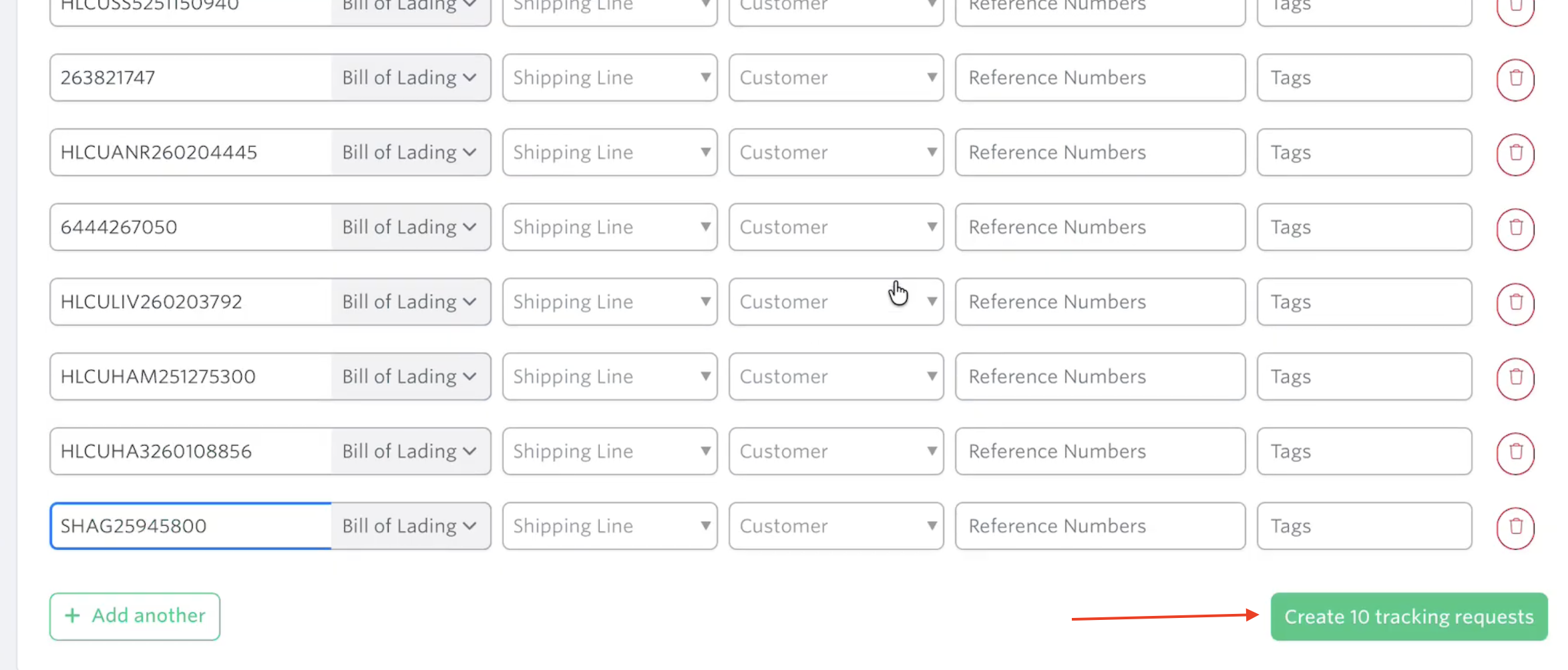
Enter the Bill of lading/booking number/container number along with the Shipping Line, Customer name, Reference numbers and Tags. The correct shipping line will be automatically detected and populated by our SCAC detector.
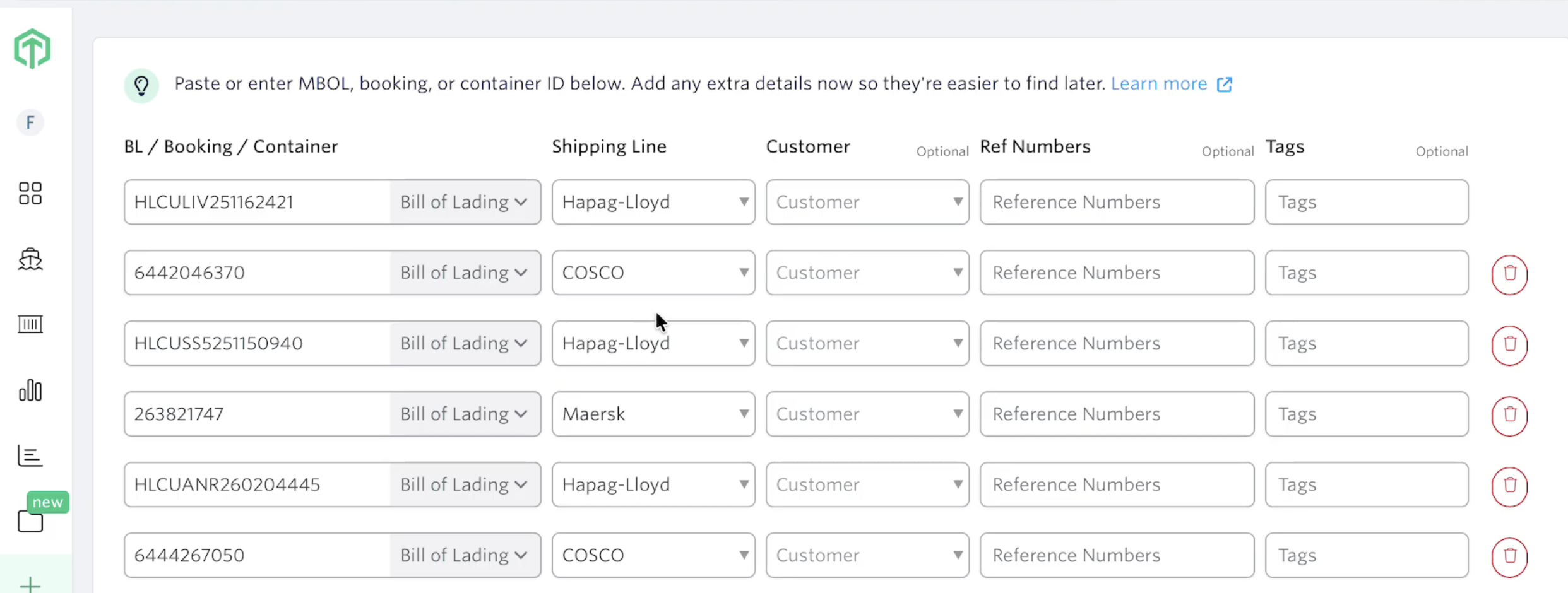
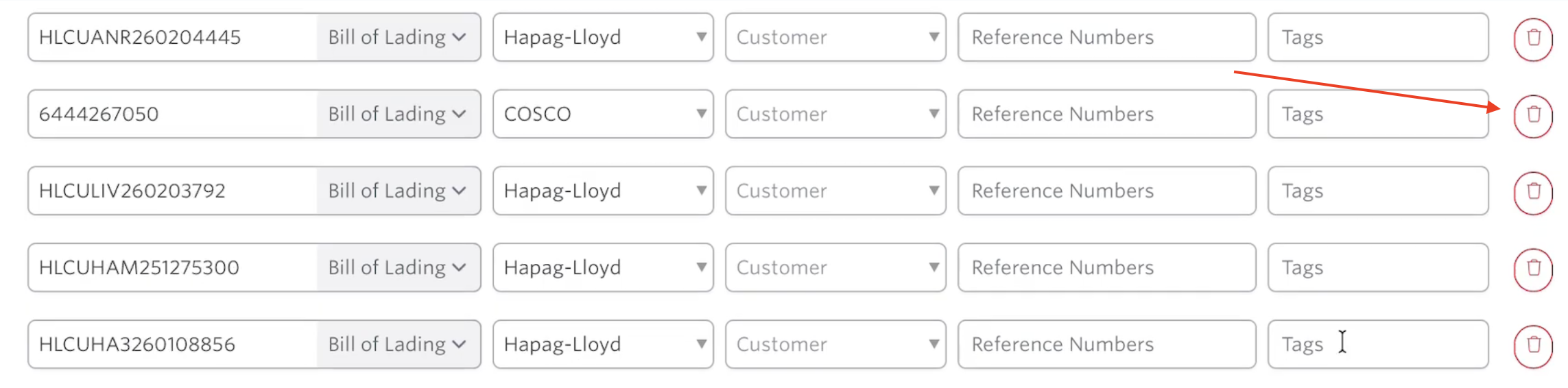
Review all the details before uploading. Ensure the request number type (Bill of lading, Booking number, container number), shipping line and other details are correct. You can also delete an entry using the delete button on the left side of the page.
Once everything is ready, you can click the 'Create Tracking Requests' button on the lower right part of the page.
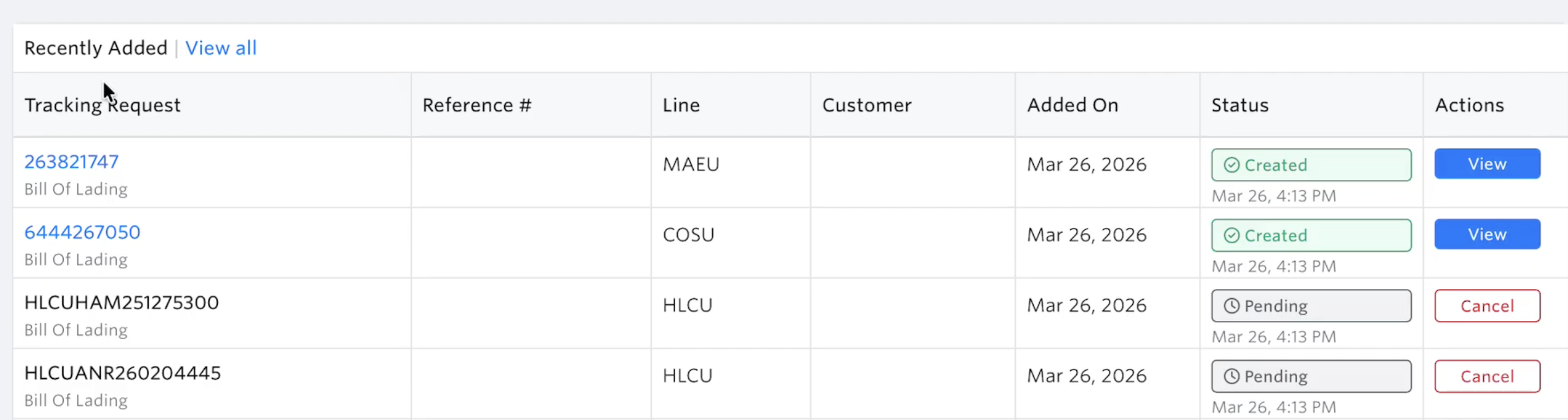
Once done, you will see all recently added shipments on the lower portion of the page. You can also click the 'View All' button to see all tracking requests.
You may refer to this article for more information about tracking requests statuses.
Go to this page to see different ways of initiating shipment tracking on Terminal49.
See next article: How to Track Shipments or Containers Via Email
If you need help with creating tracking requests or have any other questions, the fastest way to get assistance is through our in-app chat. You can also reach us at support@terminal49.com.