Container View - Empty Returned
Last updated: May 13, 2025
This container view helps answer key questions such as:
Which of my containers have been empty returned already?
How many days have passed since a container was picked up and returned to the terminal?

Important information, such as POD Full Out, POD Days since full out and etc. are updated automatically, so you always have the most up-to-date information without having to refresh and recheck.
View is sorted by the following columns:
POD (Port of discharge) Full Out
Empty Returned
Note: You can always choose which of the two columns you want the view to be sorted by, or select all. You need to click on the sorting column(s) to select and click again to deselect. The arrow down symbol indicates which column is being used.

Default Filters:
Actively Tracked - Yes
Empty Returned - Present
Note: You can always customise the filters & columns according to your workflow.
To access the Empty Returned View:
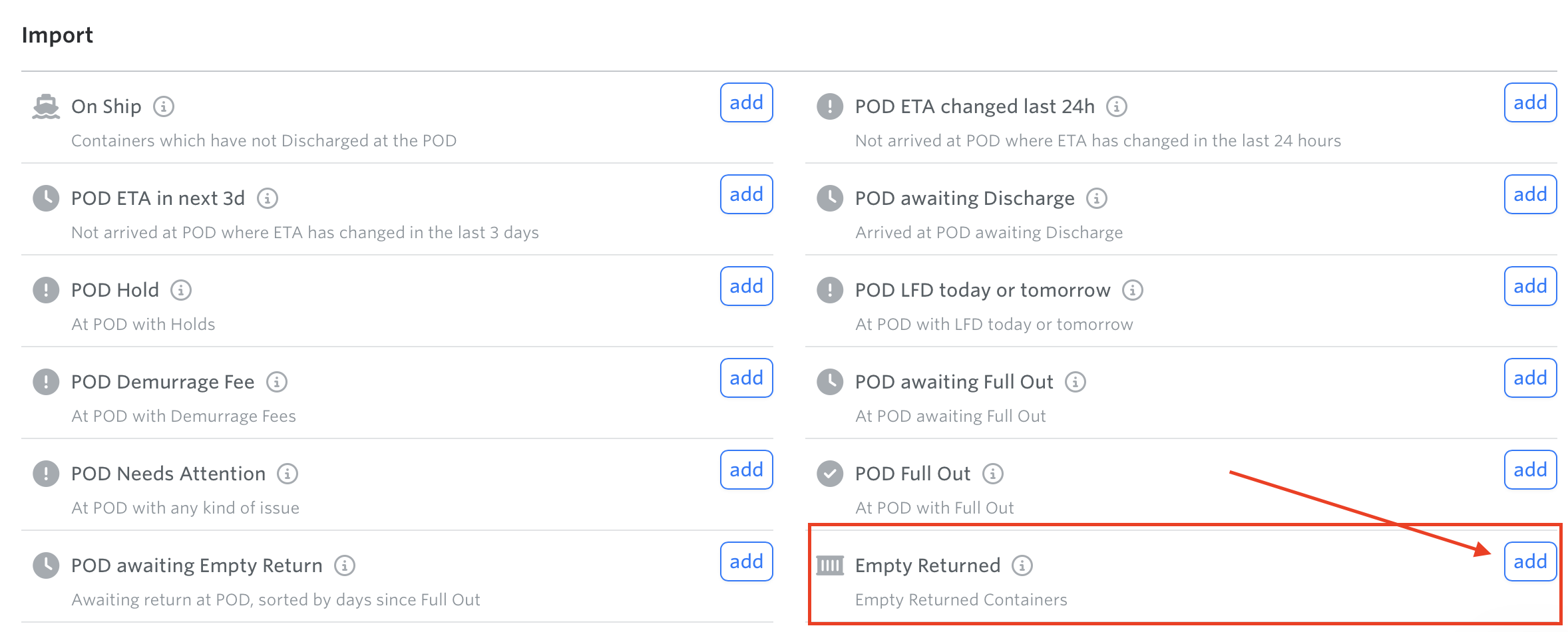
Go to containers view > Manage Views

Scroll down to Import Section > Hit the 'add' button for Empty Returned
See next article: Container View - ILA Ports
If you need help with your container views or have any other questions, the fastest way to get assistance is through our in-app chat. You can also reach us at support@terminal49.com.