How to Customize Container Views
Last updated: July 21, 2026
The Containers dashboard view allows you to customize the data you want to see according to your unique workflows and share it with individuals who need access, without requiring a login. Each person on your team can create their own custom views to manage their unique workflow.
Note: Custom views cannot be directly transferred or cloned between users. To help team members replicate your view setup, you can either share your views with them or have them manually recreate the views using the same filters, columns, and sorting settings.
Watch the video below to see how to customize and share the container dashboard view:
Sharing a Public Container Tracking Link
You can create and share a public container tracking link from any view for your customers or partners.
Whenever a new container matches the selected filters, it's automatically added to the shared view
Your partners will see information updated immediately, speeding up communication, collaboration, and customer service
All information is updated automatically and in real-time, so you and your partners/customers always have the most up-to-date information without having to refresh and recheck.
Follow these steps to set up your customized container view:
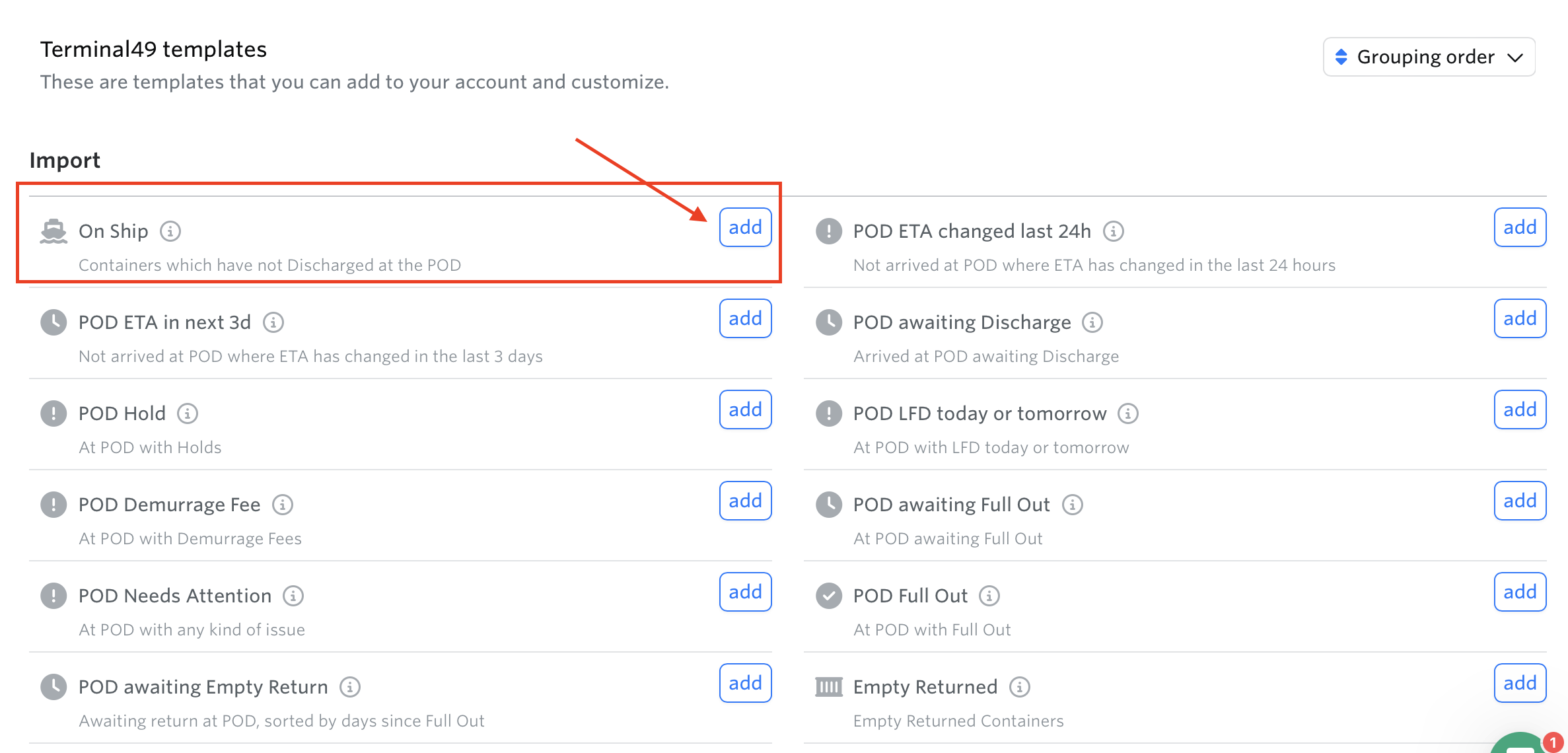
Start with an existing view (e.g., Port of Discharge (POD) Needs Attention, Empty Returned, etc.) → Select a template → Hit the Add button.
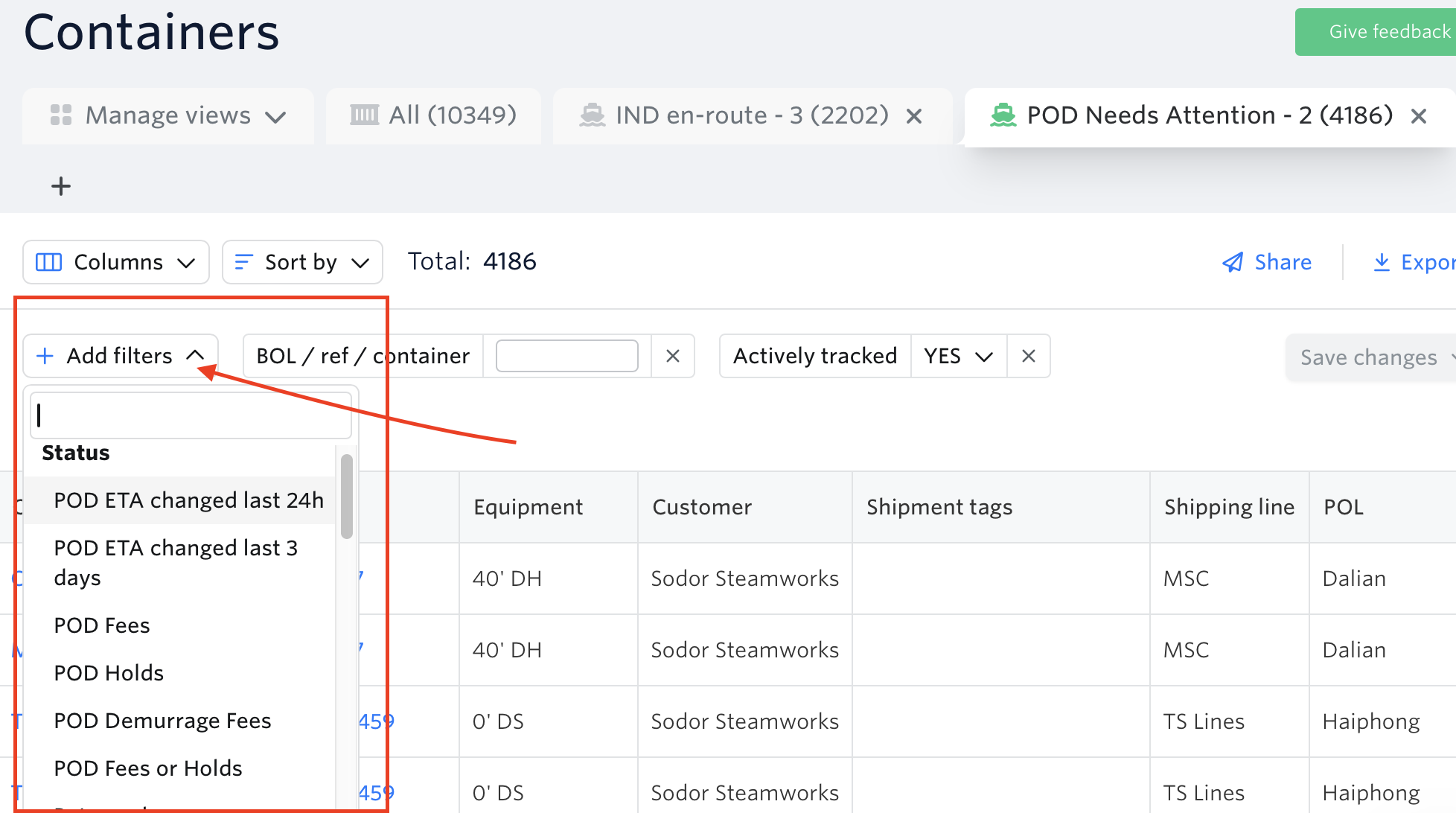
Add desired filters (POD Estimated Time of Arrivals (ETAs), fees, holds, awaiting pickup, etc.)
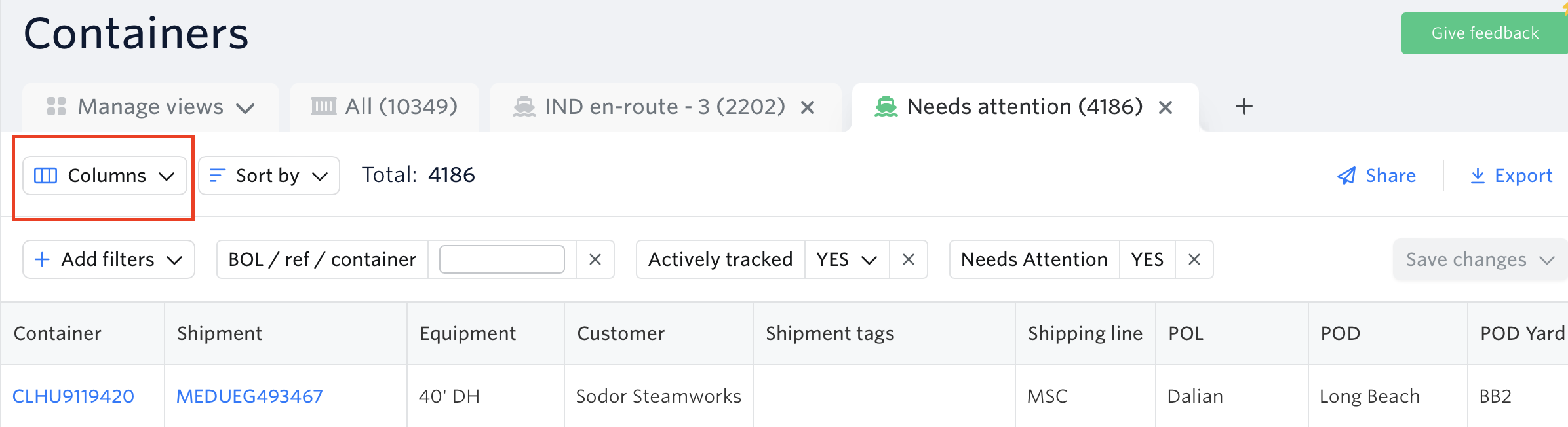
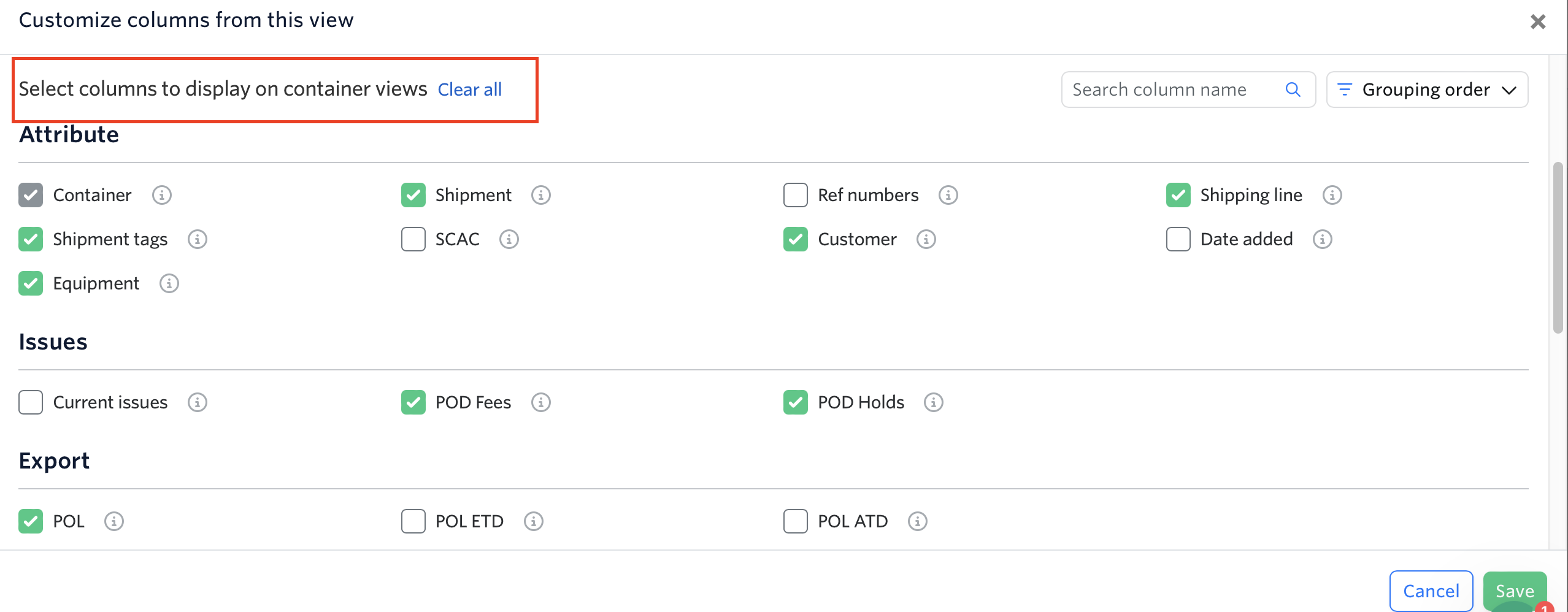
Select your columns.
You can drag and drop to reorder columns.
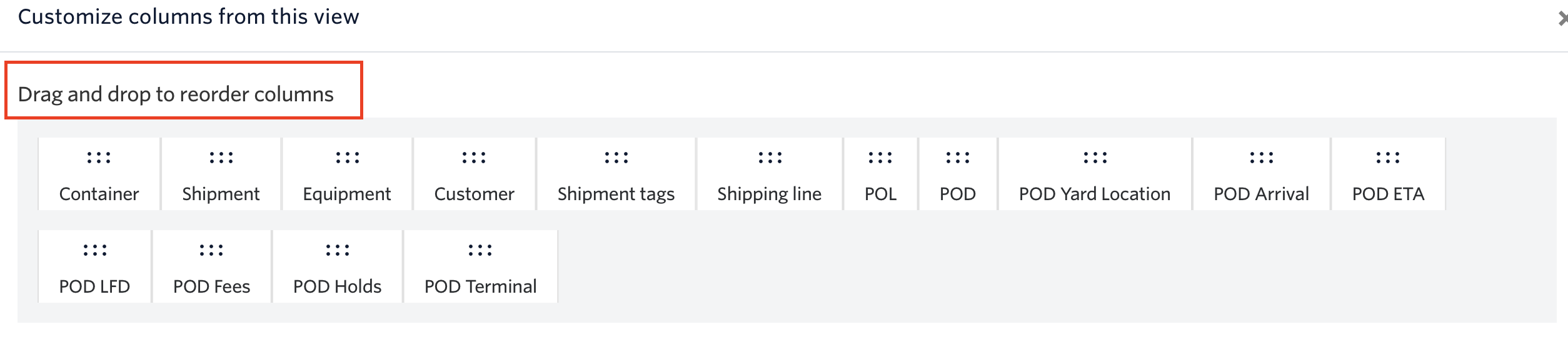
You can also select and deselect the columns you want to see, then hit Save.
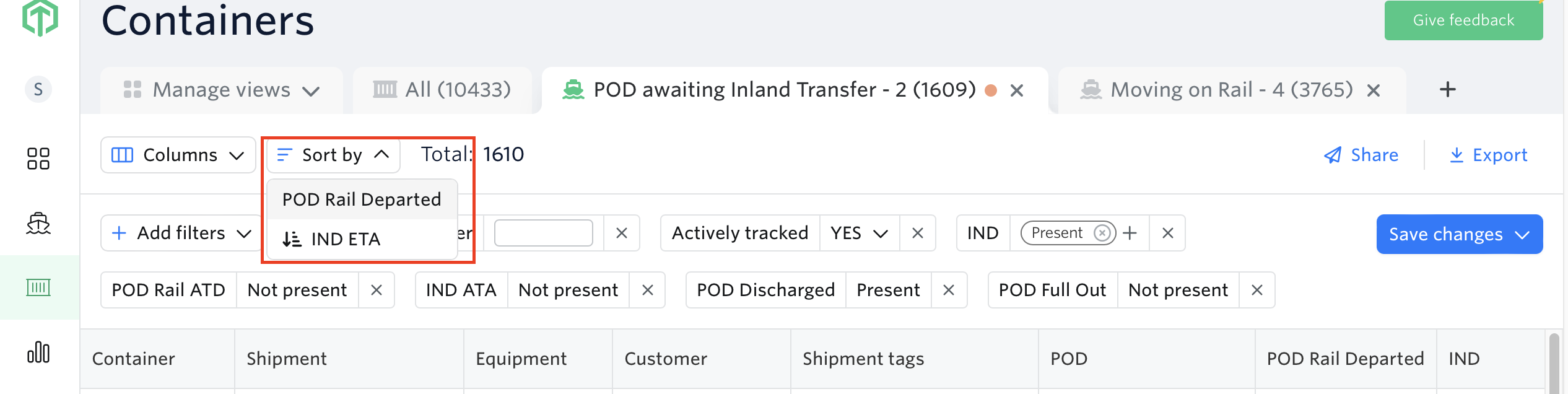
Set the sorting column. Container views have default sorting columns, but you can choose which column(s) the view is sorted by. Click on a sorting column to select it, and click again to deselect. The arrow down symbol indicates which column is currently in use.
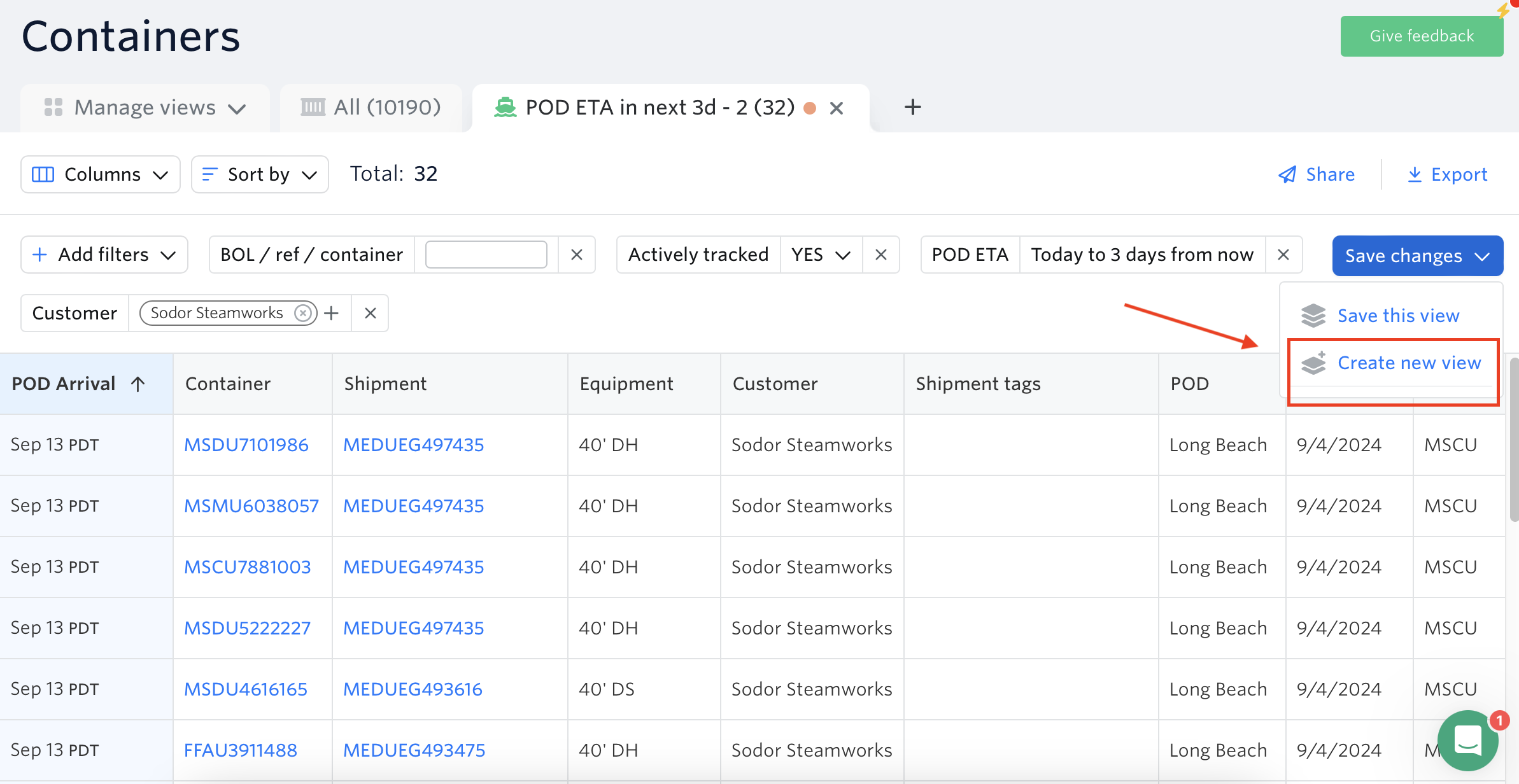
Click Create New View.
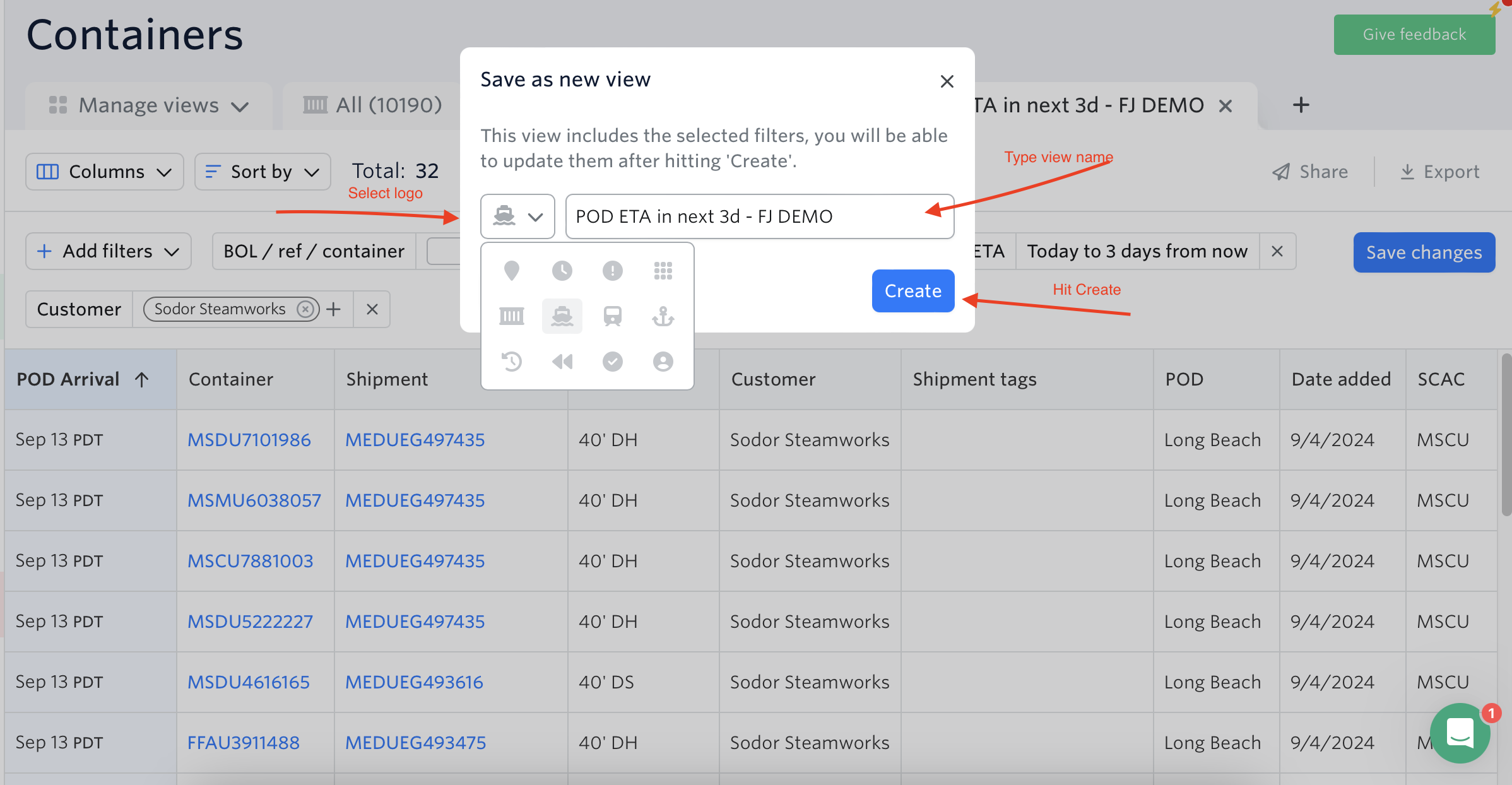
Select the logo → Rename the view → Hit Create.
Managing Your Container Views
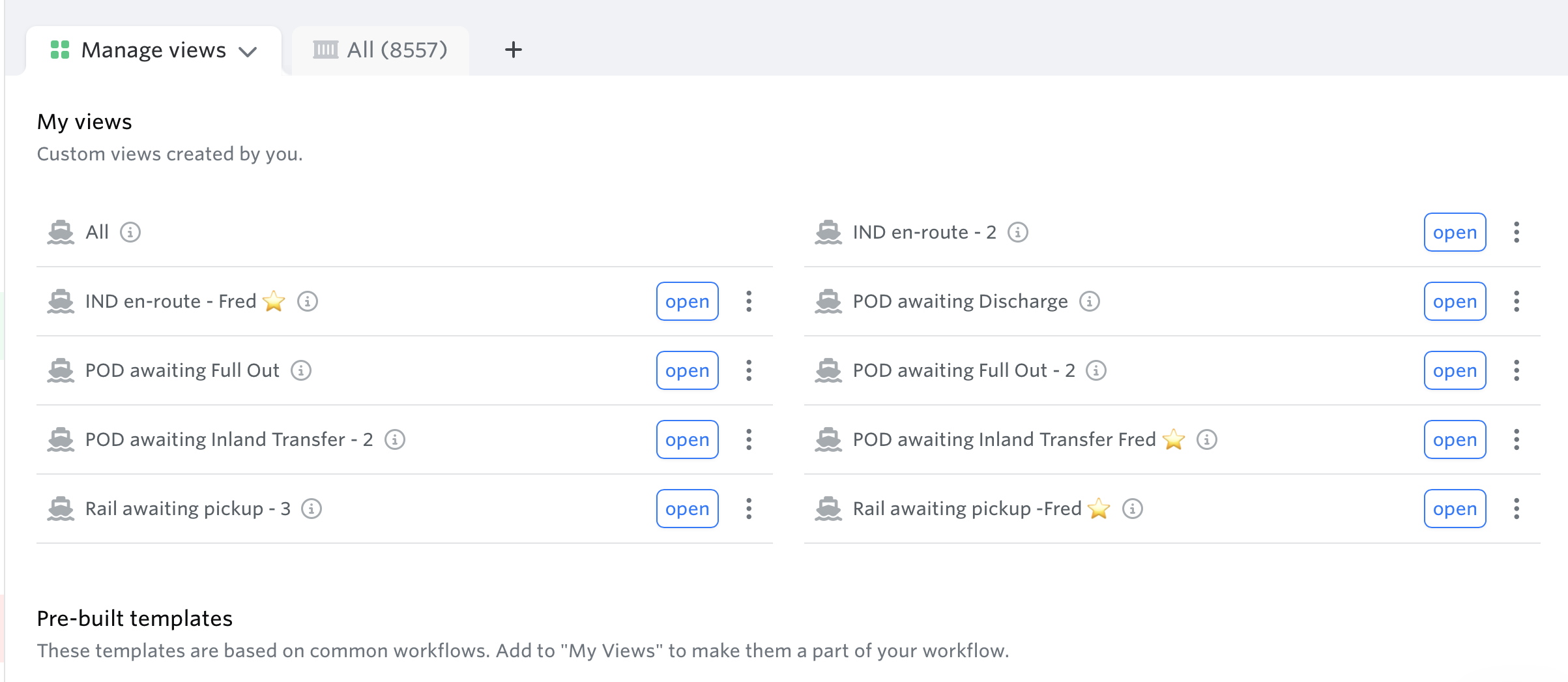
You can use the Manage Views Tab to manage all the container views you've created, along with existing templates that you can use to create new container views tailored to your unique workflows.
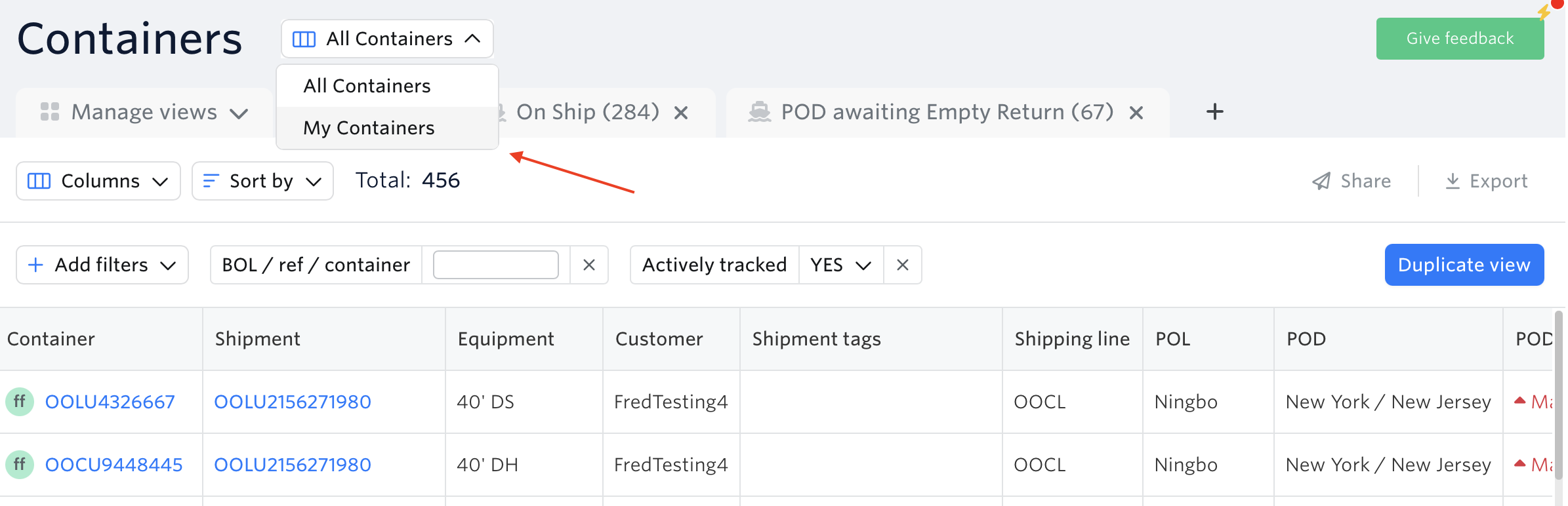
Update Default filter on Containers dashboard
'My Containers' to only see containers assigned to you
'All Containers' to see all of the containers in your account
Frequently Asked Questions
Can I share my custom container view with a team member?
Yes. You can share your views with team members, or they can manually recreate the view using the same filters, columns, and sorting settings. Note that custom views cannot be directly transferred or cloned between users.
Can my customers access a container view without logging in to Terminal49?
Yes. You can share a public container tracking link from any view. Your customers or partners can access real-time container data through that link without needing a Terminal49 login.
How do I see only the containers assigned to me?
Use the 'My Containers' default filter on the Containers dashboard to see only containers assigned to you. Switch to 'All Containers' to see every container in your account.
Learn more about sharing container views on this page.
See next article: My Containers
If you need help with your container views or have any other questions, the fastest way to get assistance is through our in-app chat. You can also reach us at support@terminal49.com.