My Containers
Last updated: June 4, 2025
My containers is designed to make it easier to filter the containers you manage by setting up a custom global filter to track them on the Dashboard and the Daily Digest emails.
What does My Containers do?
Globally filter the Dashboard and Daily Digest email: Ability to filter all your containers by Customers, Shipment Tags, and Ports of Discharge.
Toggle All Containers / My Containers: Option to go back and forth on all dashboard pages to see the whole container list or the containers you manage
Easy one-time setup : Set My Containers filters once and use it anytime you want to narrow only the containers you are managing. You can always go back to edit the filters.
Easy one-time setup
1.) Go to settings > my containers tab
2.) Hit "edit settings button"

3.) Set filters and preferences according to your needs.
Containers that meet any of the filters and preferences you've set in My Containers settings will appear on the dashboard and Daily Digest Emails.
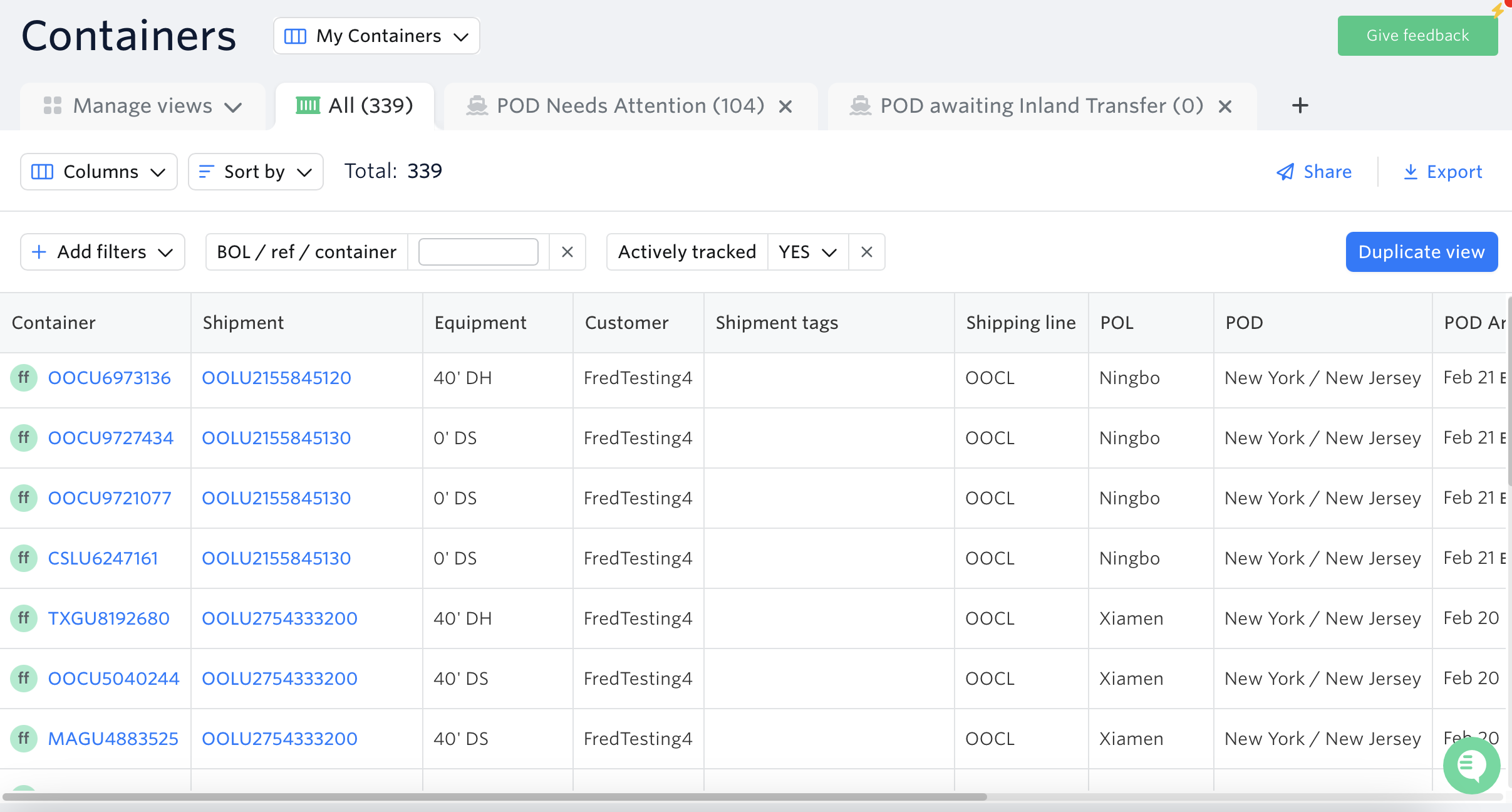
You can also add/remove containers from "My Containers list" via shipments page or dashboard.
Note: Inactive containers will not appear in 'My Containers'
Containers marked as "My containers" will display your initial before the container number.


Related article: Update Email Notification Settings (Set Default Filter)
We’d love to hear your feedback during this Early Access phase — feel free to reach out to our support team via support@terminal49.com or webchat with any questions or suggestions!
See next article: Downloading Container Views
Note: To enable Early Access of My Containers on your account, please schedule a time with our Customer Success Team through this link.