Exporting Container Views
Last updated: April 15, 2026
Aside from customizing and sharing your container views, you can also download them in CSV format to use according to your unique workflow. What you see in the container view is what you'll get in your CSV download!
How To Download Container Views
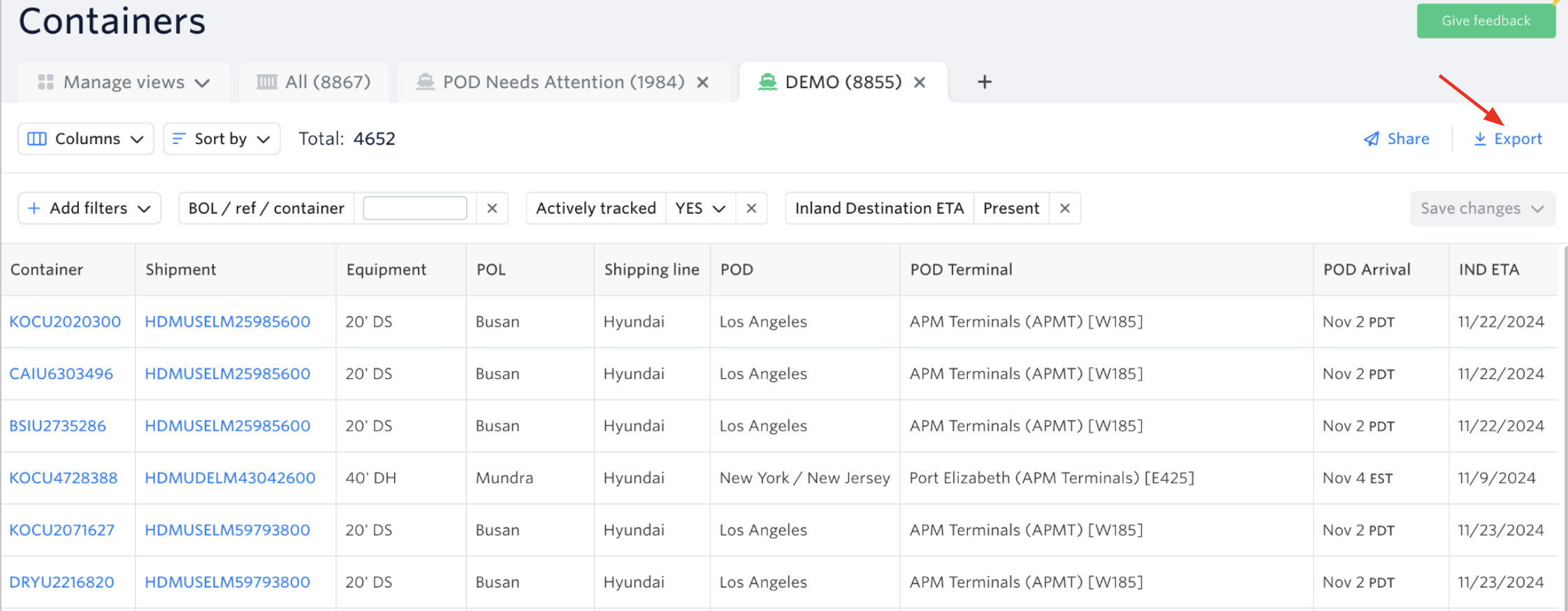
Go to the containers dashboard > Find the container view > Hit The Export Button Located at the upper right corner of the screen.
Downloaded CSV File
You'll see below that the columns in the downloaded CSV file match exactly what appears in the container view.

See next article: Container Dashboard Columns & Their Definitions
Note: Access to container views is only available on paid plans or during an enterprise trial.
If you need help with exporting container views or have any other questions, the fastest way to get assistance is through our in-app chat. You can also reach us at support@terminal49.com.