How to Mark Containers as Delivered
Last updated: May 7, 2026
Step by step guide:
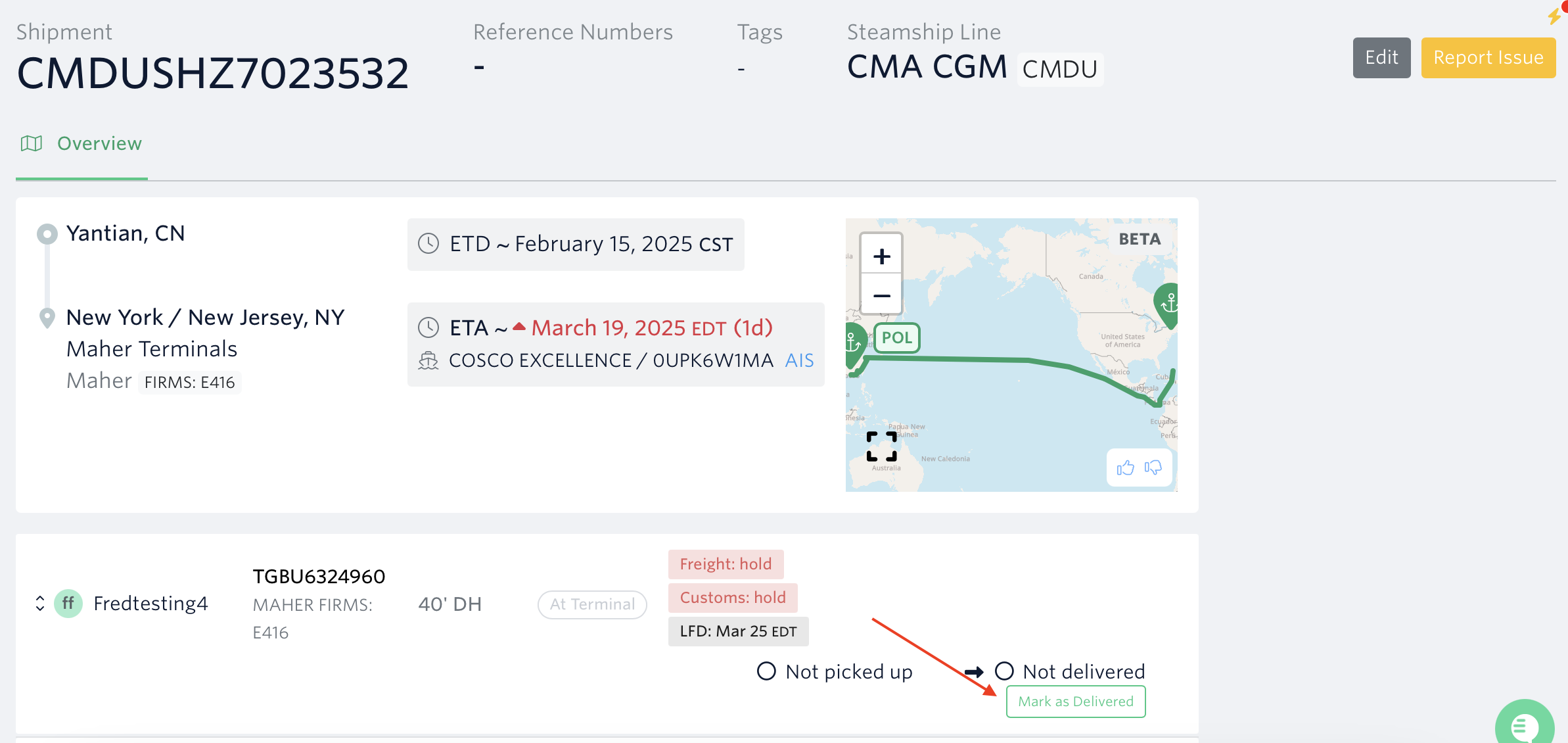
1.) Go to the shipment's page > Hit the 'Mark as Delivered' button
Notes:
The Mark as Delivered button will only become available if the shipment is already in At Terminal/Picked Up/ Empty Returned status.
Terminal49 does not automatically mark a container as delivered as the delivery data is only available to the customers.
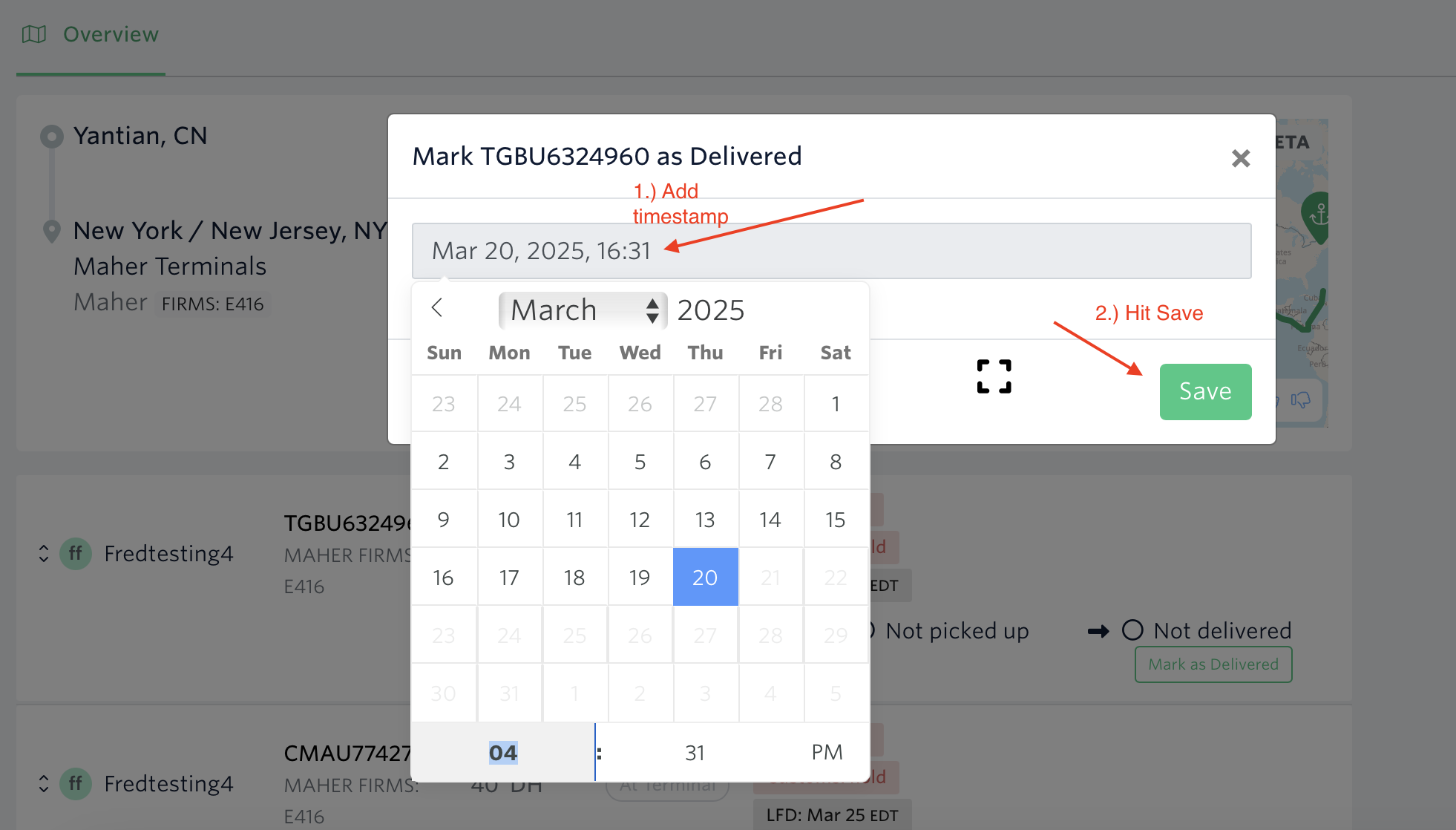
2.) Select the date and time > Hit Save button
Note: You can't edit the delivery date once a container has been marked as delivered.
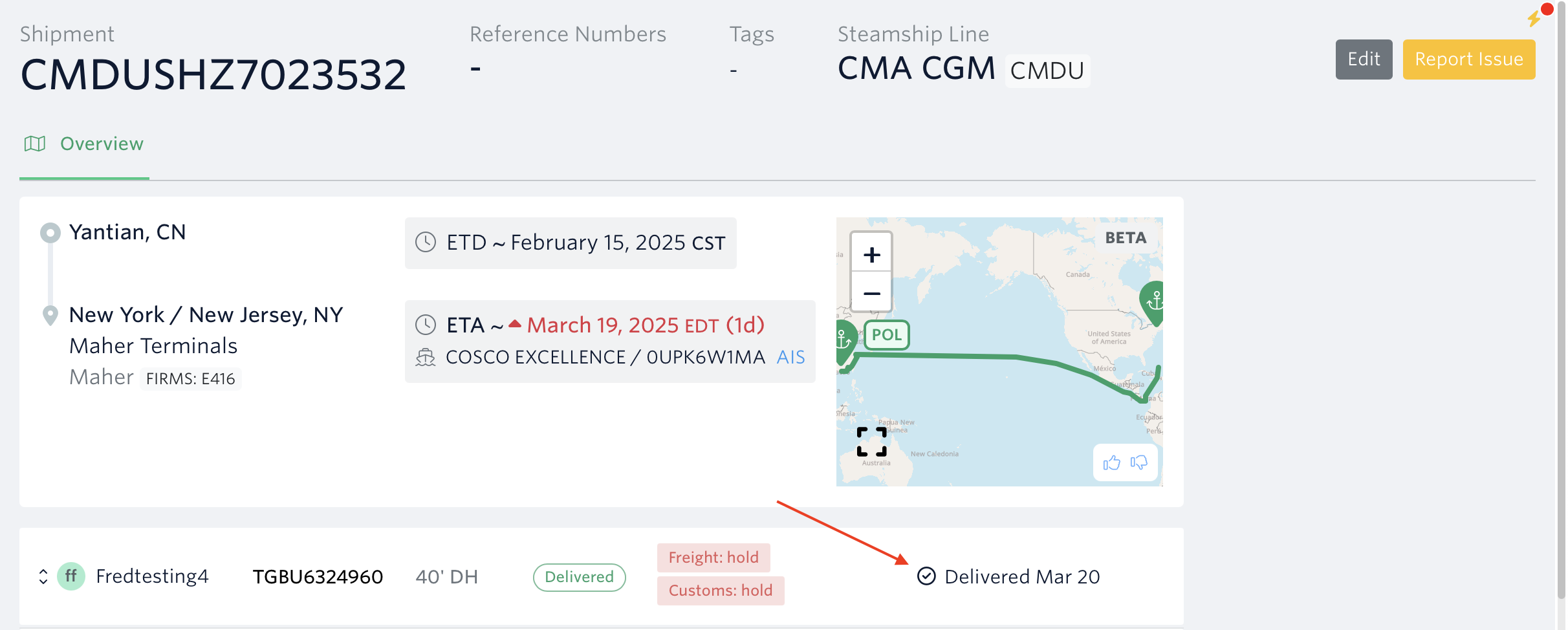
Marked as delivered
See related article: How To Stop The Tracking Of A Shipment
If you need help with marking your containers as delivered or have any other questions, the fastest way to get assistance is through our in-app chat. You can also reach us at support@terminal49.com.