How To Add/Edit Shipments Tags
Last updated: March 26, 2026
Tags help you group shipments together by goods type or any internal category you use. Single or multiple shipment tags can be added when adding a shipment and can also be edited after the shipment has been added to Terminal49 (T49).
Note: Tags are applied at the shipment level, not to individual containers. If you need to add identifiers to specific containers within a shipment, use reference numbers instead.
How to Add Tags During Shipment Upload
Enter your tags in the 'Tags' column when uploading shipments via the dashboard or CSV upload.
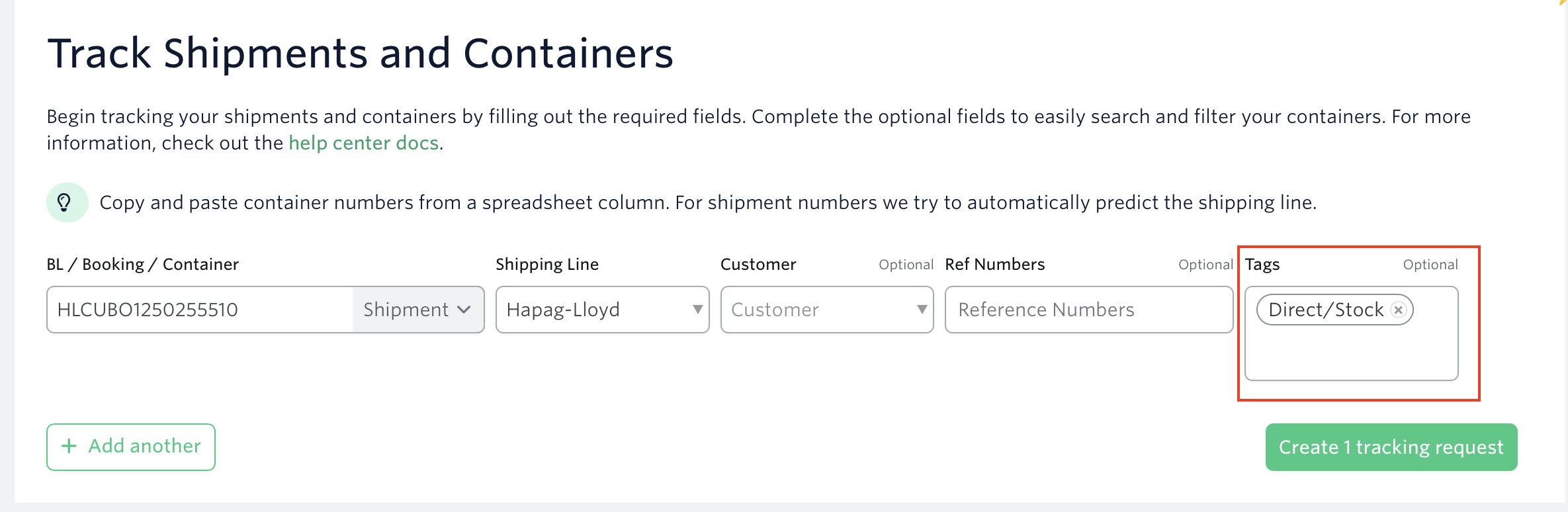
CSV Upload — Tags column shown in the shipment upload form
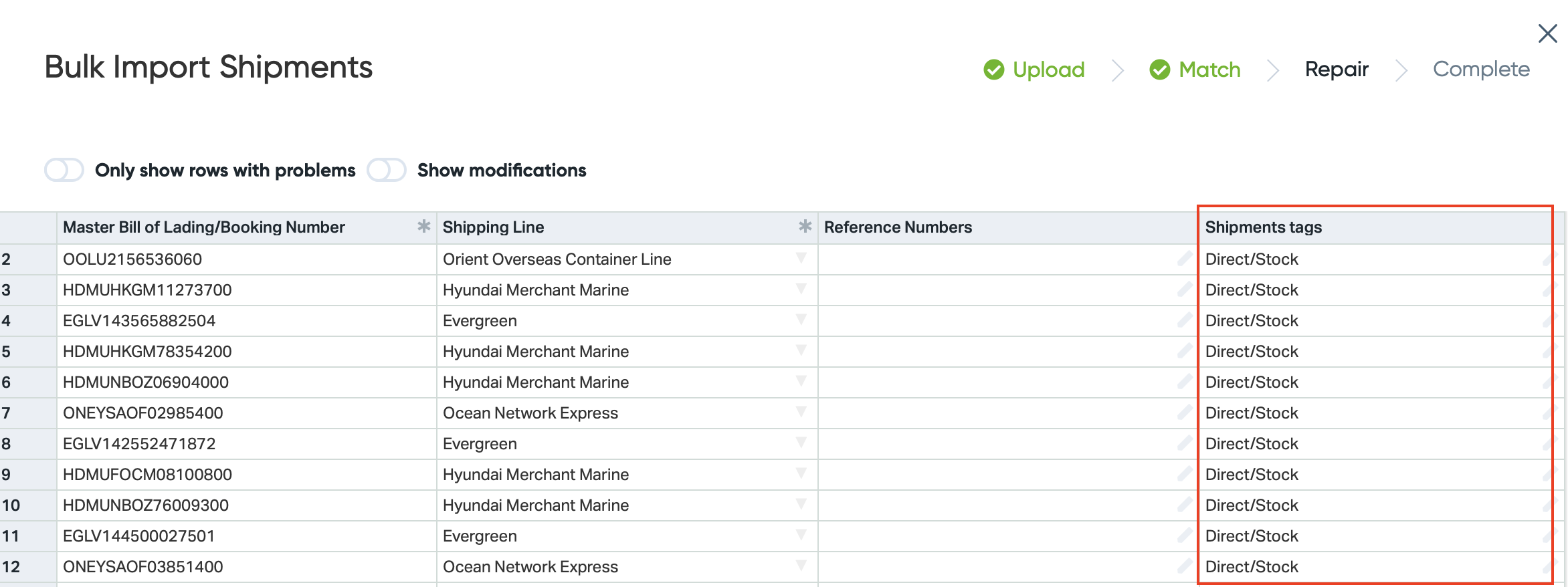
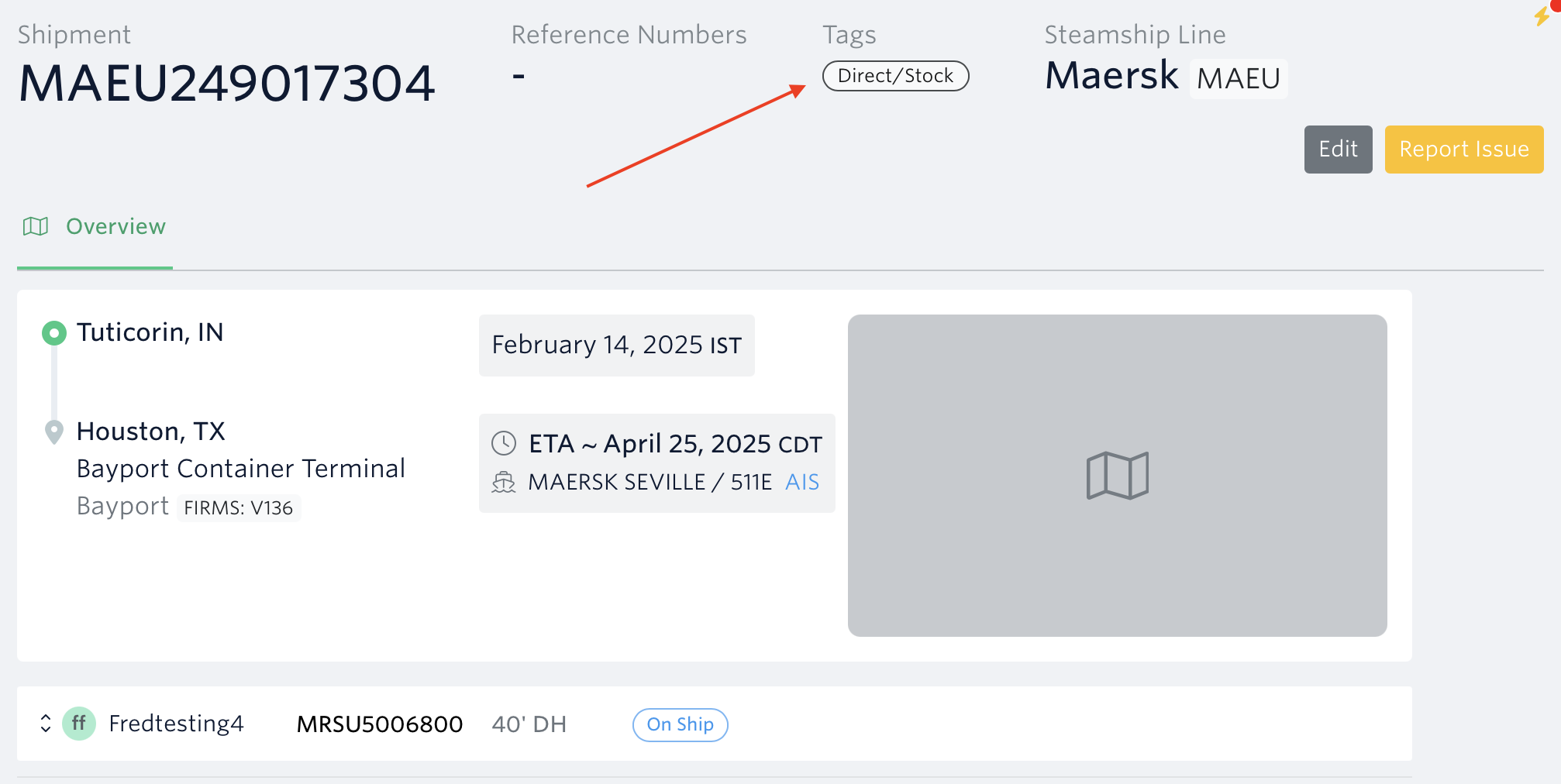
Confirm the tag was successfully added to the shipment.
Adding Tags for Existing Shipments
On the shipment page, click the 'Add tags' button.
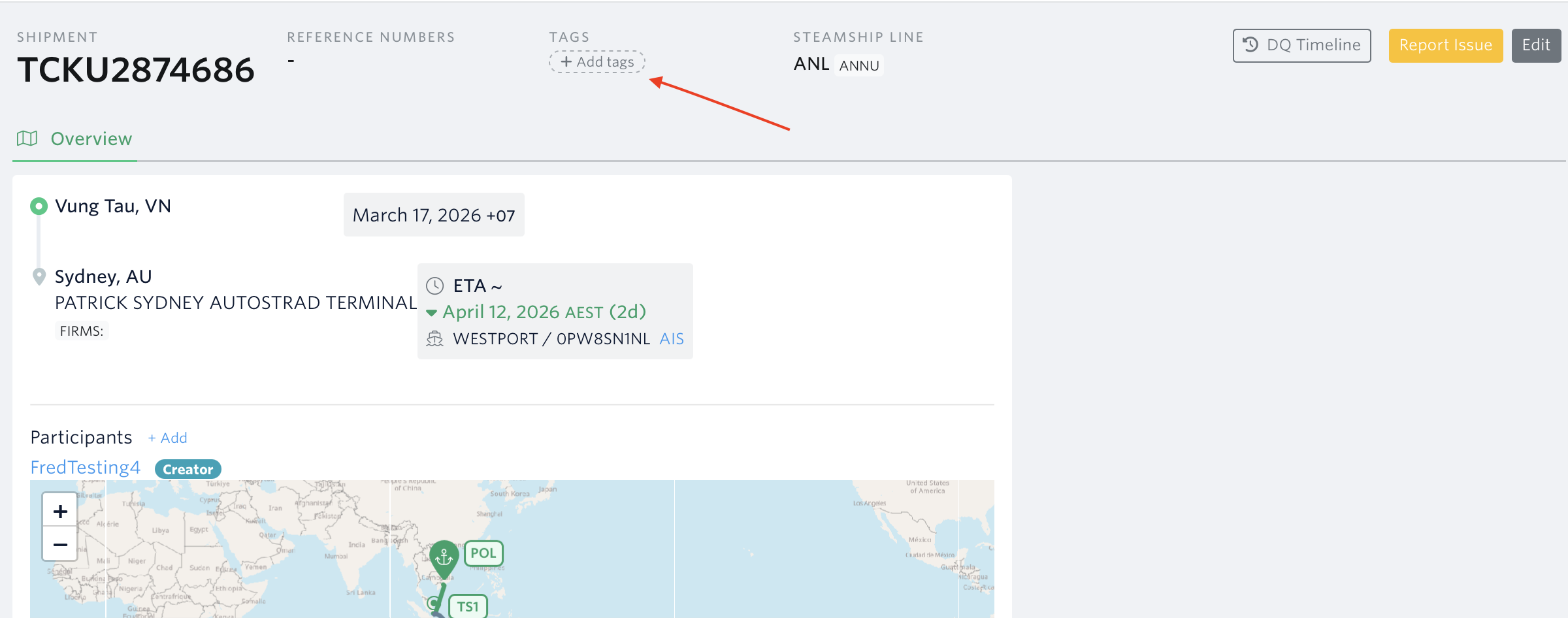
Add the tag and hit enter.
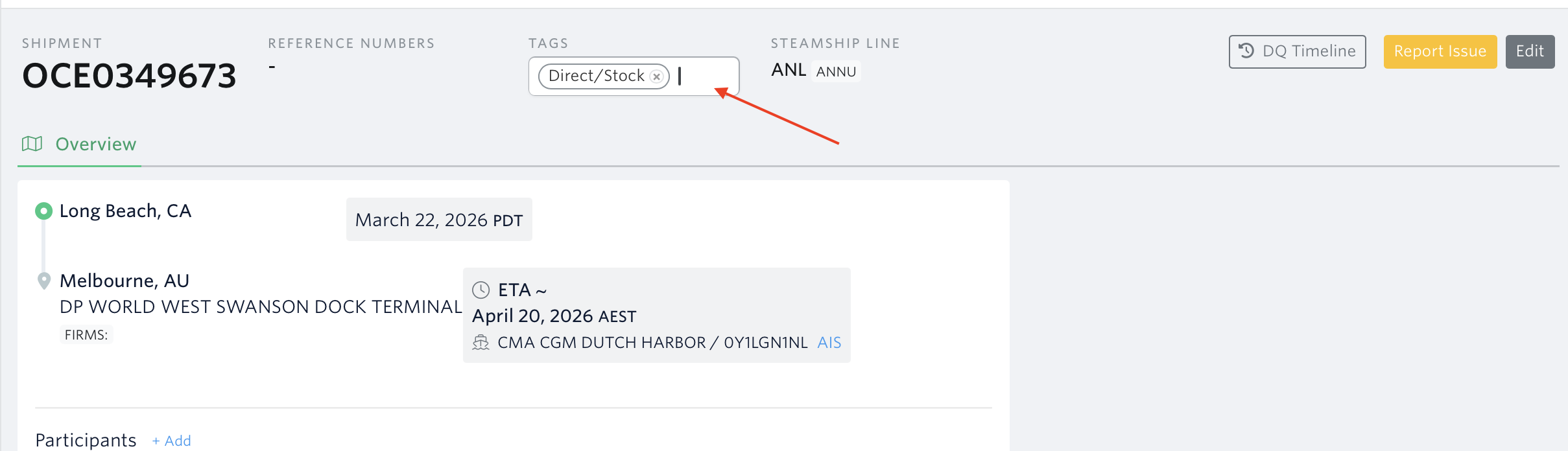
Tag added:
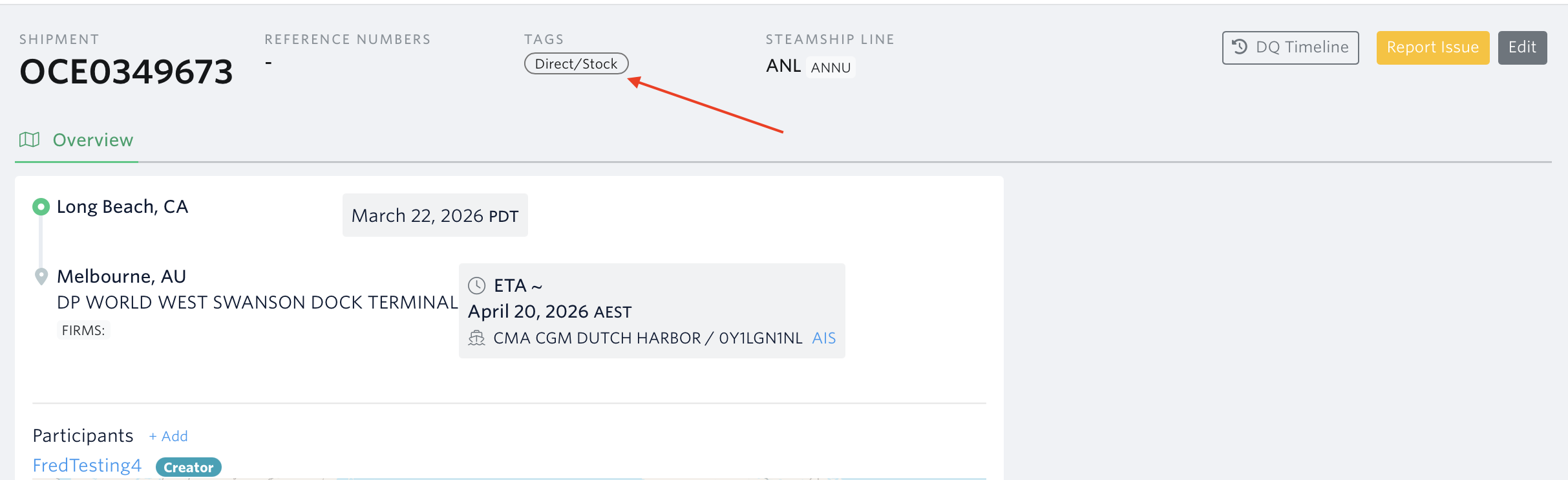
Editing Tags On Exiting Shipments
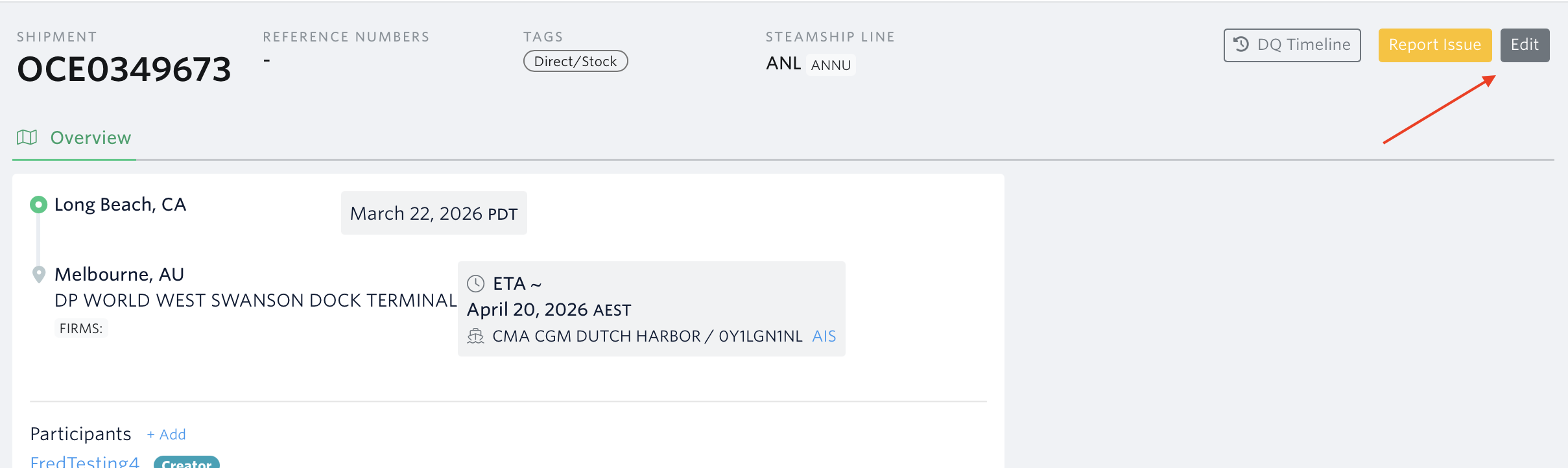
Click the edit button at the top right corner of the shipment's page
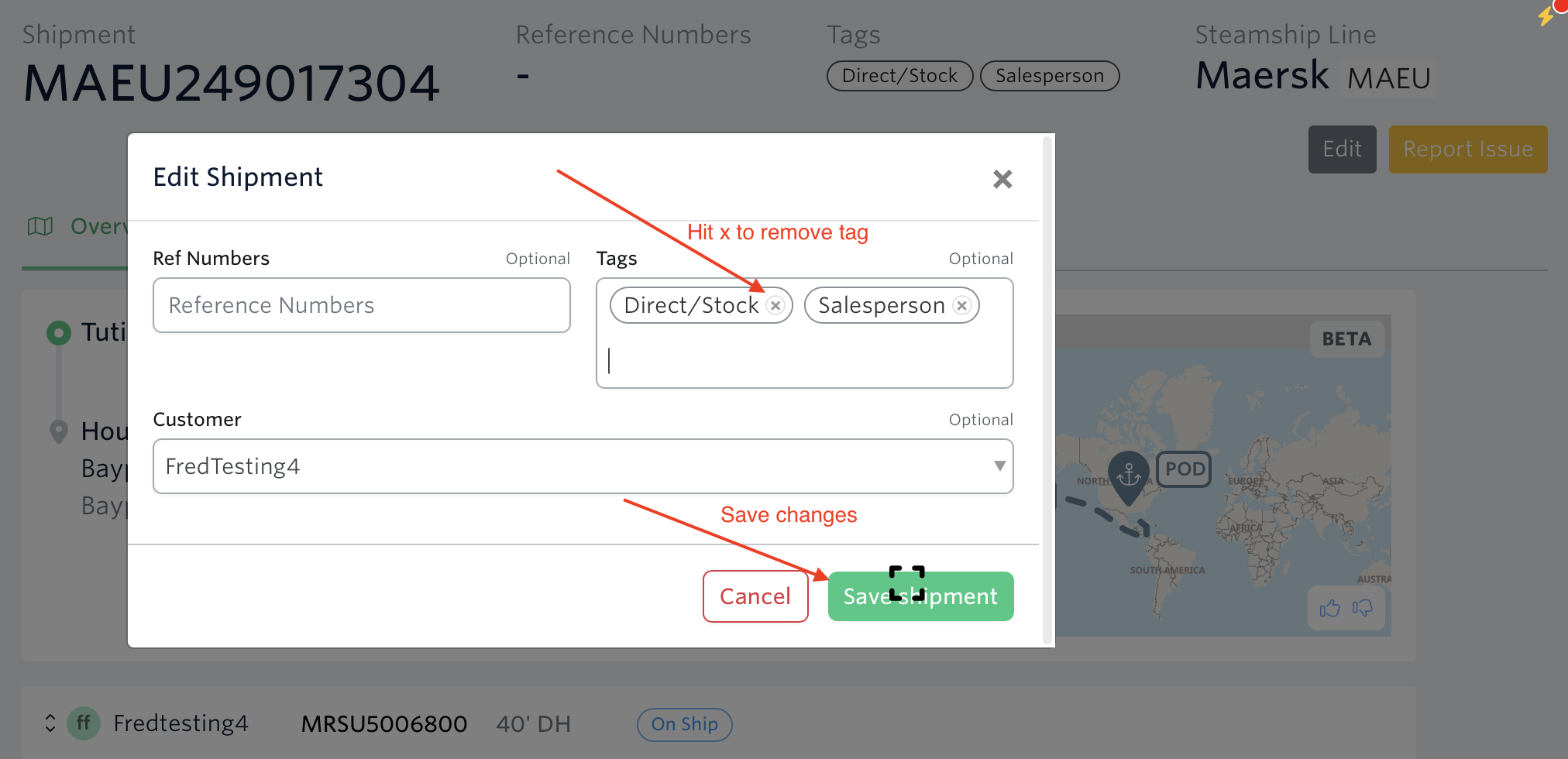
Click the ‘X’ button to remove the tag, enter a new tag name, then click Save.
Frequently Asked Questions
Can I add more than one tag to a shipment?
Yes. Multiple tags can be added to a single shipment, either during upload or by editing the shipment afterwards.
Can I apply tags to individual containers within a shipment?
No. Tags are applied at the shipment level, not to individual containers. To add identifiers to specific containers, use reference numbers instead.
How do I find all shipments with a specific tag?
Go to the shipments page and type the tag name in the tag filter tab to view all matching shipments.
See next article: Labeling Customers on Shipments
If you need help with adding/editing shipment tags or have any other questions, the fastest way to get assistance is through our in-app chat. You can also reach us at support@terminal49.com.