Tracking Freshness Trust Indicator and Manual Refresh
Last updated: April 14, 2026
The Tracking Freshness Trust Indicator, paired with the new Manual Refresh option, helps you assess how recent your tracking data is and gives you greater control over your container tracking data.
This feature provides clear, visual insight into data freshness, allowing you to quickly identify containers that may need to be refreshed. If tracking data appears outdated, you can initiate a manual refresh to retrieve the latest information directly from the data source.
What Is the Tracking Freshness Trust Indicator?
The Tracking Freshness Trust Indicator shows how recently a container's tracking data was updated. It uses a combination of a color-coded icon and time text (for example, "Last update: 17 min ago") to indicate freshness and guide your next steps.
Trust Status Levels
🟢 Current (Green) – Updated within the last 4 hours
🟡 Slightly Outdated (Yellow) – Updated between 4 and 12 hours ago
🔴 Stale (Red) – Last update was more than 12 hours ago
No Indicator – The container is no longer being tracked.
Manual Refresh
If you see a container with a yellow or red status, you now have the option to manually refresh its tracking data. This triggers a real-time update request and is especially useful for time-sensitive shipments or when automated updates haven't yet caught up. You may also notice data discrepancies (such as different Estimated Times of Arrival (ETAs) for containers on the same vessel) when viewing information between refresh cycles—using manual refresh can help resolve these inconsistencies by pulling the latest data.
This feature gives you greater control and visibility, helping you maintain trust in the data you rely on for planning and operations.
Where You'll See Tracking Freshness and Manual Refresh
These features are available in several parts of the Terminal49 platform to give you visibility and control wherever you interact with container data.
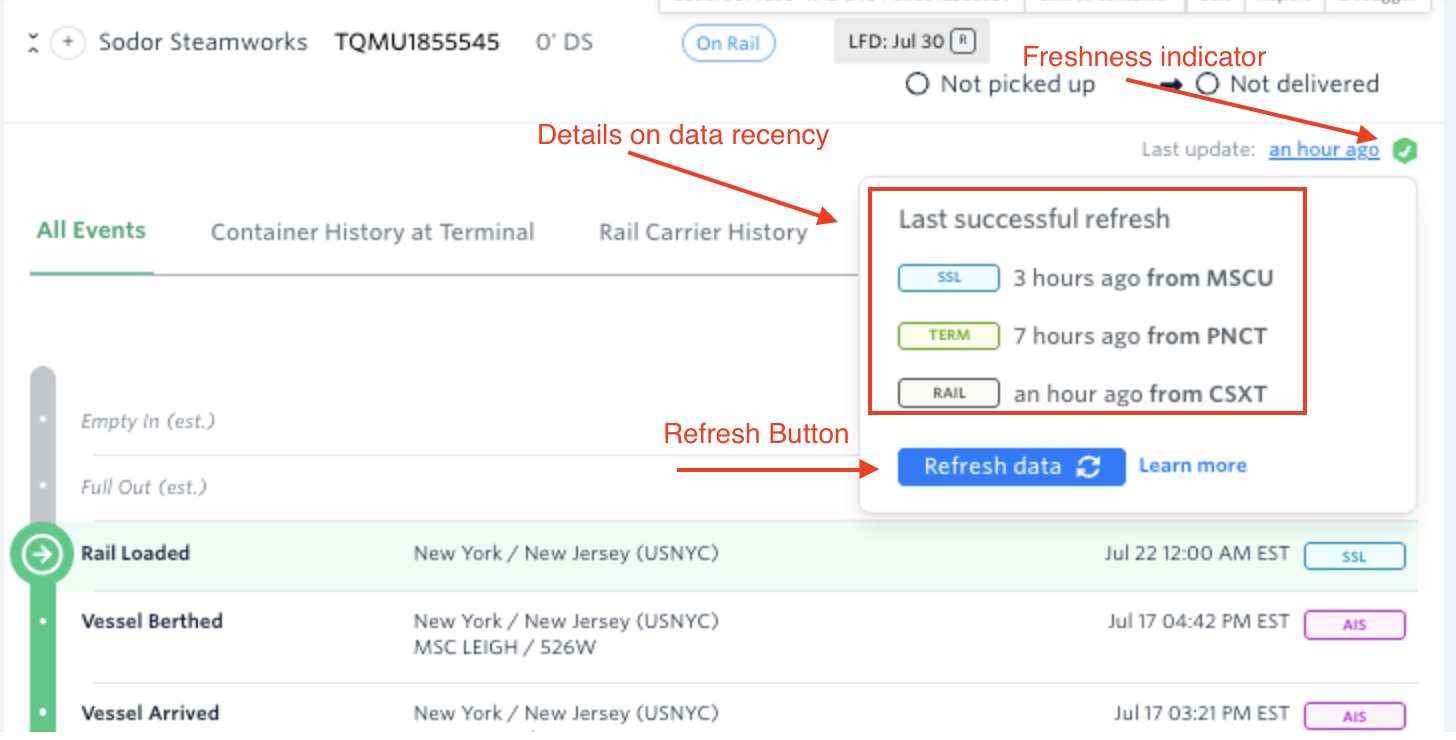
1. Shipment Detail Page
Each container row includes a Tracking Freshness indicator, showing when the data was last updated.
If the container is eligible, a "Refresh data" button appears for manual updates. Hover over the indicator icon to view details on data recency and trigger a refresh.
2. Container Dashboard
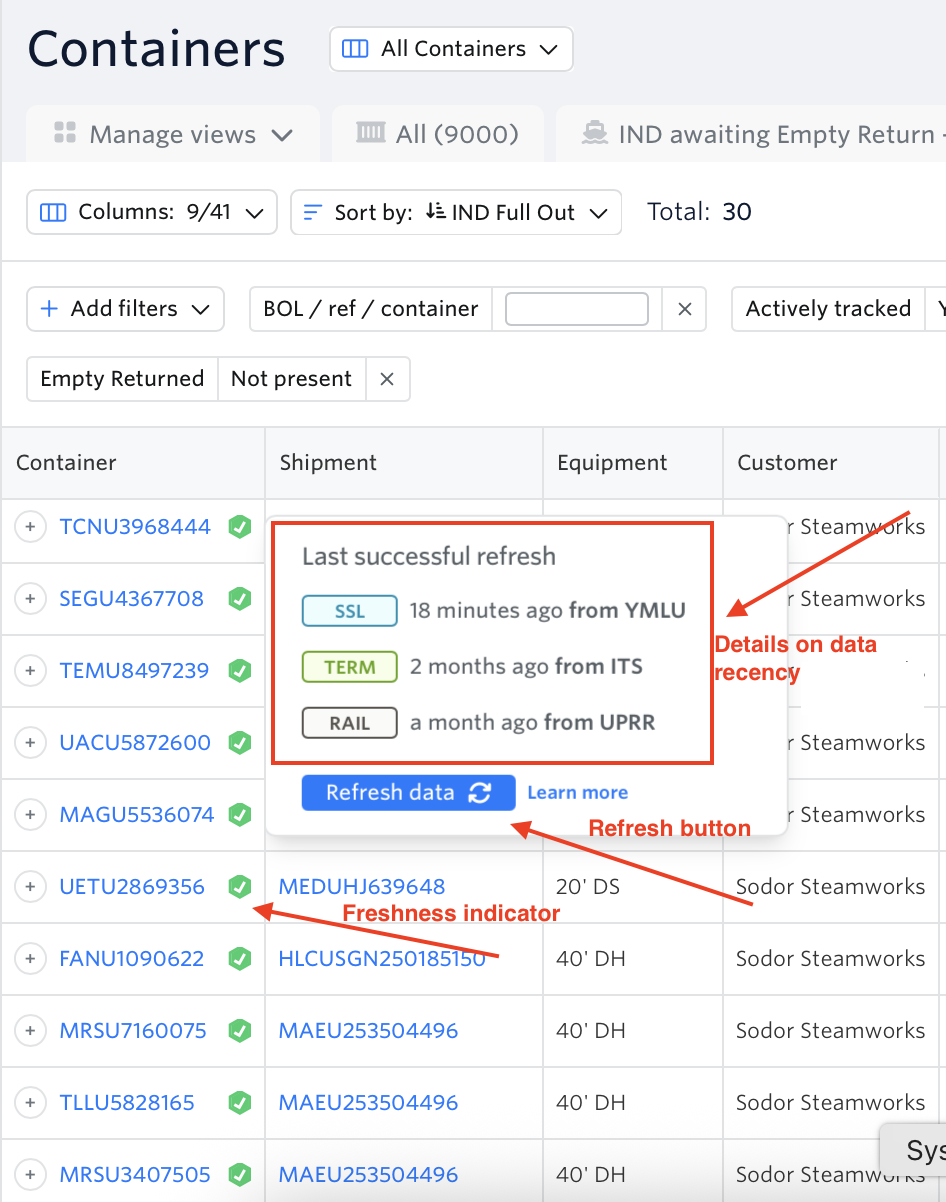
The Tracking Freshness indicator appears in the container column, to the right of the container number.
Hover over the freshness indicator icon to view details on data recency and trigger a refresh.
3. Shipment Dashboard — 'Arrived' tab
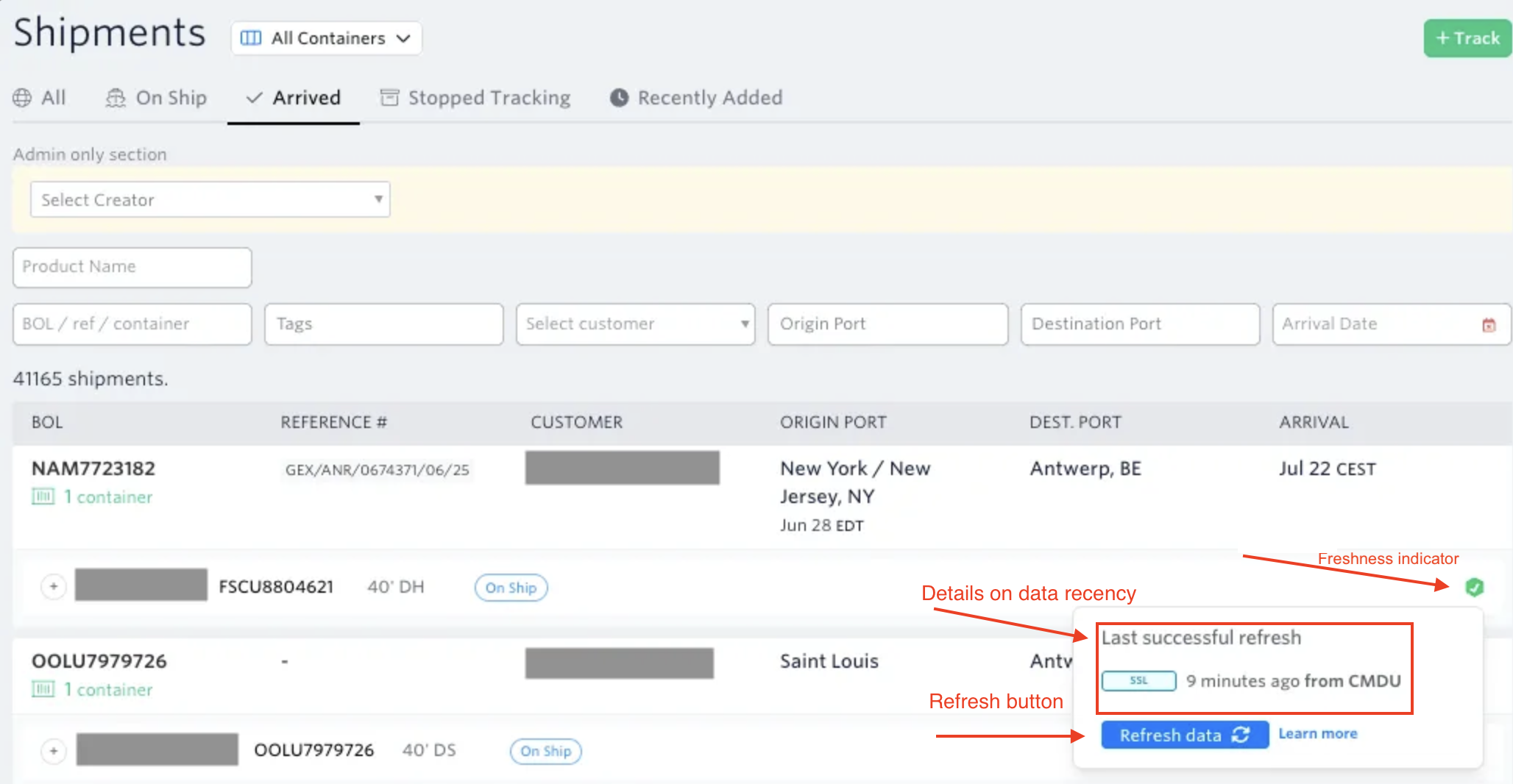
Freshness indicators are shown for each container listed.
Hover over the freshness indicator icon to view details on data recency and trigger a refresh.
Refreshing Container Tracking Data
Manual refresh is available only if the container's tracking data was last updated more than 5 minutes ago. To manually refresh a container's tracking data, follow these steps:
Locate the container you want to refresh in the Shipment Detail Page, Container Dashboard, or Shipment Dashboard ('Arrived' tab).
Check the Tracking Freshness indicator — look for a yellow (🟡) or red (🔴) status icon next to the container.
Hover over the freshness indicator icon to open the details popup.
Click the "Refresh data" button to trigger an immediate update from the relevant data sources.
Notes:
Intermodal Rail data is an add-on feature. To enable it in your account, contact sales@terminal49.com.
Available only in Terminal49 dashboards. This feature will be exposed via API in a forthcoming release.
Interested in API support? Submit a feature request here.
Frequently Asked Questions (FAQ)
Why is my container's tracking data showing as stale (red)?
A red indicator means the container's tracking data has not been updated for more than 12 hours. This can happen when automated updates haven't yet caught up. You can use the Manual Refresh feature to trigger an immediate update and retrieve the latest data.
How do I manually refresh tracking data for a container?
Hover over the Tracking Freshness indicator icon next to your container and click the "Refresh data" button. Manual refresh is available only if the container's data was last updated more than 5 minutes ago.
Why are the ETAs different for containers on the same vessel?
You may see different Estimated Times of Arrival (ETAs) between containers on the same vessel when viewing data between refresh cycles. Using Manual Refresh on those containers can help resolve the discrepancy by pulling the latest data directly from the source.
Can I use Manual Refresh via the API?
Manual Refresh is currently available only in Terminal49 dashboards. API support is planned for a forthcoming release. You can submit a feature request to express your interest.
See next article: How Terminal49 Calculates Last Free Day (LFD) for Norfolk, Virginia
If you have questions or feedback, feel free to reach out to our support team via in-app chat or support@terminal49.com. We're here to help.