How to View and Download Your Invoices
Last updated: September 4, 2026
You can access all your Terminal49 invoices directly through the self-service billing portal—no need to contact support. Invoices are available as soon as they're generated and can be downloaded as PDFs for your records.
Accessing the Billing Portal
To view your invoices:
Go to Settings in your Terminal49 account, then click the Billing tab—or navigate directly to app.terminal49.com/settings/billing
Click Open Stripe Billing Portal
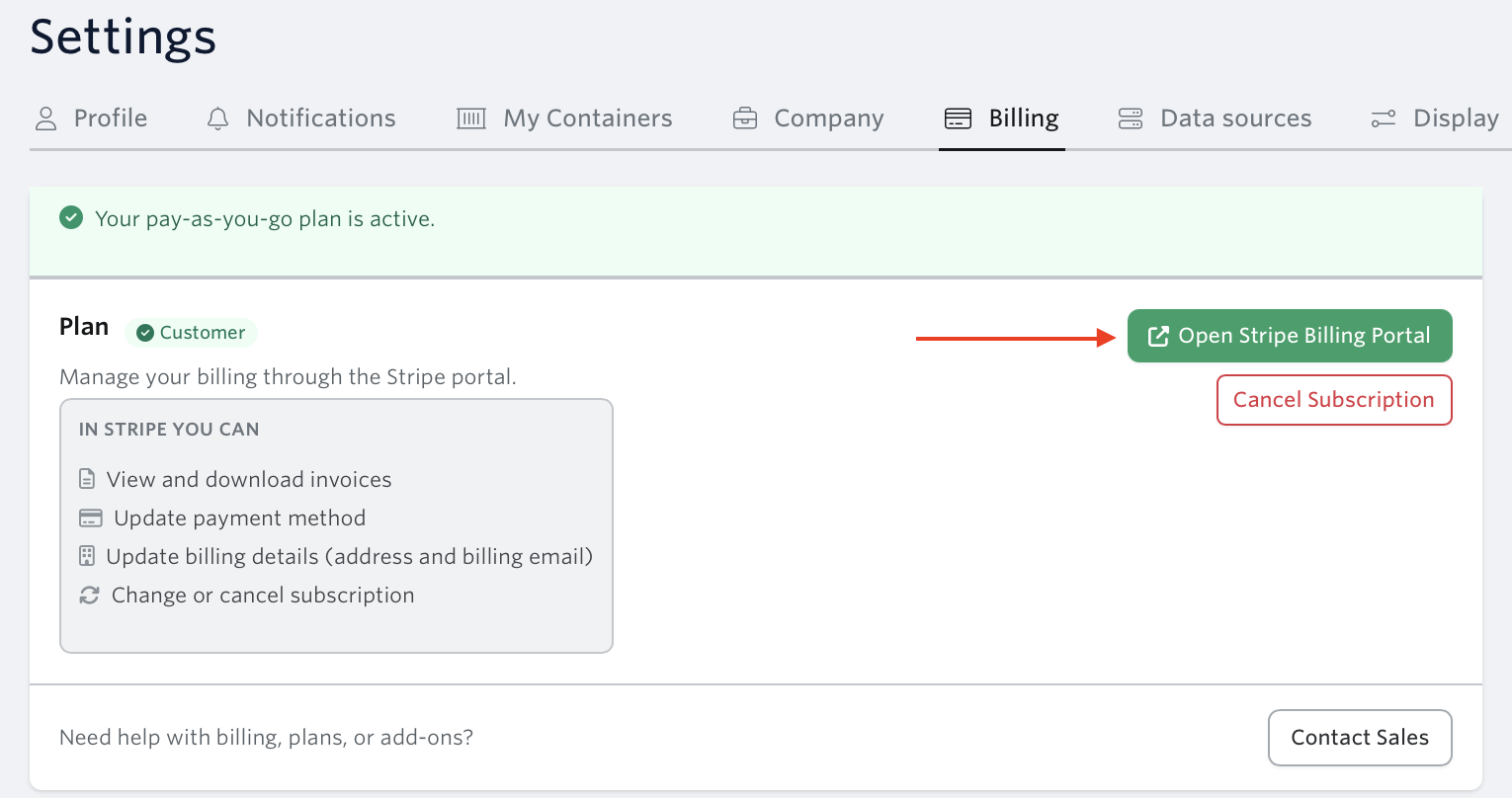
You'll be securely redirected to the Terminal49 billing portal, powered by Stripe
Finding and Downloading Invoices
Once inside the billing portal, scroll to the Invoice History section. From there you can:
View all past invoices with their date, amount, and status
Click any invoice to open the full details
Download a PDF copy for your finance team or records
Invoice Statuses
Invoices in the portal will show one of the following statuses:
Paid — payment was successfully collected
Amount due — the invoice has been issued but payment has not yet been collected
Past due — shown when an open invoice is overdue
If you see an Amount due or Unpaid status, see How to Pay an Outstanding Invoice for next steps.
Need Help?
Should you have any questions or need assistance regarding your invoices, please reach out to our support team via support@terminal49.com or our web chat