Sharing shipments with customers
Last updated: October 30, 2026
Early Access Feature. Not available on all accounts.
Give your customers a live view of their shipments and containers in Terminal49. Invite your customers, and they can follow tracking updates in their own account.
How customer sharing works
Sharing follows the customer party. Contacts get access to shipments assigned to that party in the Customer role, including the containers on those shipments. New shipments assigned to that customer appear automatically while sharing is active.
Access is view-only. Customers can see tracking status, arrival dates, container locations, and shipment details.
Your internal information stays private. Your tags, notes, and custom fields are not shared.
Before you start
Create the customer in Network and assign it to the relevant shipments in the Customer role. Creating a party in Network alone does not assign it to a shipment.
Need help setting up your directory? See Creating Your Party Directory.
Invite a customer
Open Network and find the customer party.
Click Share in the party's Sharing column.
Check the customer name and shipment count at the top of the dialog. Everyone listed will receive view-only access to those shipments.
Enter the contact's Email and, optionally, their Name. Click Add. Repeat for each contact who needs access.
Review Who has access, then click Share to send the invitations.
Sharing applies to the customer's shipments, even when you start from a single container row. Review the shipment count before sending.
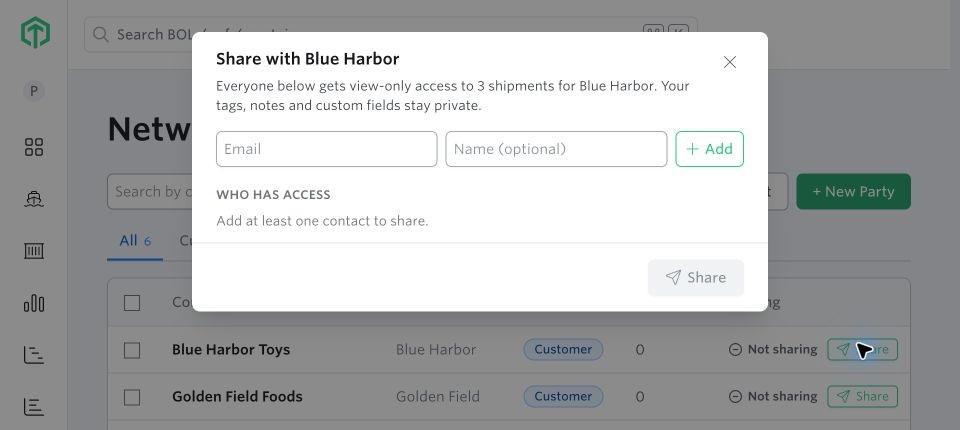
The sharing dialog shows the customer, shipment count, and the information that stays private.
Share while working in Shipments or Containers
You can also start sharing from the customer's Share button in Shipments or Containers. In the container table, look for it beside the party in the Customer column. It opens the same sharing dialog.
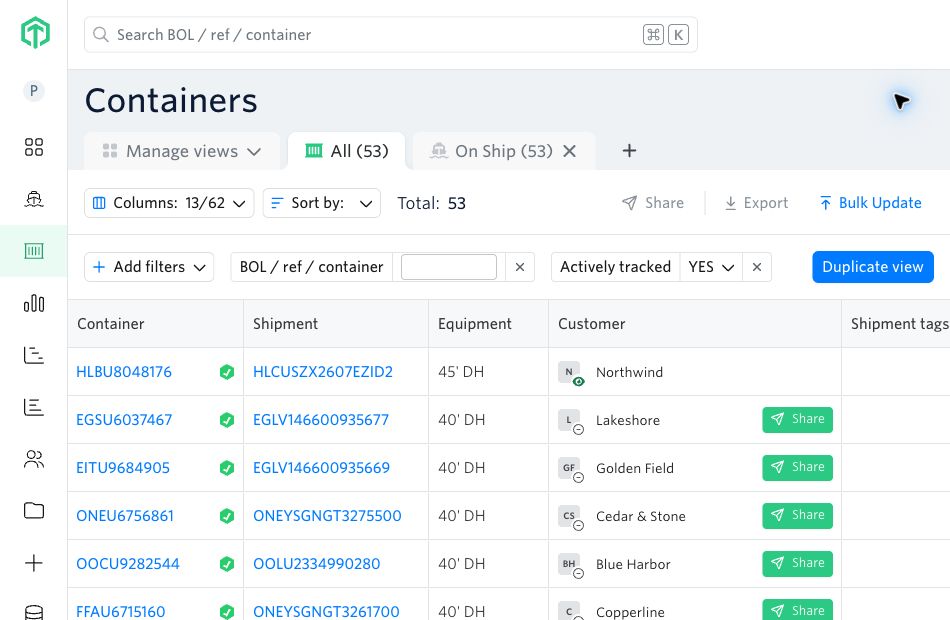
Use the Share button beside a customer to invite contacts without leaving the container table.
What your customer sees
The contact receives an invitation email identifying your company and the customer whose shipments you are sharing.
They click Accept invite and sign in or create their Terminal49 account using the email address that received the invitation.
Terminal49 opens the shared containers. They can open a shipment to see its tracking details and identify the company sharing it with them.
To fi nd shared containers later, open Containers, click Add filters, choose Owned or shared, and select Shared with me.
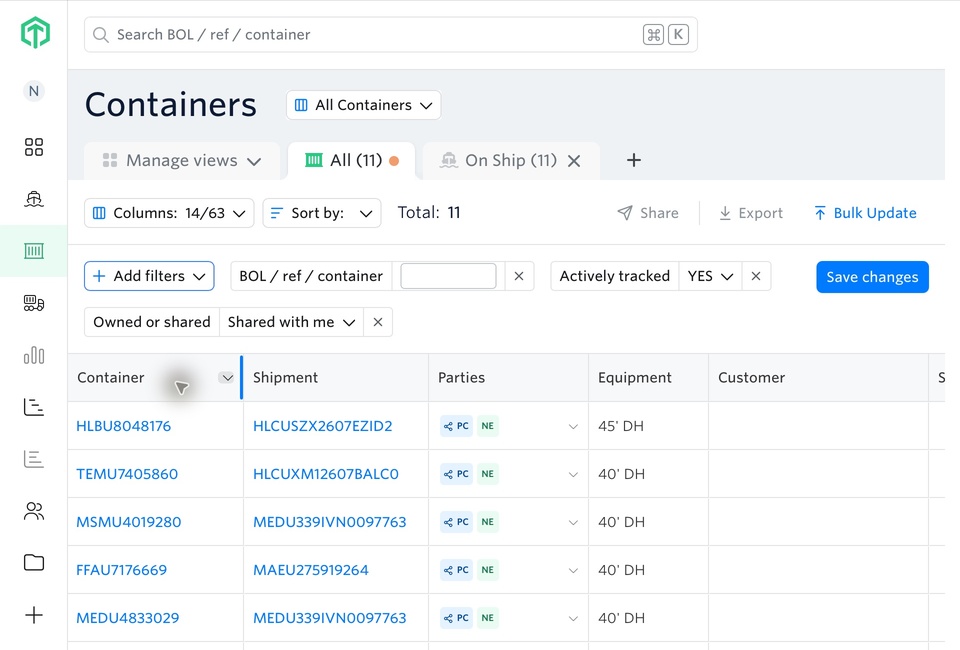
The customer's container view shows the shared shipments. The Parties column identifies the company sharing them.
Manage sharing in Network
Open Network to review customer access in one place. The Sharing column shows whether a party is Not sharing or has Sharing active.
Click the customer name or Sharing active to open the party panel.
Review the Contacts list and invitation status. Accepted means the contact has accepted the invitation.
Use + Add contact to add a contact to the party. Enter their email and optional contact details, then click Save.
Use the pencil icon beside a contact to edit their details, then click Save.
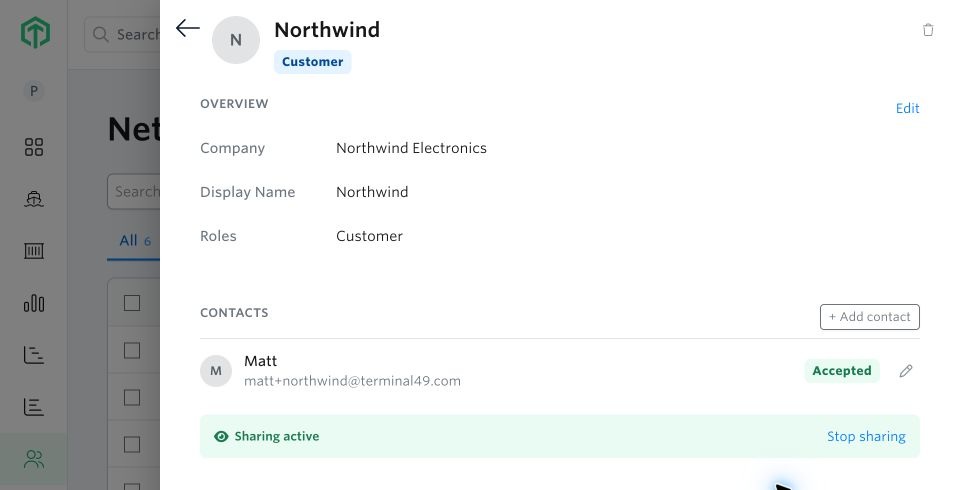
The party panel brings together contact details, invitation status, and the Stop sharing control.
Stop sharing with a customer
Open Network and select the customer party.
In the party panel, click Stop sharing beside Sharing active.
Review the confirmation. It identifies the customer and the number of contacts who will lose access.
Click the red Stop sharing button to confirm.
The customer's contacts lose access to the shipments you share with them immediately. You can invite them again later if you need to resume sharing.
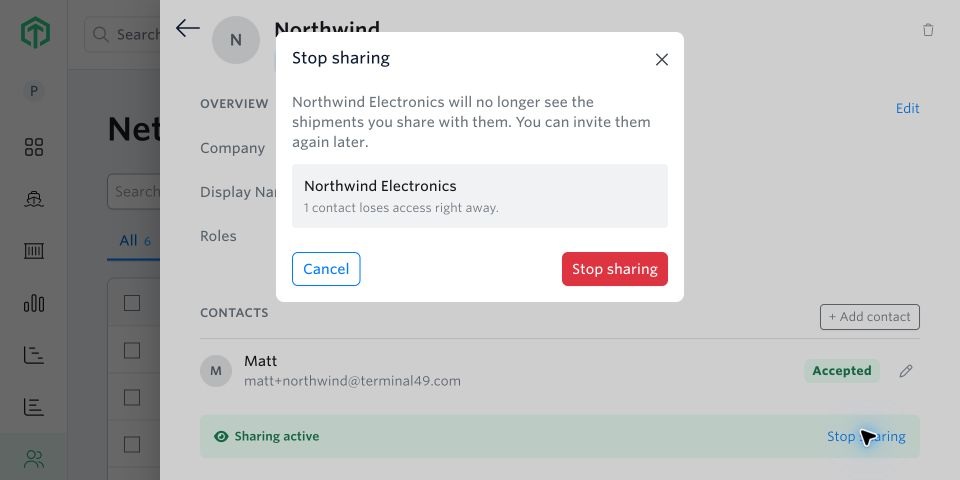
The confirmation shows who will lose access before you stop sharing.
Common questions
Do I need to share each new shipment separately?
No. New shipments assigned to the same customer party appear automatically while sharing is active.
Can customers edit my shipment data?
No. Customer sharing provides view-only access. Your tags, notes, and custom fields stay private.
Why is a shipment missing from the customer's view?
Check that the correct party is assigned in the Customer role, sharing is active in Network, and the contact has accepted the invitation using the invited email address. The customer can use the Shared with me filter to locate shared containers.