Viewing and filtering parties in dashboards
Last updated: August 1, 2026
You can view associated parties to your shipments and use them as filters both in the shipments dashboard and the container dashboard.
Viewing Parties in the container dashboard
Go to the containers dashboard
Click the 'columns' tab
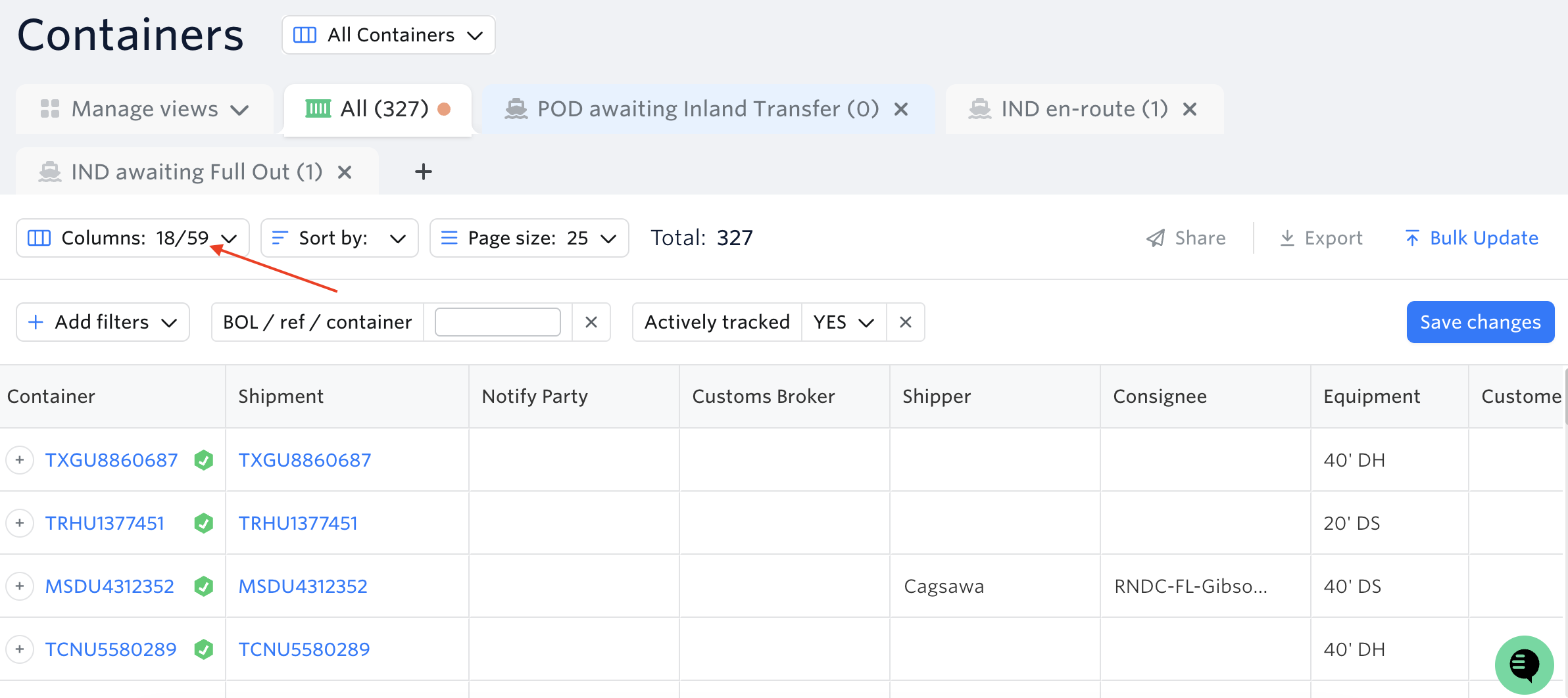
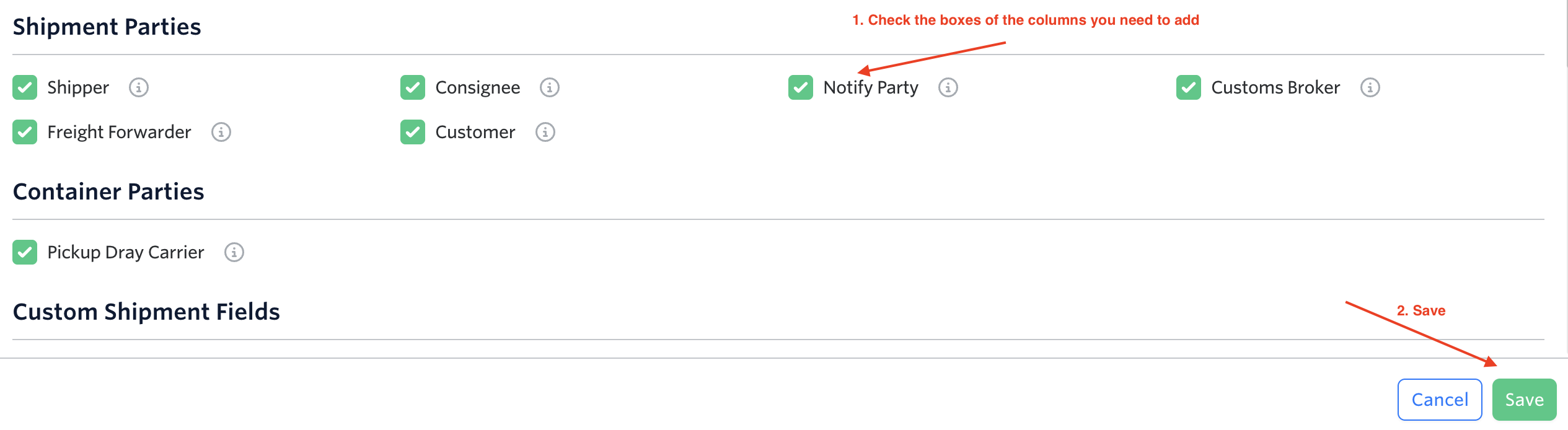
Check the boxes of all the parties columns you wish to add and hit save.
They will now appear on the container view that you're editing and can be used as a filter.
Click the 'Add filters' button and select the party column you want to use.
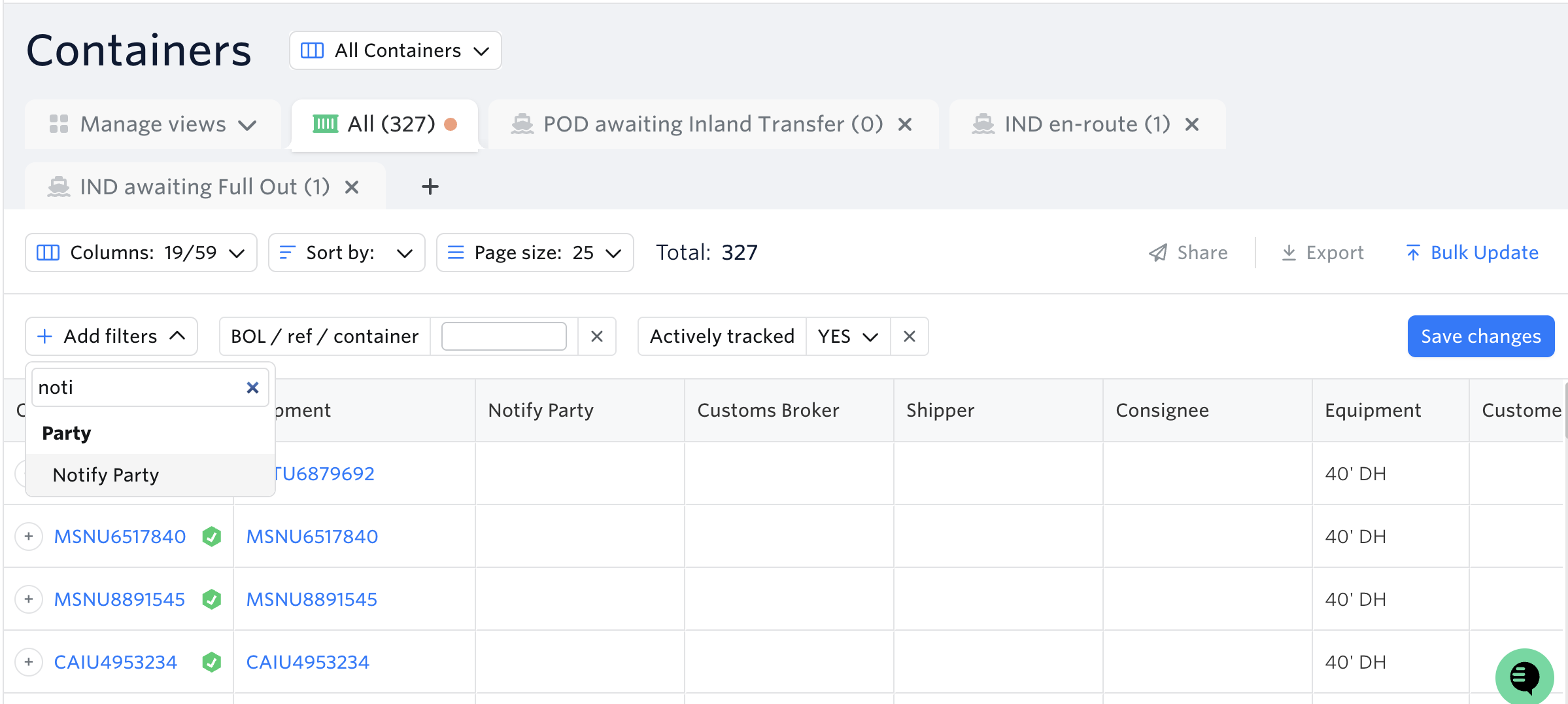
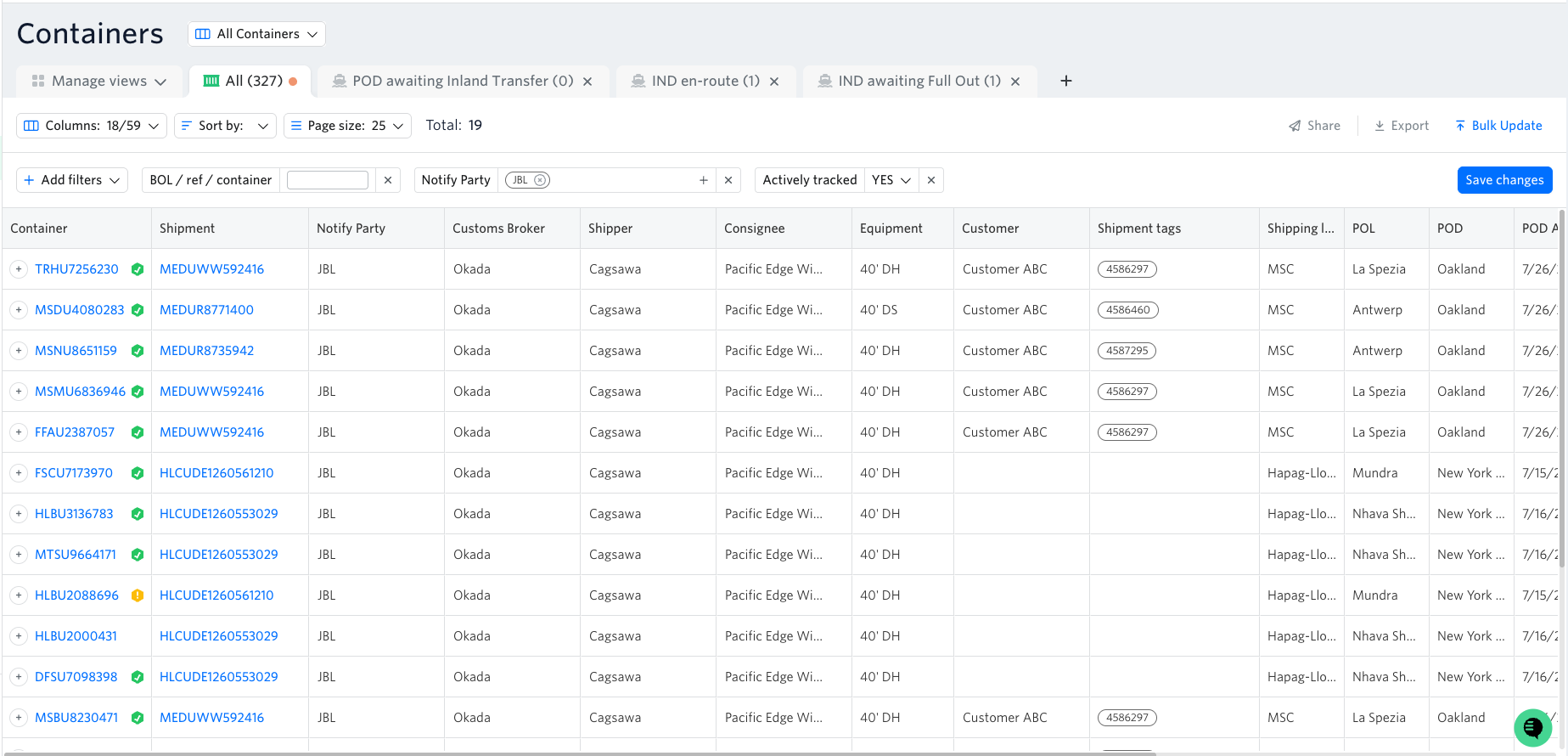
Enter the party you want to use as a filter.
The container view will now only show shipments associated with that party.
Viewing Parties in the Shipments Dashboard
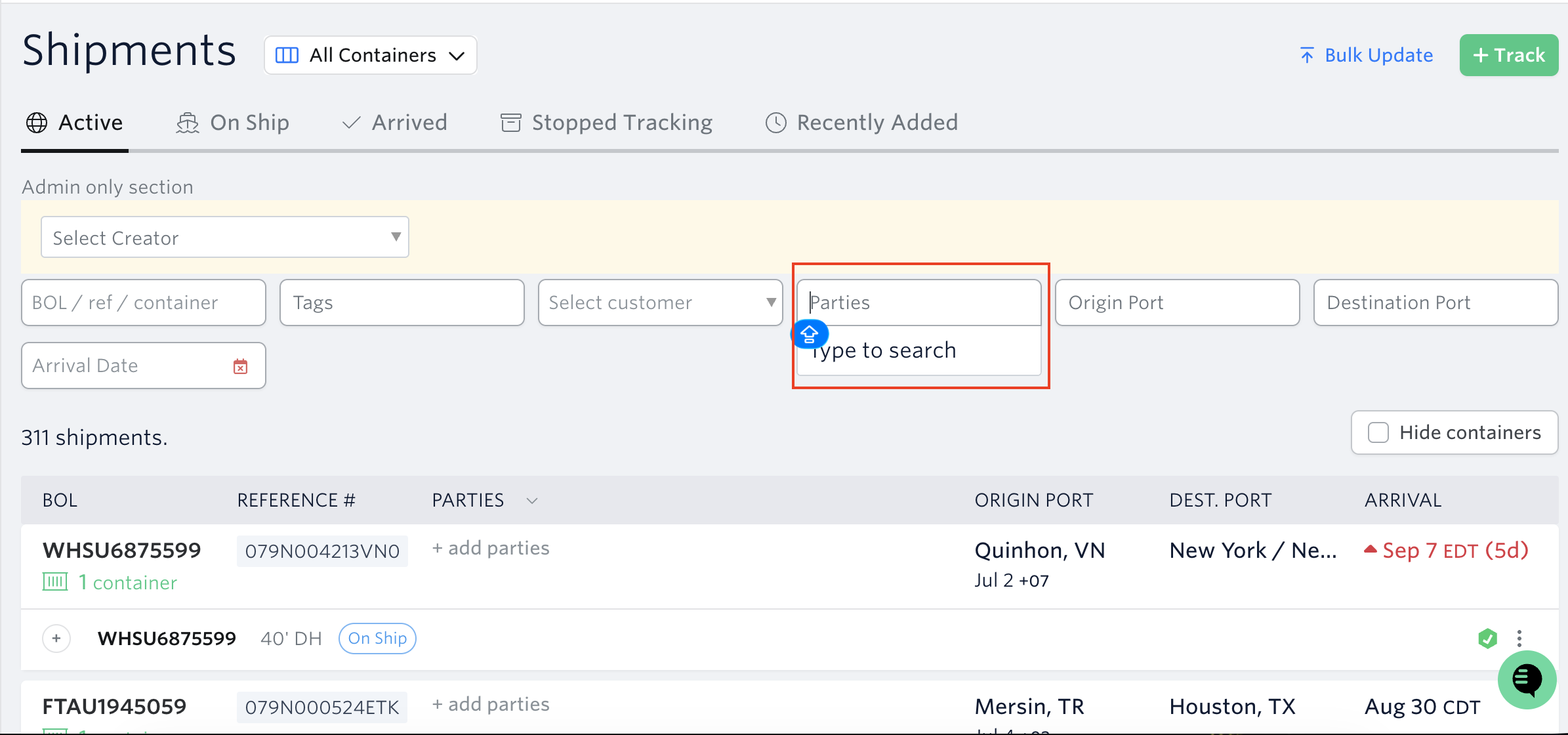
Type to search the party on the 'Parties' field in the shipments dashboard
Hit Enter.
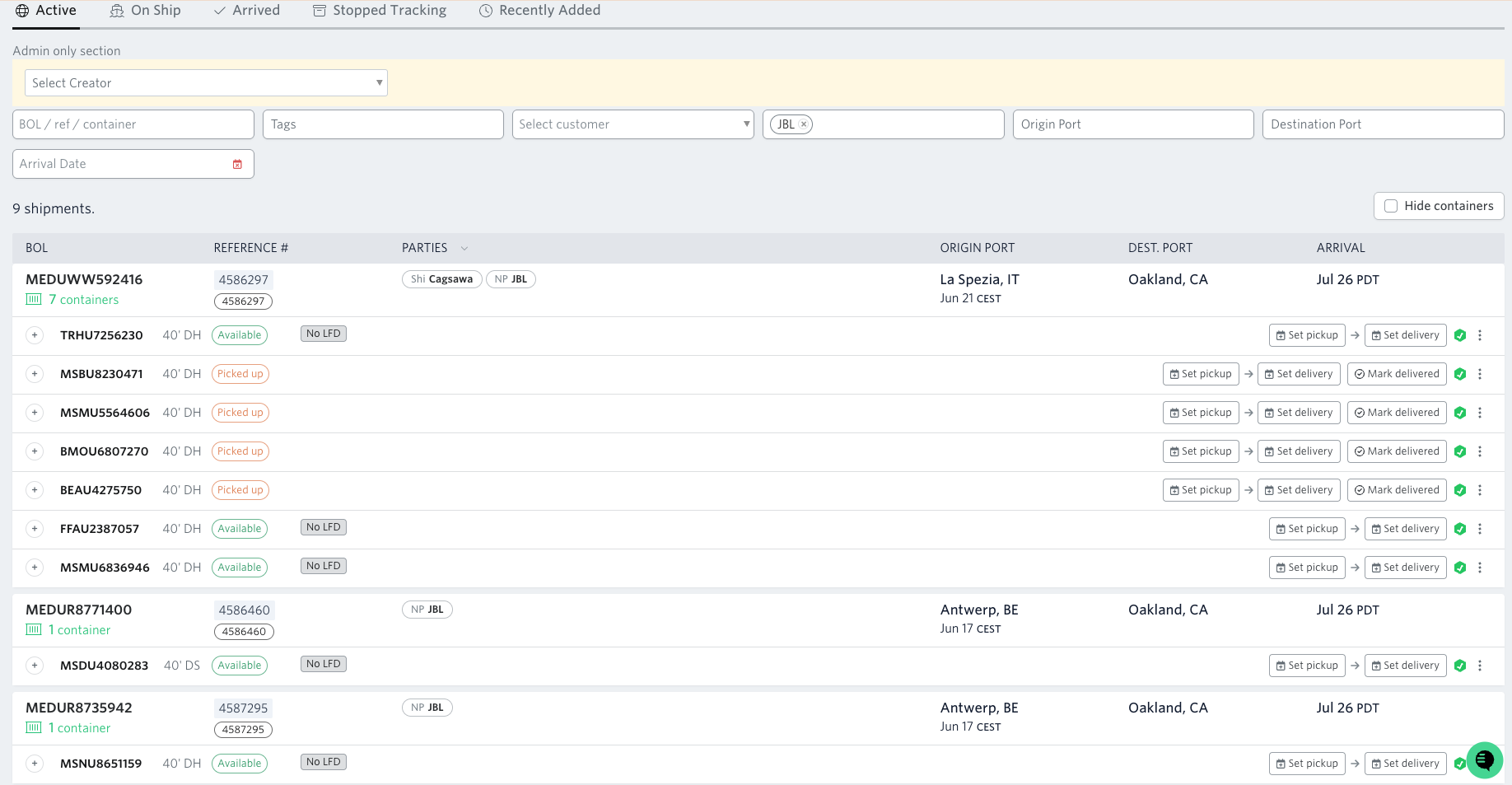
The shipment's dashboard will only show all the shipments that have the party that you've entered.
Video walkthrough:
Should you have any questions or need assistance in viewing or filtering your views using parties, please reach out to our support team via support@terminal49.com or our web chat.