Assigning parties to shipments & containers
Last updated: August 1, 2026
You can assign parties to your shipments and containers through different pathways.
Assigning Parties via shipment's page
Open the Shipment detail page In the right sidebar, find the Parties panel
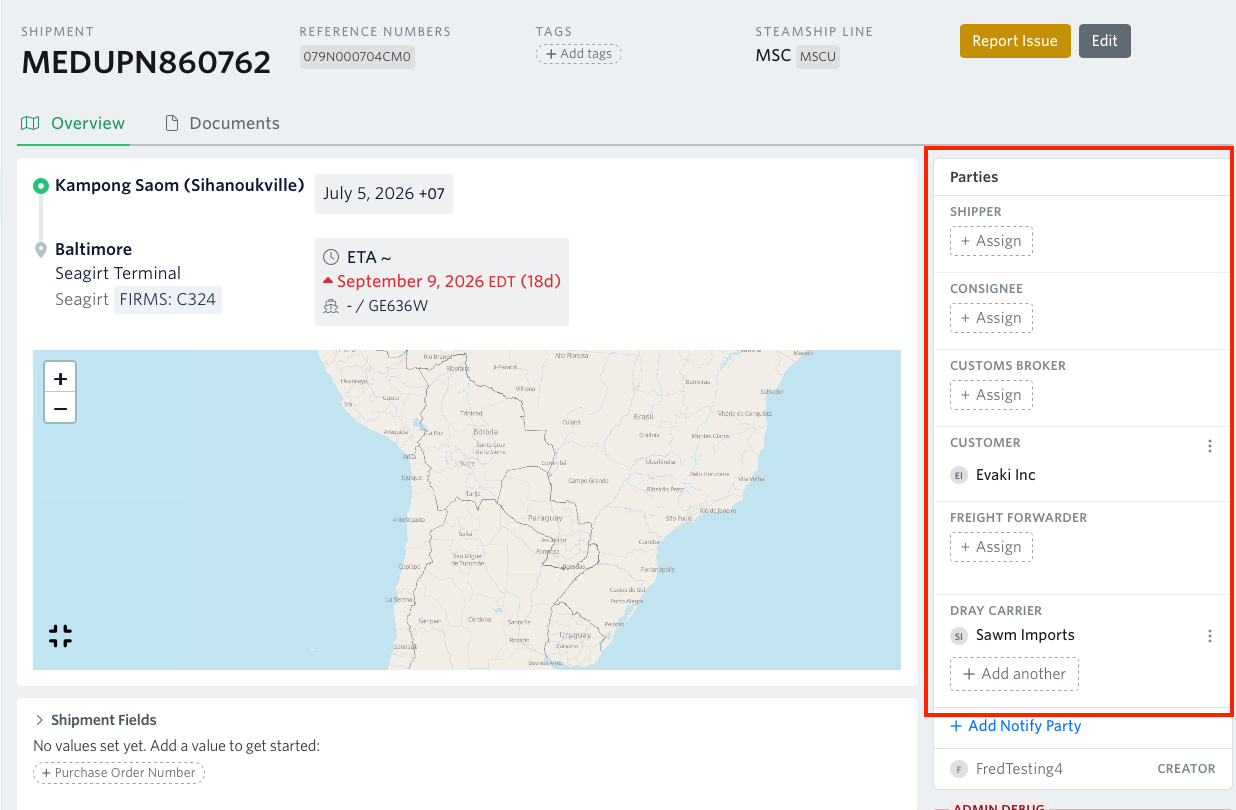
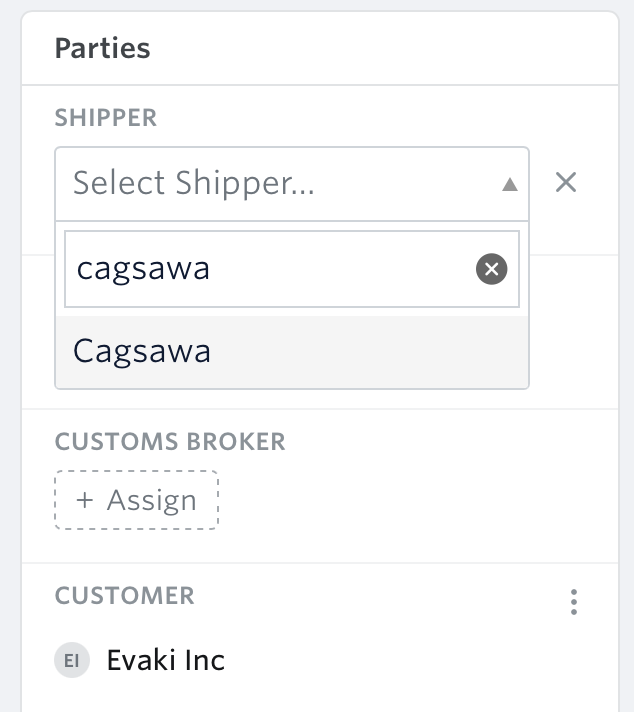
Click + Assign next to the role you want to fill (Shipper, Consignee, etc.) Search for the party by name and select.
Assigning Parties to shipments via Bulk Spreadsheet Upload
From the Bulk Spreadsheet Upload Tab, you can assign parties to shipments by uploading data from file or just manually enter your data.
Video walkthrough on how you can assign parties via bulk upload from file:
Video walkthrough on how you can assign parties via bulk upload by manual enter:
Bulk Updating Custom Fields Using In-App Multi Cell Selection
This option allows you to update multiple selected cells and bulk edit them in one go inside the container views.
Highlight the cells you need to edit
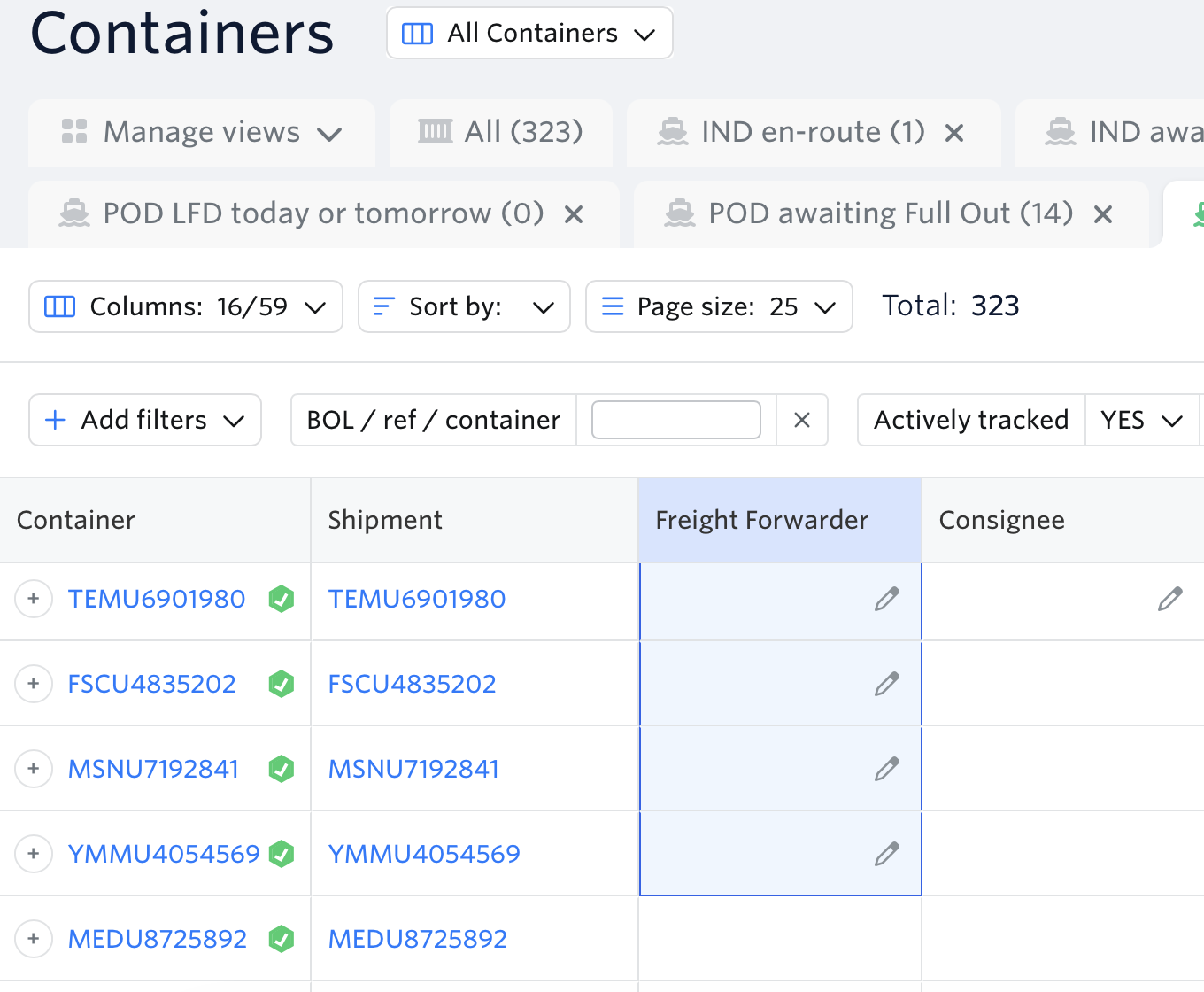
Bulk inline edit — Click the pencil icon and enter or paste or select the party into one cell to apply to all selected rows.
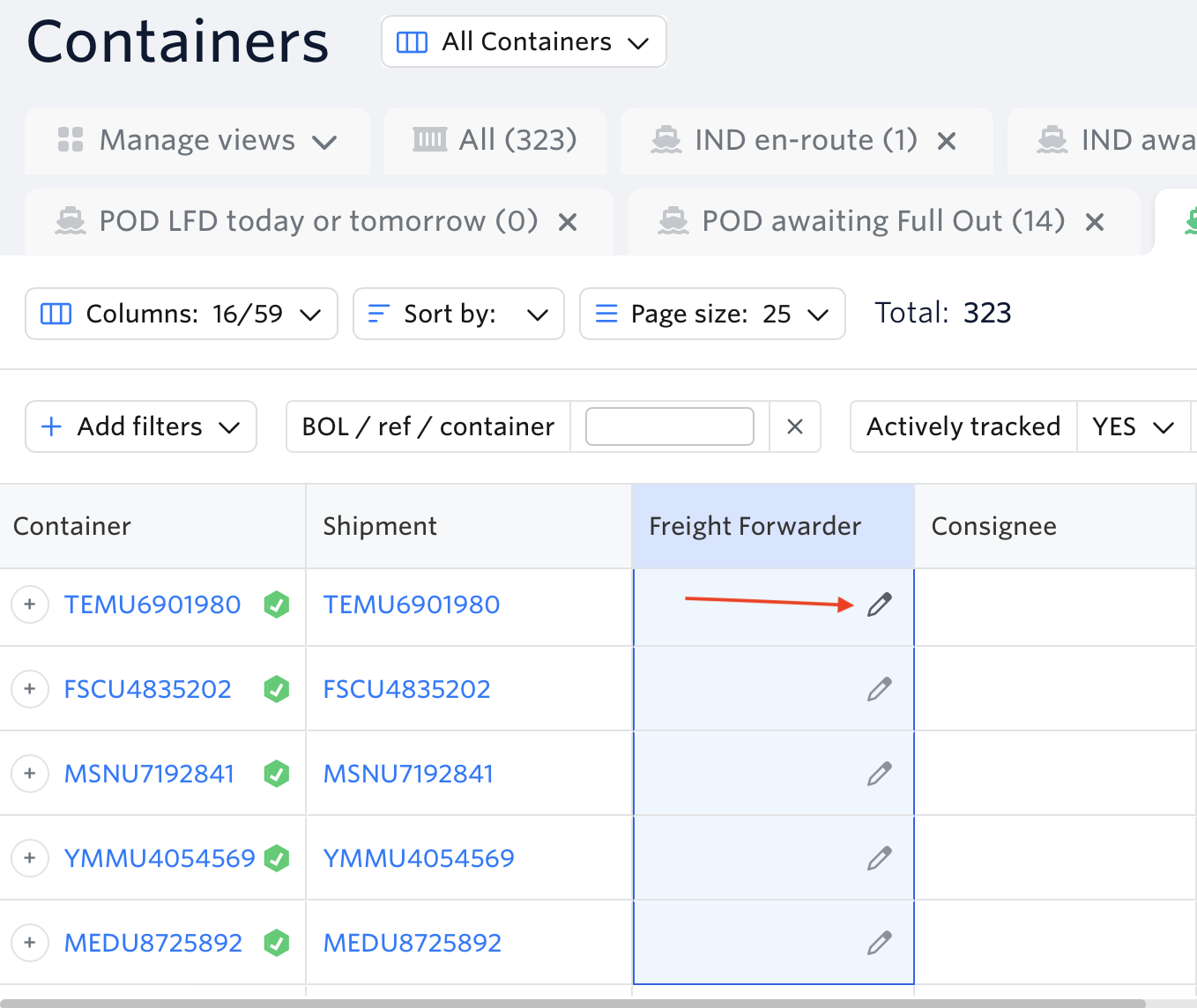
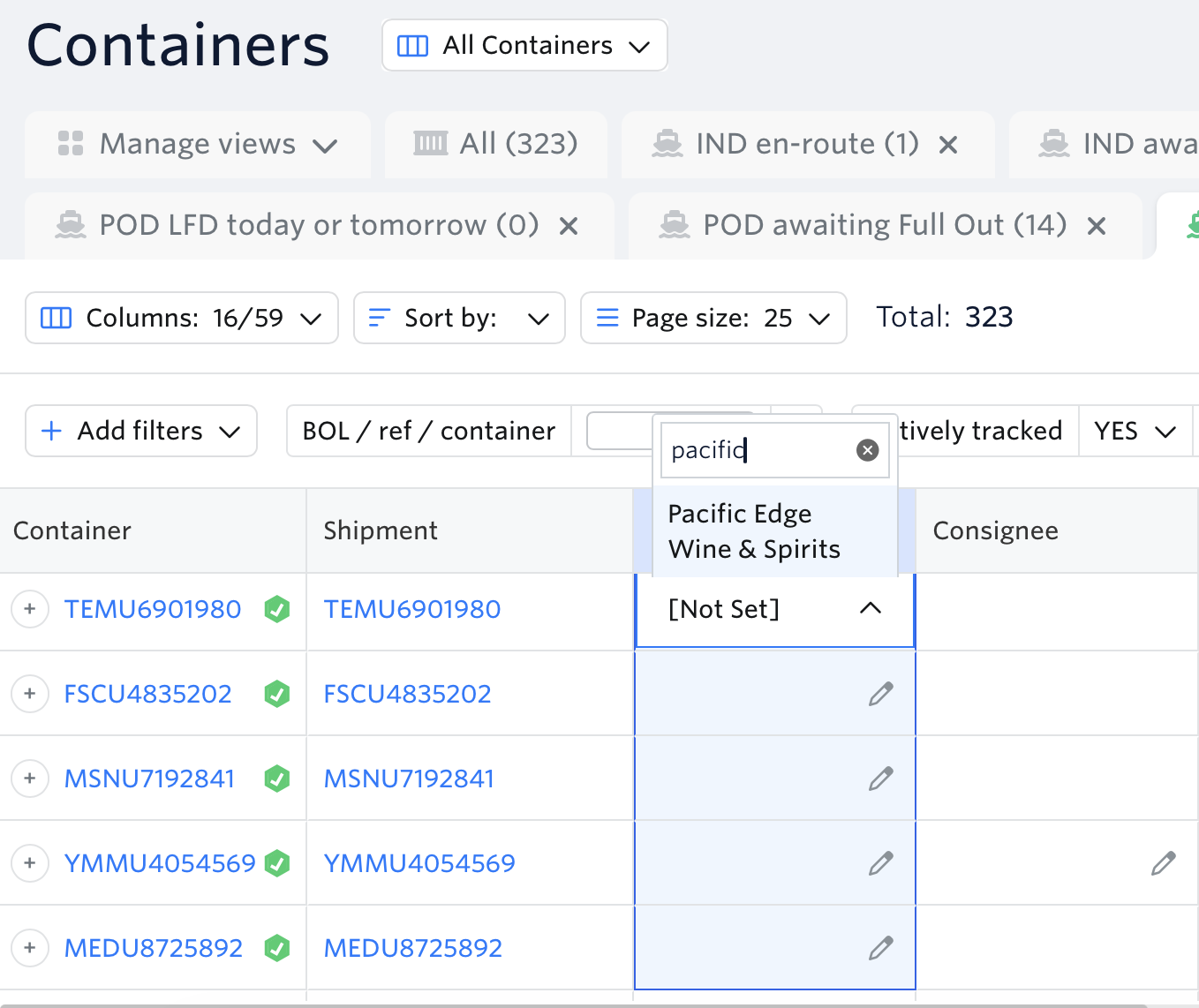
Hit Enter. Once done, all highlighted cells will be updated.
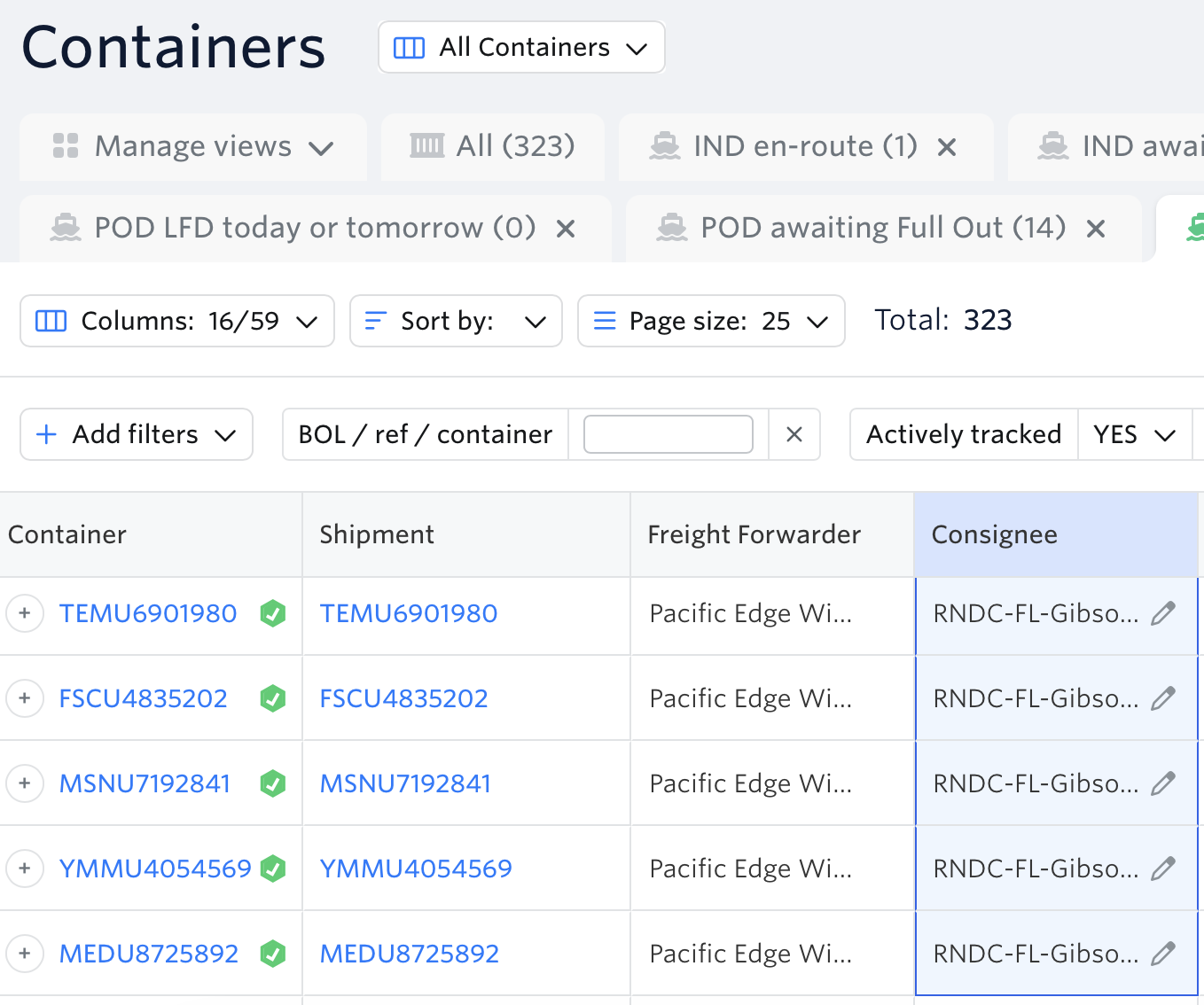
Video walkthrough:
Should you have any questions or need assistance assigning parties to your shipments or containers, please reach out to our support team via support@terminal49.com or our web chat.
Next article: Viewing and filtering parties in dashboards